
Quotes, Invoices and Documents
In Skava, business documents are created right inside the chat of the job site. A list of services becomes a quote, the quote becomes an order confirmation, and that becomes the invoice. Every document is a card in the chat that everyone involved can see, and a PDF when you need one.
The document chain
Skava knows three document types that build on each other. The next step always sits in the menu of the previous document:
- Quote: the price you give the customer. Created from a list of services or directly in the document form.
- Order confirmation: the accepted job. Created from the quote via Convert to order confirmation. Only from here on is there a progress value per line item, and the option to assign work to your crew or partner companies.
- Invoice: created from the order confirmation via Create invoice. Only the invoice draws a document number from the company's invoice settings.
Documents are only available in chats of a project that is linked to a company. If the company is missing, Skava tells you right where you try to create the document. Locked entries in the plus menu state the reason, for example "Create a quote first; the order confirmation is derived from it."
A sent document is never changed. Converting, a new version or a withdrawal always create a new card; the predecessor stays in the history. That way it remains clear what the customer saw and when.
Writing a quote
In the mobile app, tap the plus in the chat and then the Quote tile. In the web app, open Chat settings via the chat header and go to Quote drafts, or pick Quote from the plus menu of the composer. Either way the document form opens.
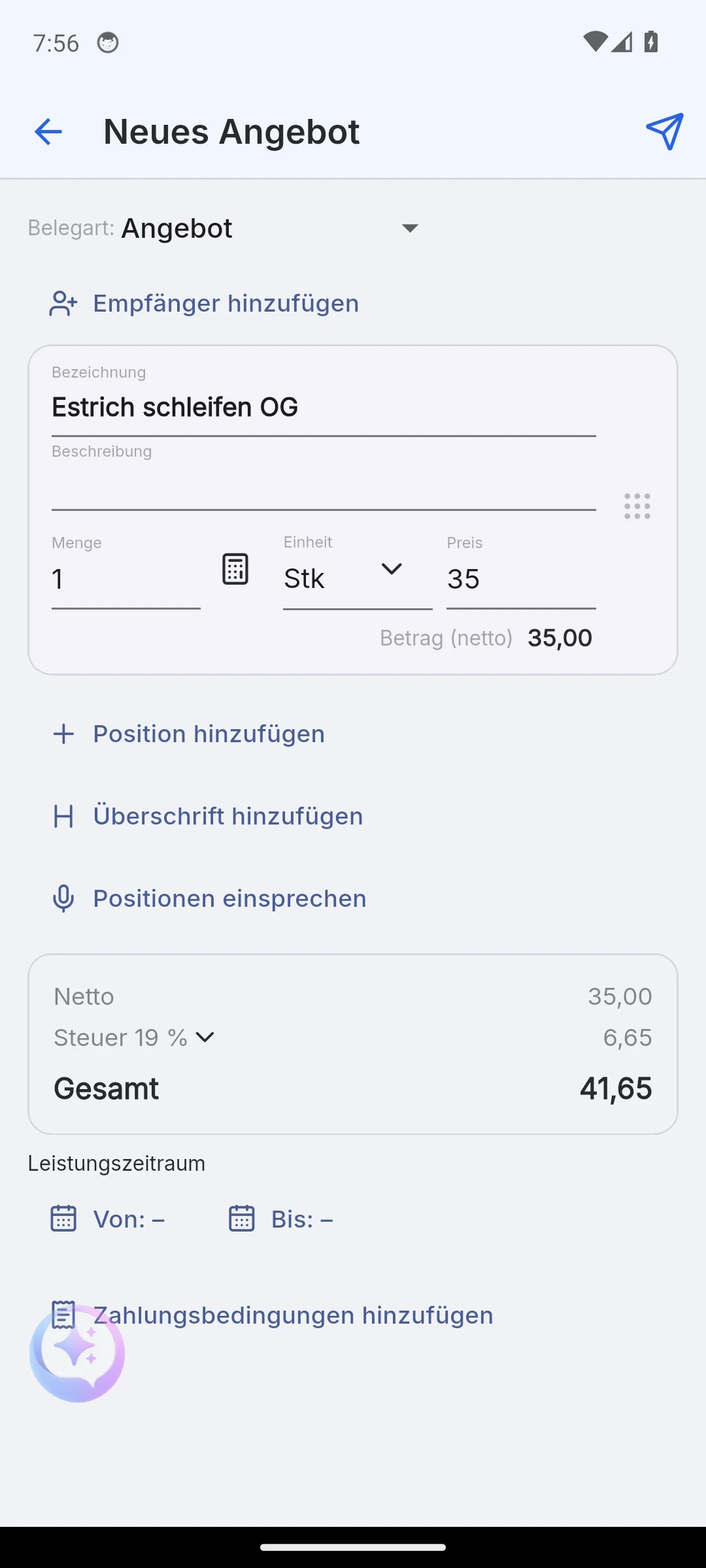
The form consists of line items and a header:
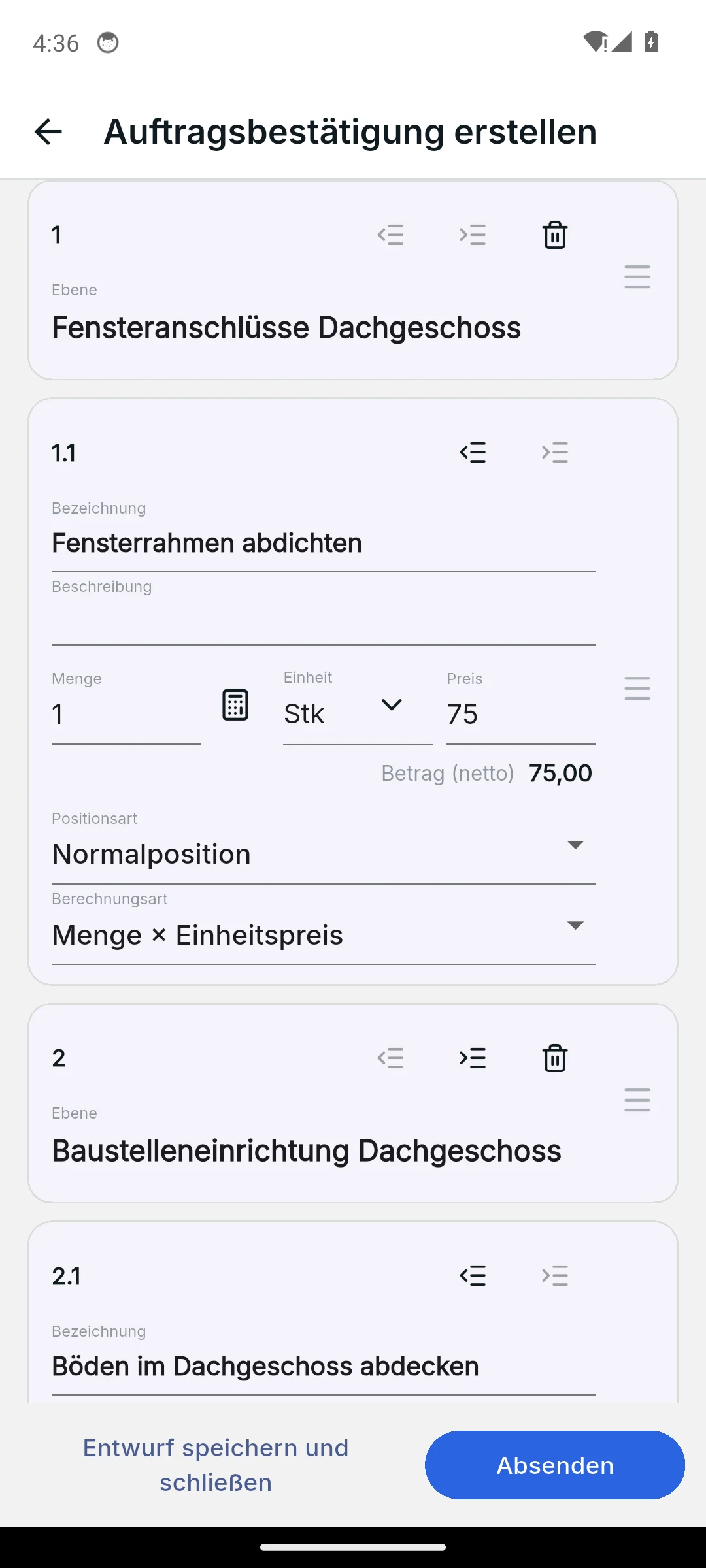
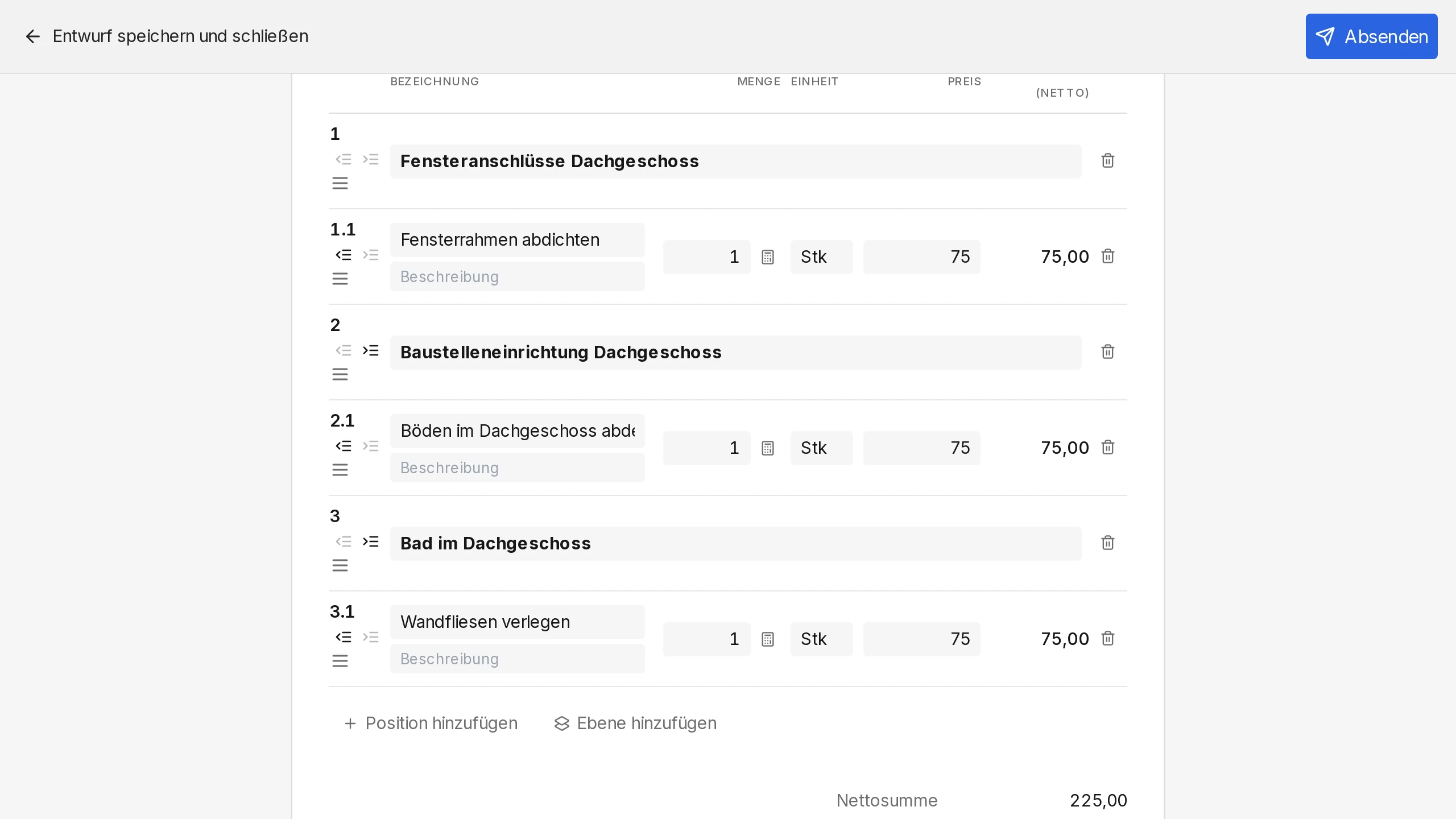
- Add line item: title, description, quantity, unit and price. Skava calculates the line total immediately.
- Add heading: a line without quantity and price, for example "Demolition work". With Indent this turns into an outline with numbers like 1, 1.1 and 1.2.
- Sorting: drag line items by the handle. A heading takes its sub-items along. On the phone a swipe to the left deletes a line, an "Undo" strip brings it back.
- Tax rate: applies once to the whole document, for example 19 % or 7 %.
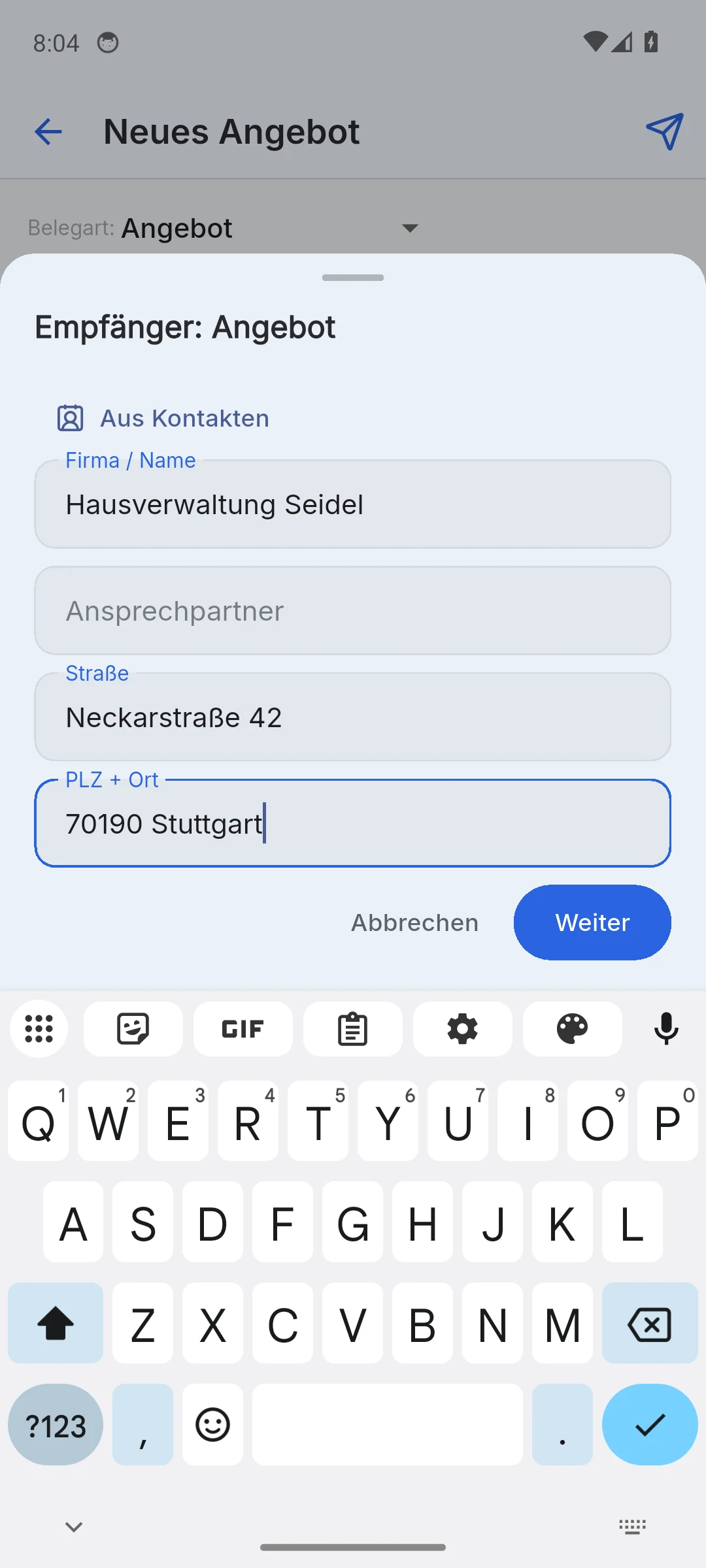
- Add recipient: company or name, street, postcode and city. The recipient then appears in the letterhead and in the PDF.
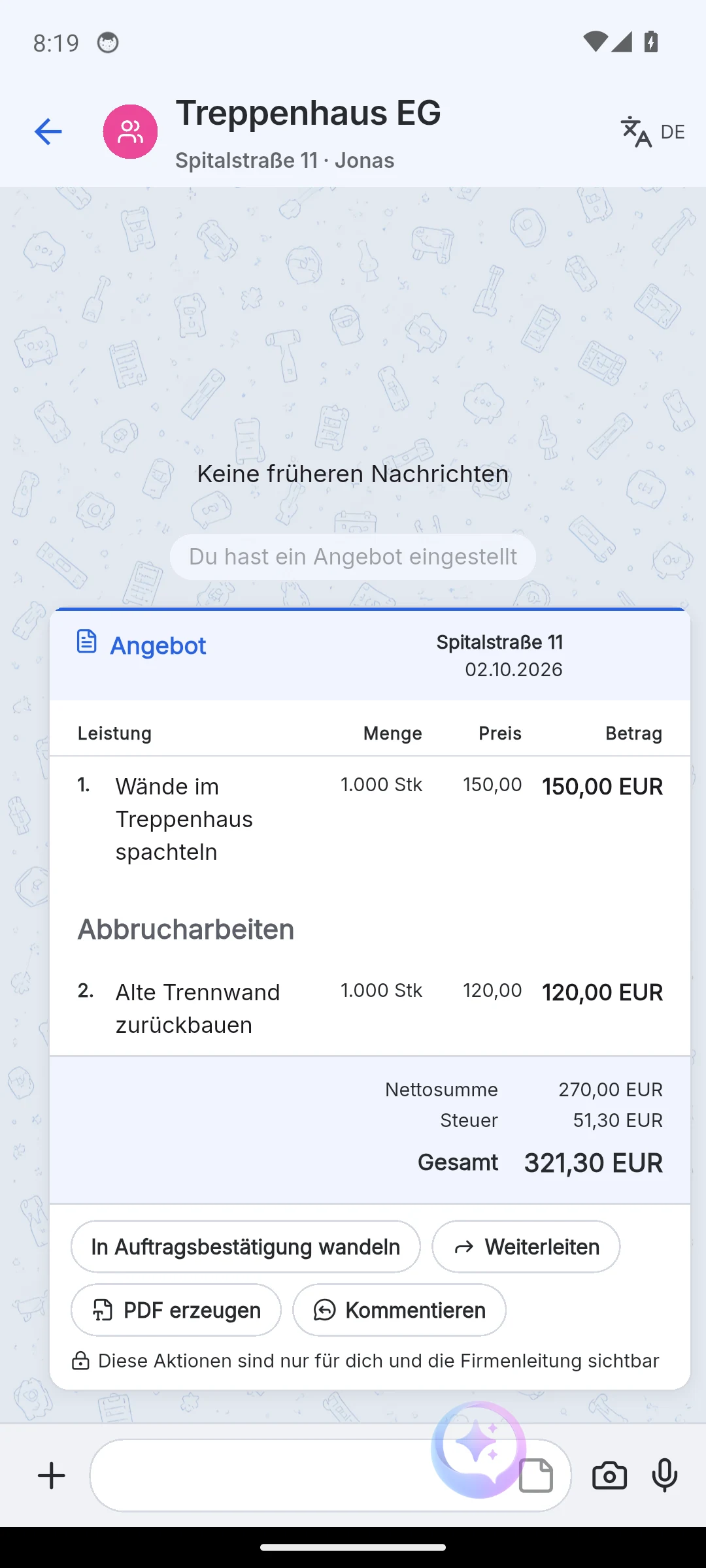
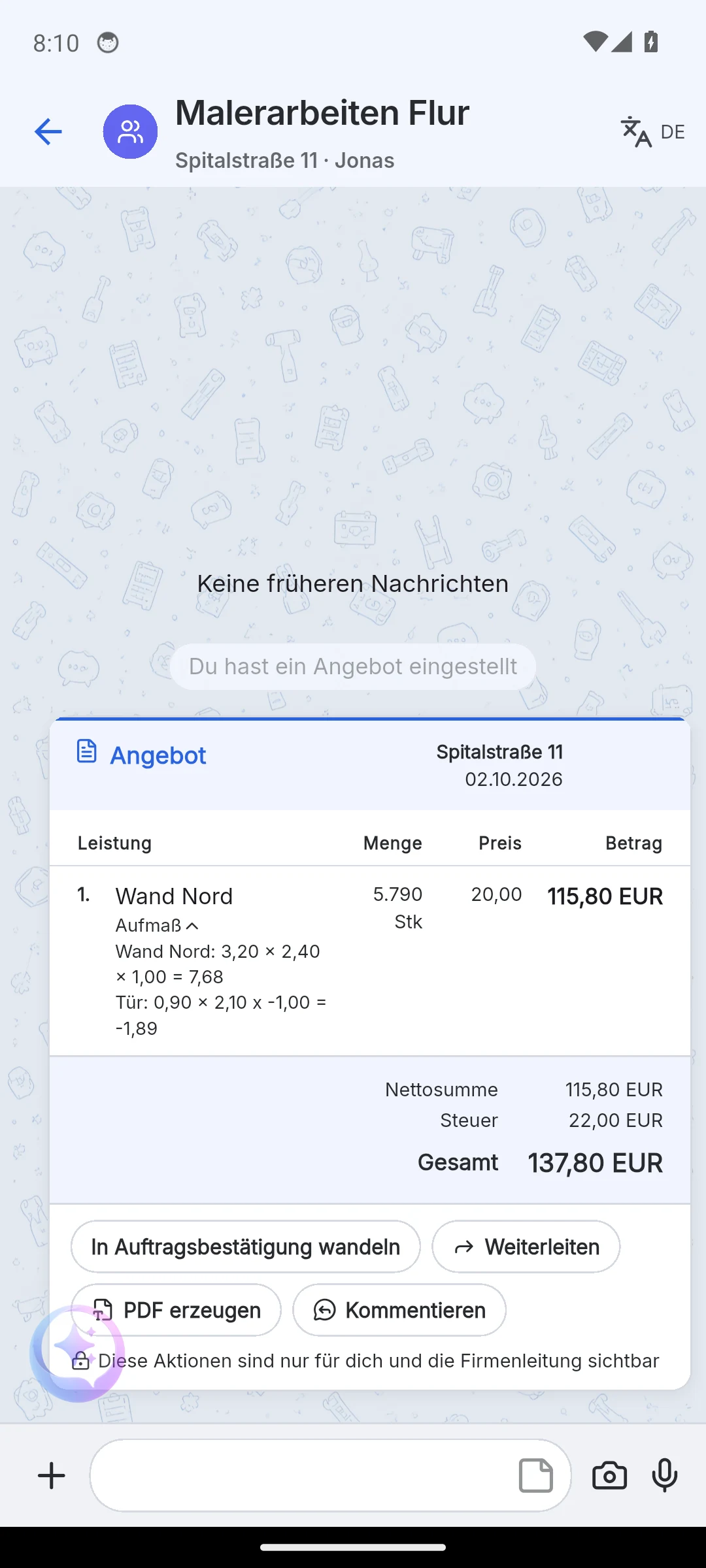
Entering quantities: The unit menu offers m², hours, pieces or flat rate. The button next to the quantity field opens the measurement: length, width and count per row, deductions as a negative count, for example -1 for a door. Use as quantity puts the sum into the quantity field. Later the measurement sits collapsed under the line item in the document.
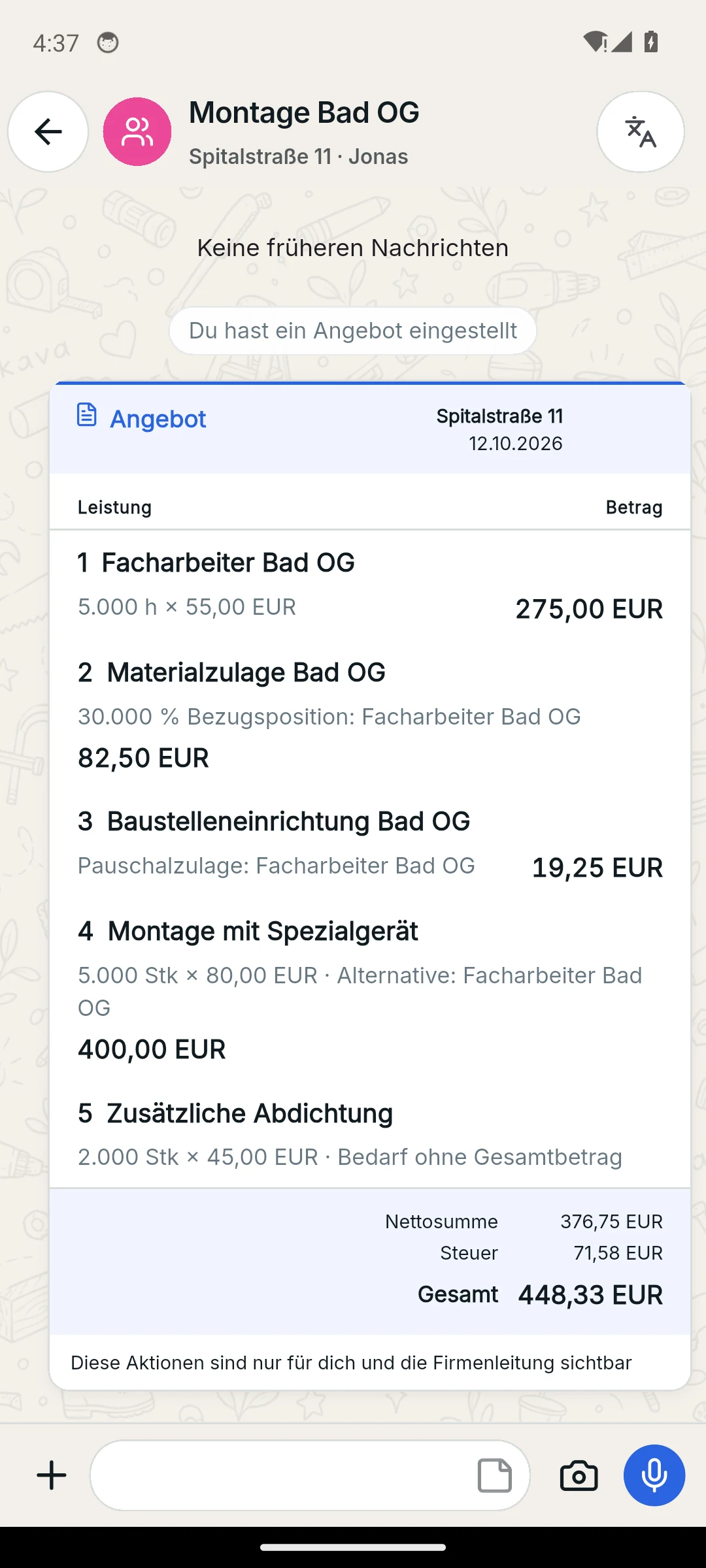
Line item types: Besides the normal line item there are Alternative (referring to a base variant), Optional with or without a total, and Surcharges as a percentage or flat amount on a reference item. When converting to an order confirmation you pick one variant per group; the one not chosen is dropped.
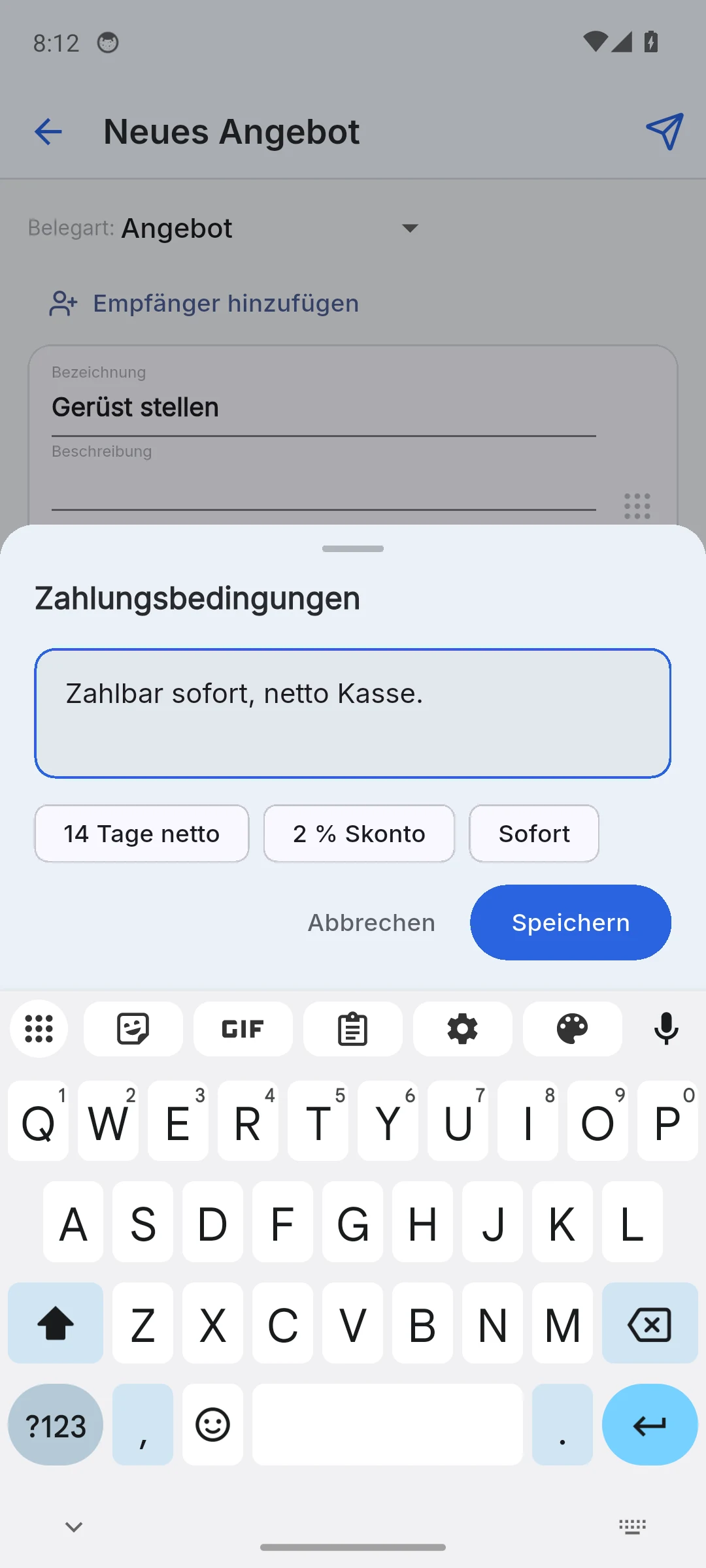
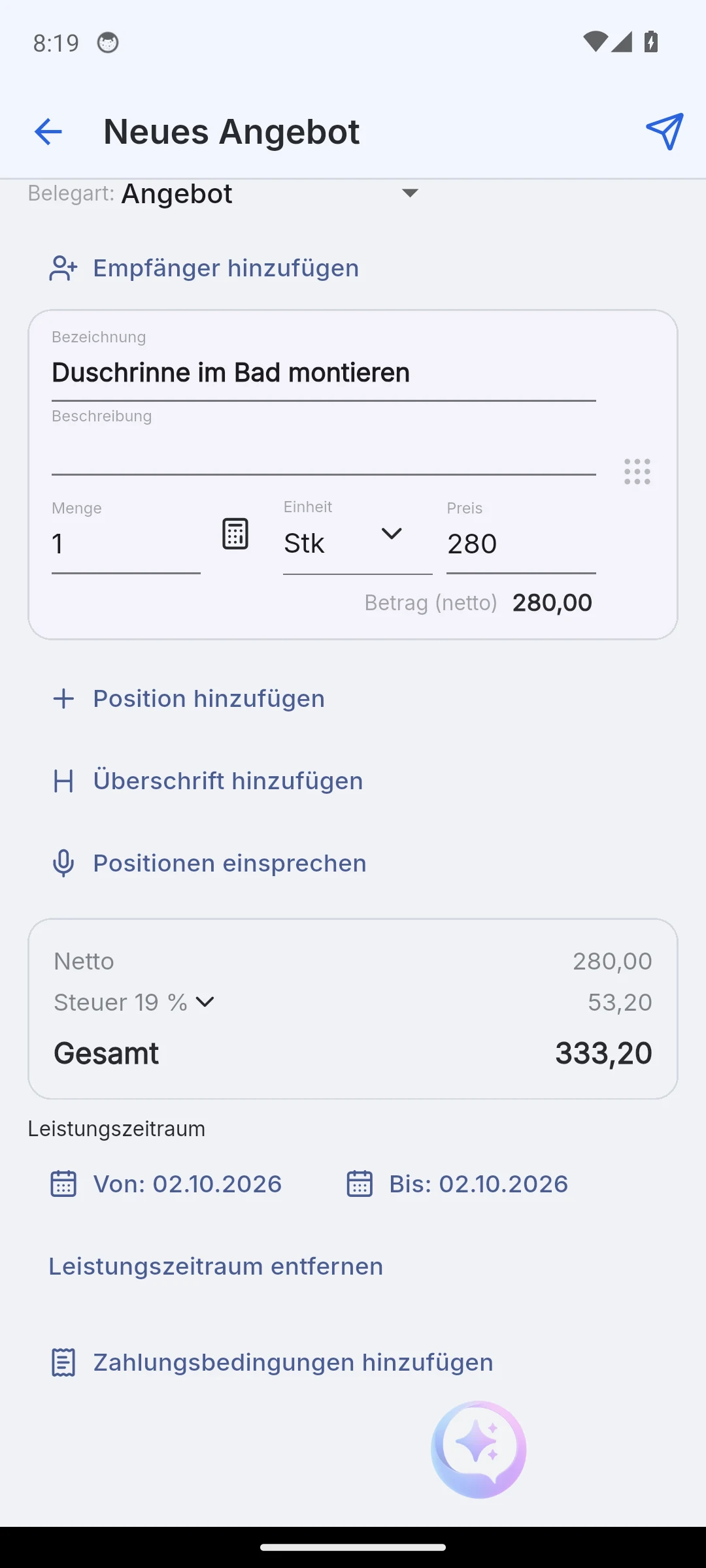
Payment terms and service period are optional. Suggestions such as "14 days net", "2 % discount" or "Immediately" save typing; in the web app the form takes over the default payment terms of the project's company. The service period appears as From and To on the document.
Drafts
Each chat has exactly one quote draft. Leaving the form saves it automatically, whether by button, back gesture or Escape. The draft sits in the chat as a tile marked Draft; a tap opens the form again. Only Send turns it into a document, and the draft tile disappears.
- A draft without a line item is discarded. The mobile app asks first with "Nothing to save yet".
- Changes to a list of services freeze the old state: it stays greyed out in the history, the current list shows the new prices.
- The action sheet of a list of services offers Create document, Edit line items and Forward to another chat.
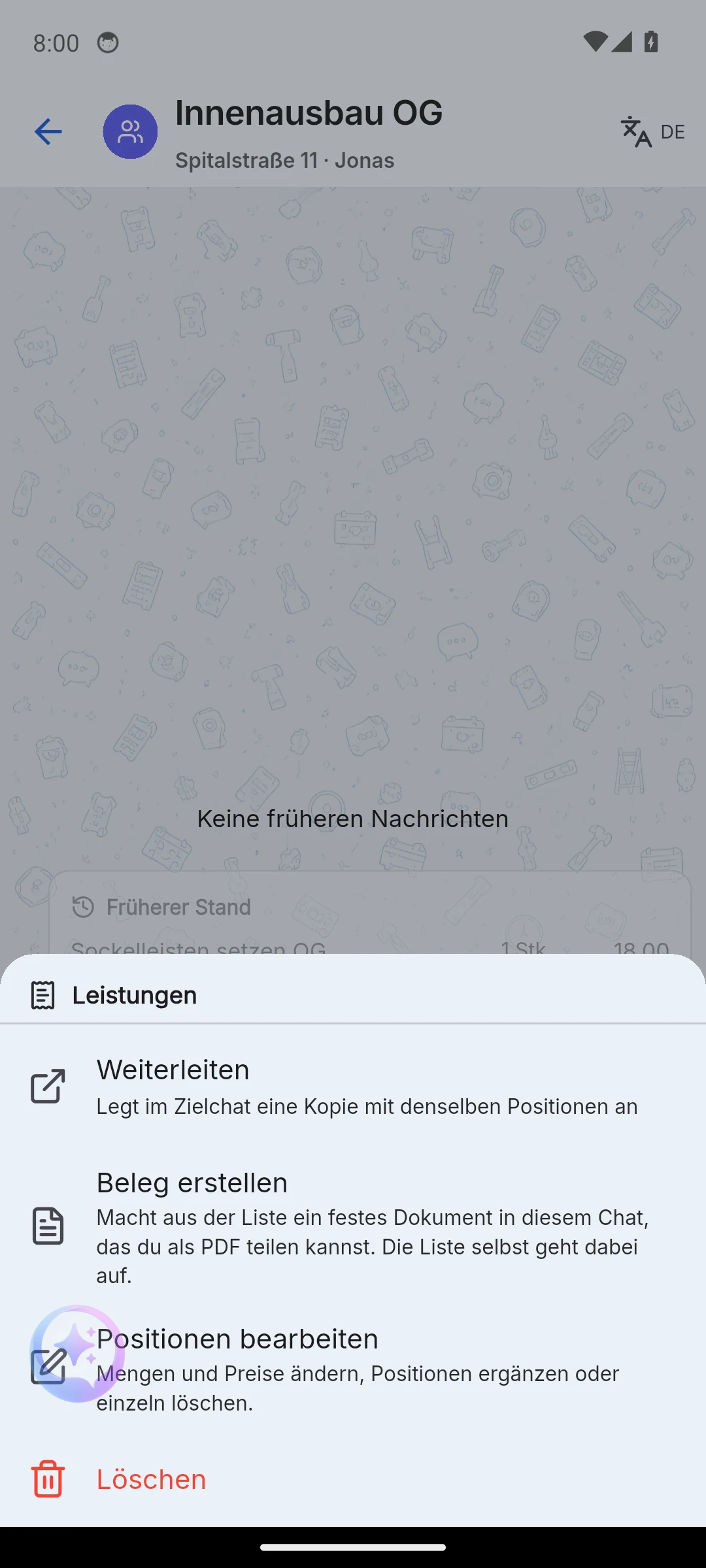
Create document carries the line items into the document form. The list itself stays in the chat and can still be edited, for example when quantities grow on site.
In the web app you tick individual line items for the quote in the Quote drafts area. With a partial selection the close button reads "Discard changes and close"; the source draft stays untouched.
From quote to order confirmation
Open the menu of the quote (mobile: long press, web app: right-click on the document header) and choose Convert to order confirmation. The form opens with all line items and stays editable: adjust quantities, add payment terms, indent the outline. If you leave the form, the conversion draft is kept until you send.
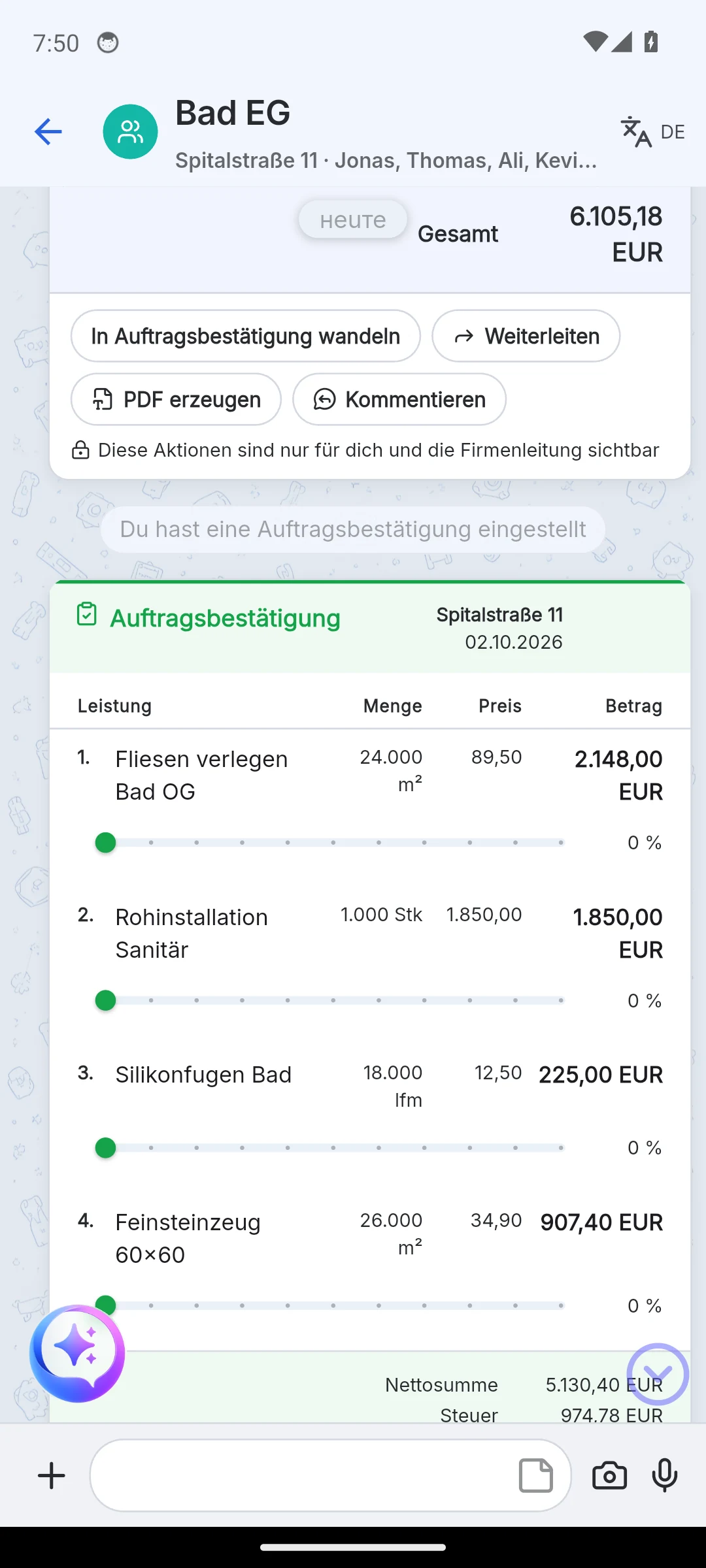
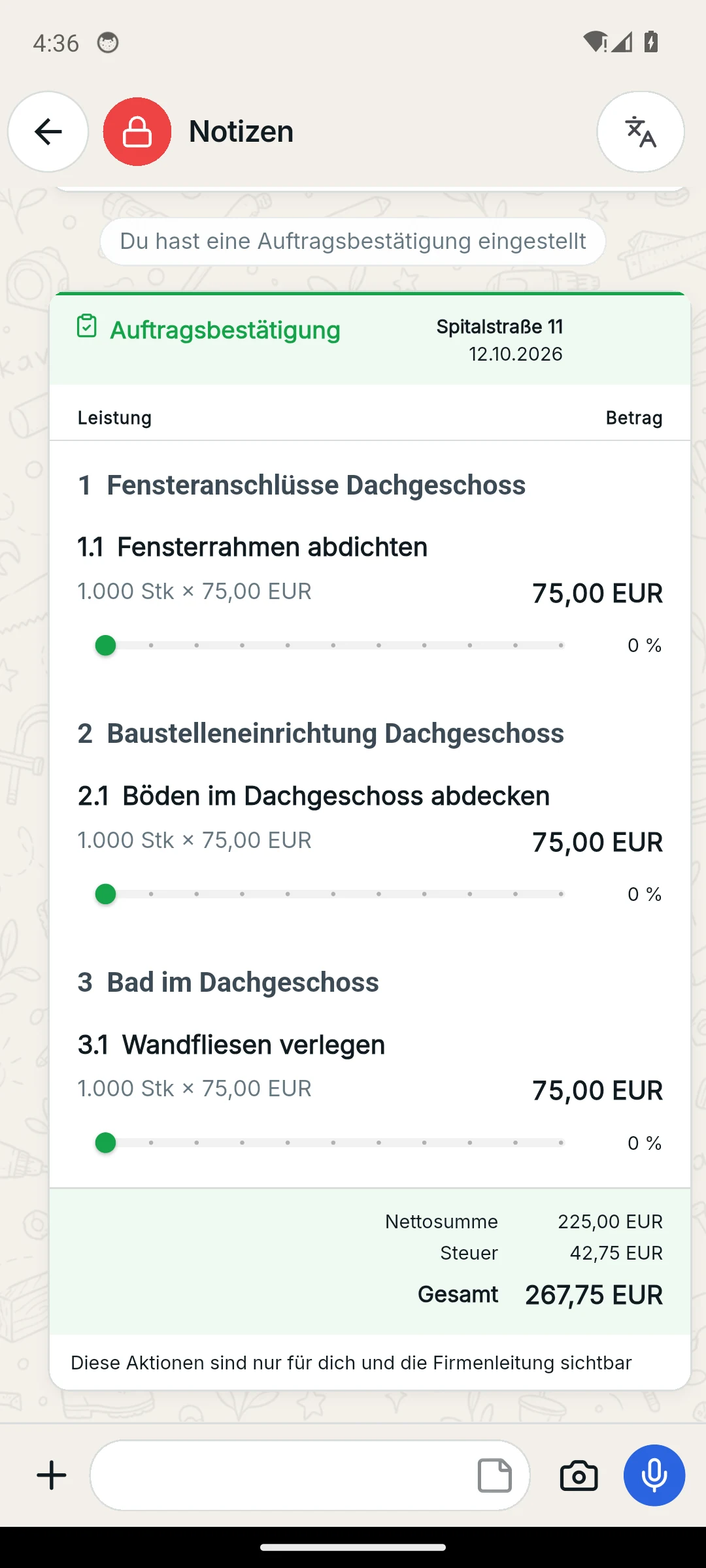
The order confirmation appears as its own card; the quote stays above it. New here:
- A progress bar per line item. A tap on the number switches between percent and "done / total" in the unit of the line item.
- Assign: hand line items to your own crew, to contacts or to other companies. How that works is described under Working with other companies.
- Create invoice as the next step of the chain.
In the mobile app you can set the document type directly to order confirmation in the form, for example when the customer agreed verbally and no quote was needed.
Invoice and payment
In the menu of the order confirmation choose Create invoice. Before the form opens, Skava asks for the recipient; company or name is enough. Then you can enter payment terms and send. A closed invoice draft can be reopened later from the plus menu without asking for the recipient again.
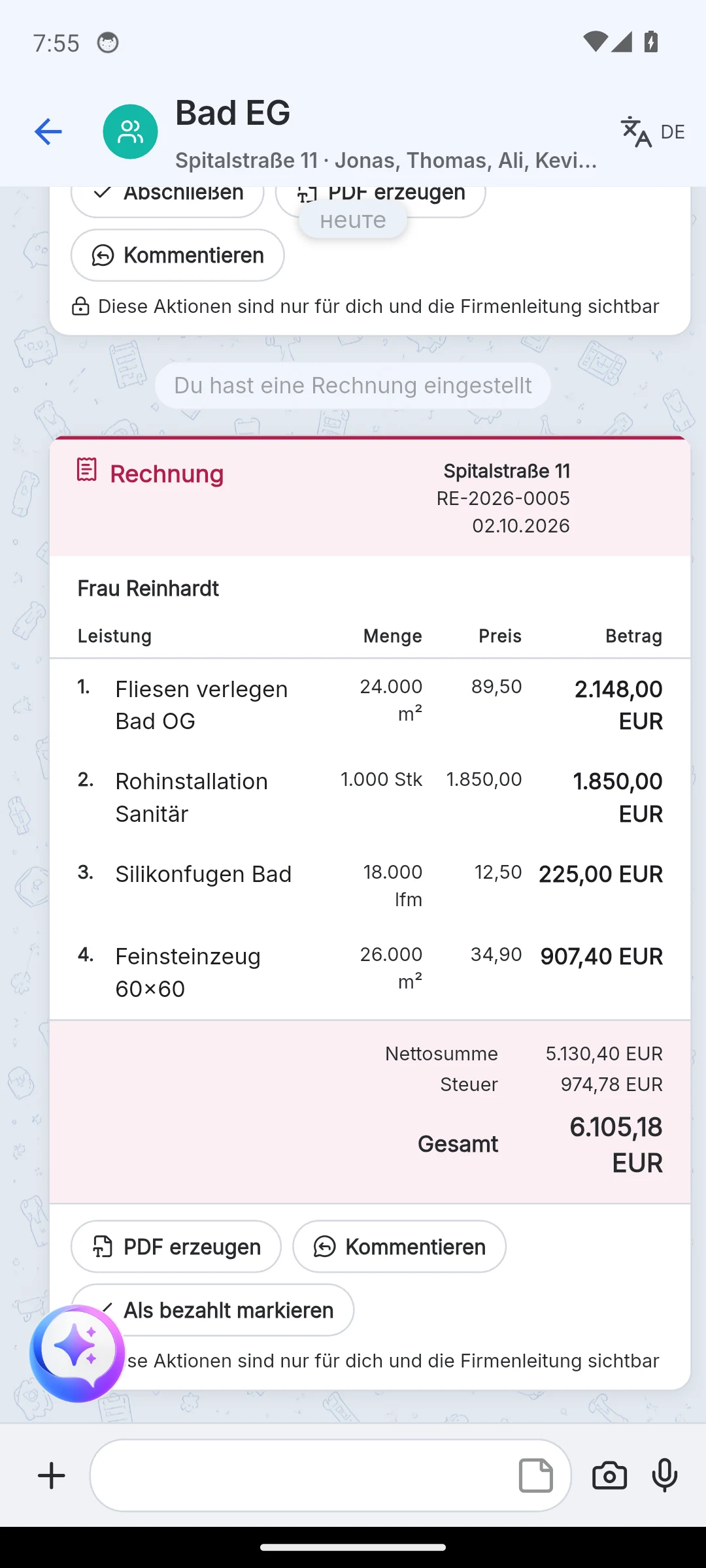
- Invoice number: prefix and next number come from the company's invoice settings.
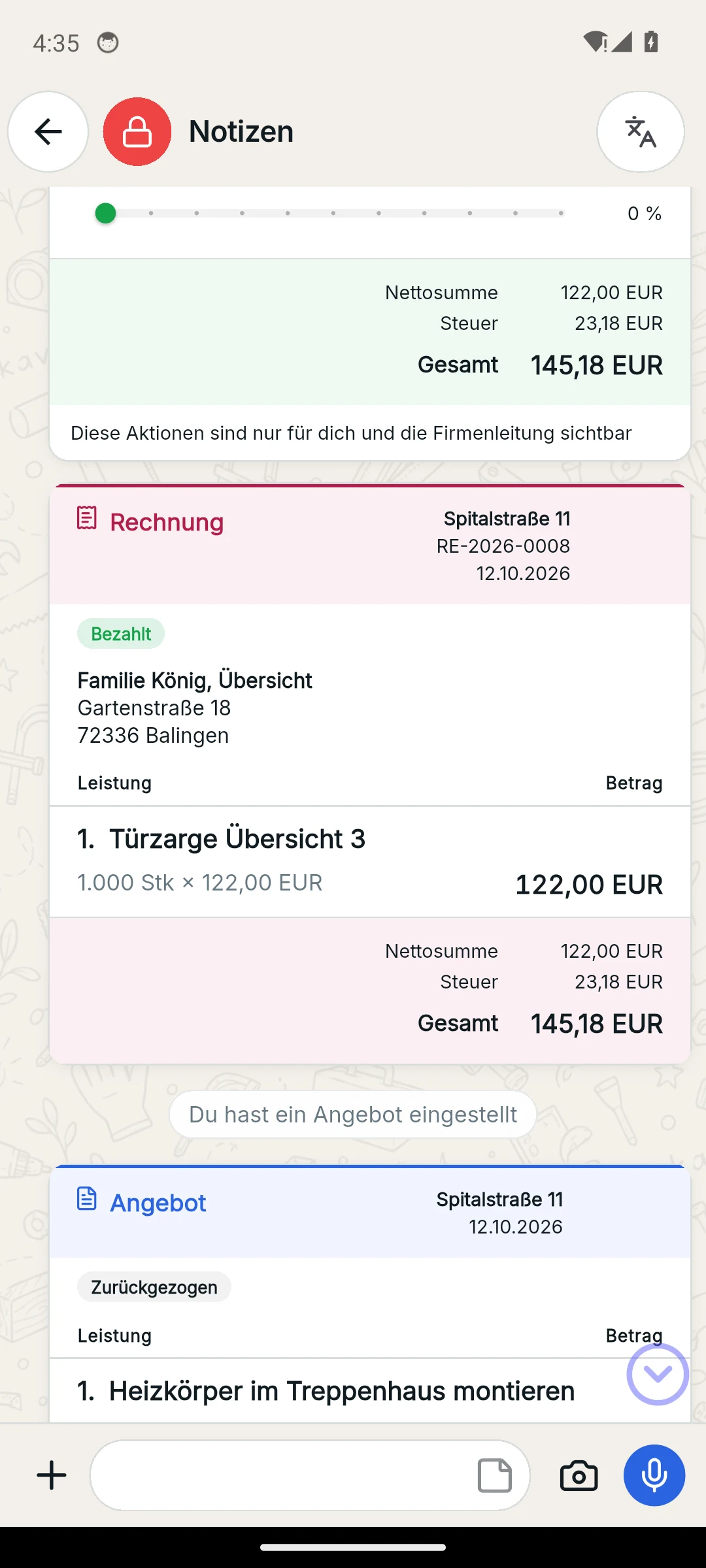
- Mark as paid puts the "Paid" marker on the card. This works once; afterwards the action disappears from the menu. Create invoice and Mark as paid are reserved for company admins.
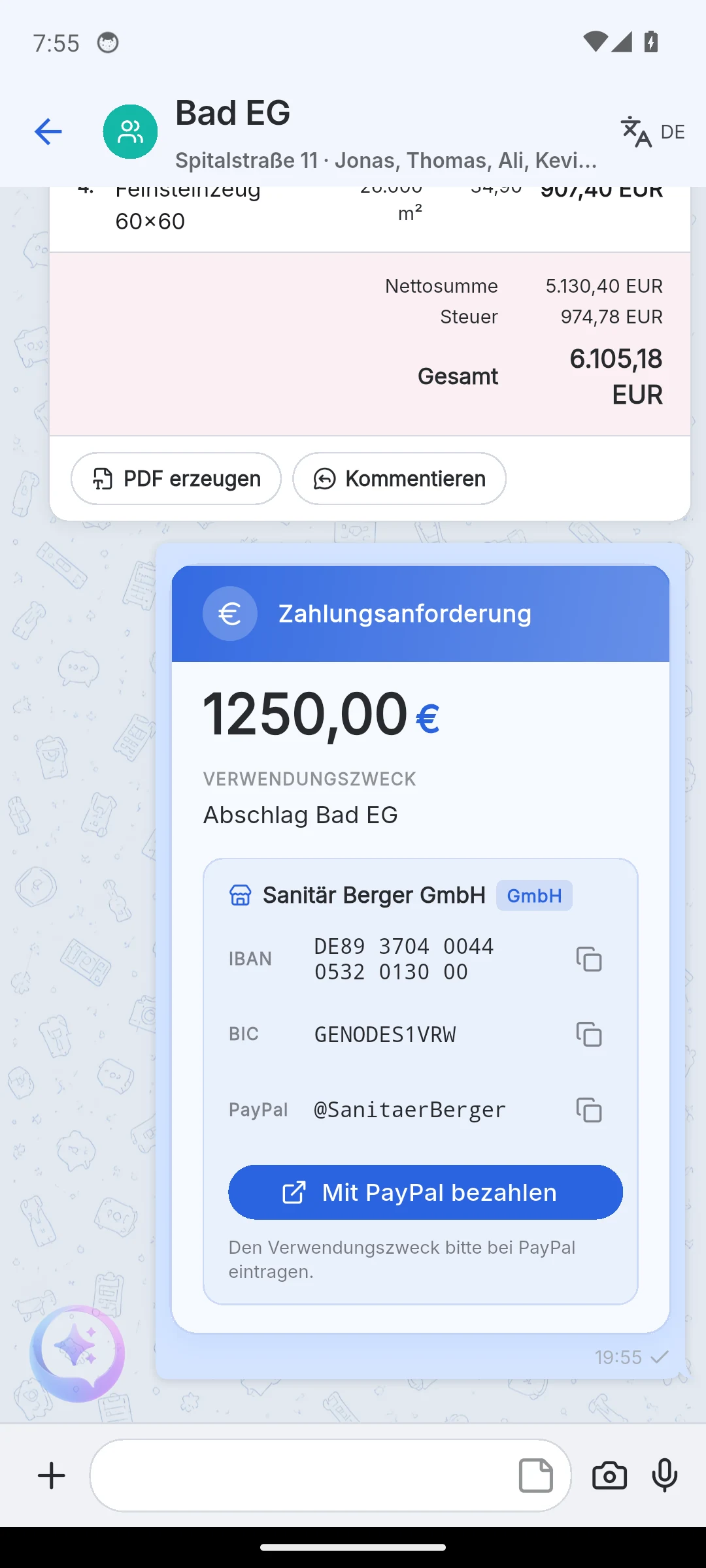
- Request payment (mobile app, Payment tile in the plus menu): enter amount and purpose, done. The card shows the company's bank details and, if stored, a Pay with PayPal button. Without an IBAN in the company data Skava points that out. The payment request is a message, not a document.
Working on a document
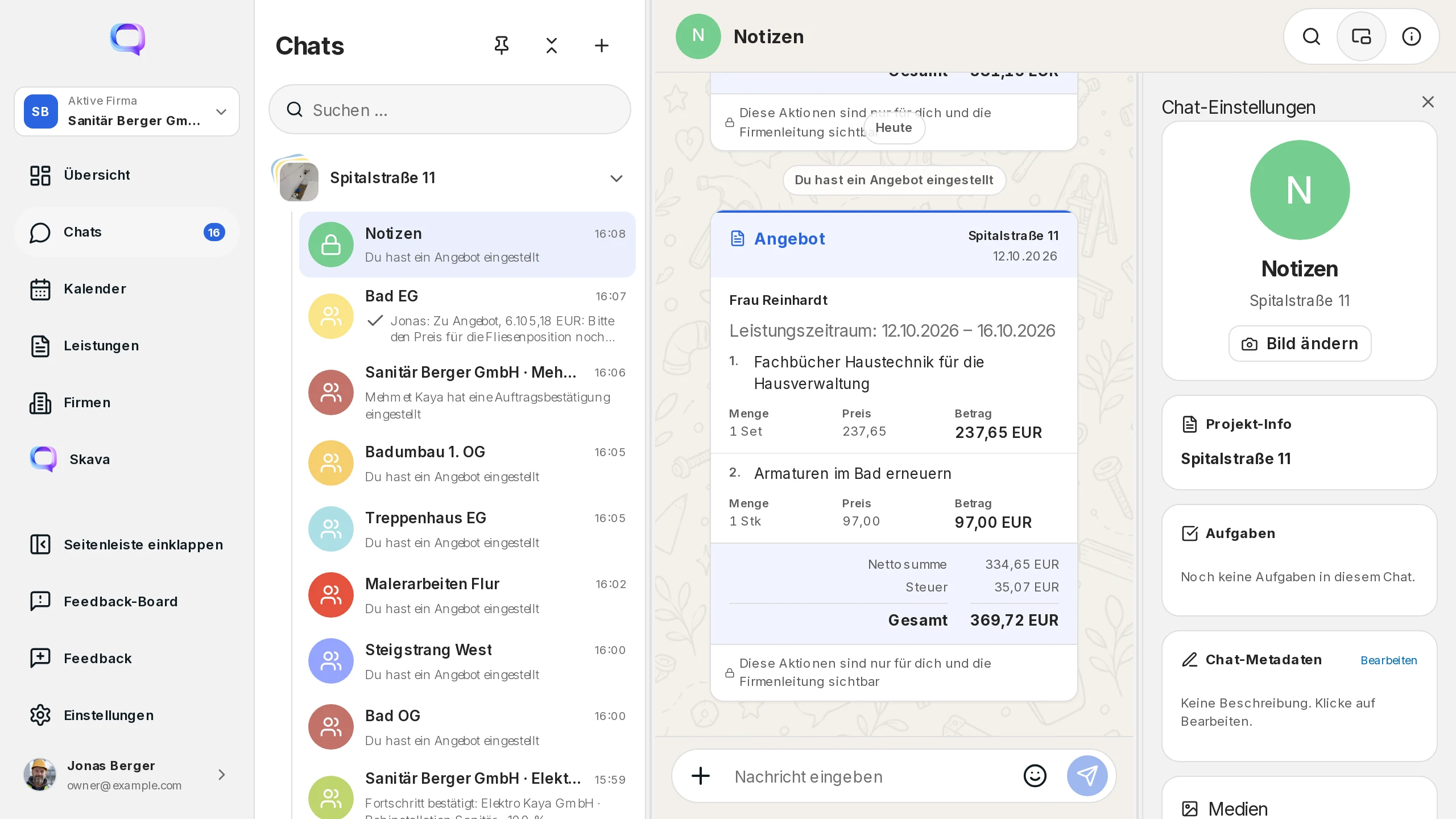
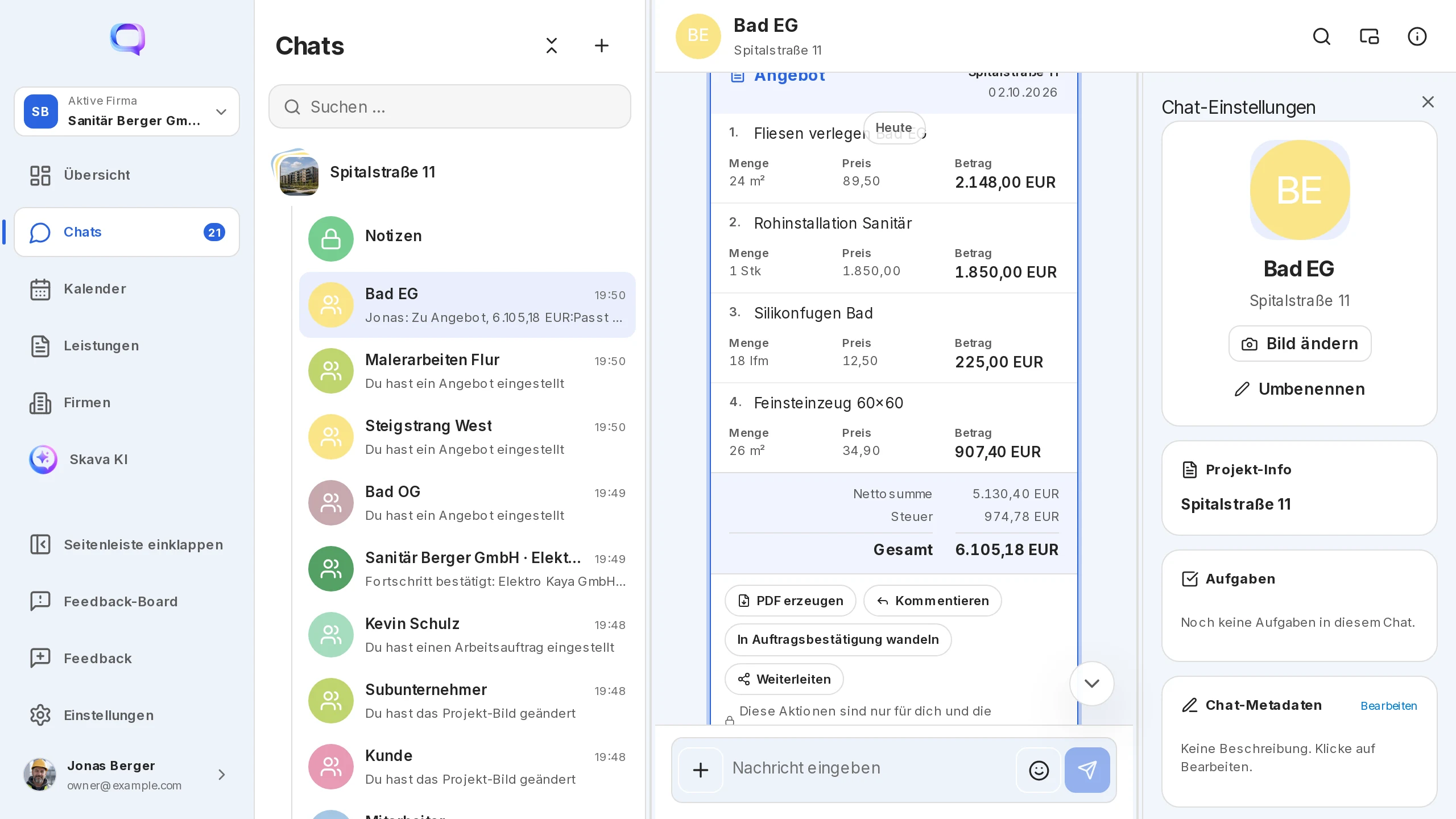
Open a document's menu with a long press on the phone, or with a right-click on the document header in the web app. Below the menu you see the note "These actions are only visible to you and company management": document actions are only shown to the person who created the document or to a company admin.
- Copy puts the document text on the clipboard.
- Generate PDF opens the preview. In the web app you attach the PDF to the card with Attach to document or download it. On the phone you share or print it from the preview.
- Comment places a document preview above the composer. Your text goes out as a normal message with the reference "Re quote, 6,105.18 EUR:"; a tap on it jumps back to the card. On the phone a swipe to the right on the document header does the same.
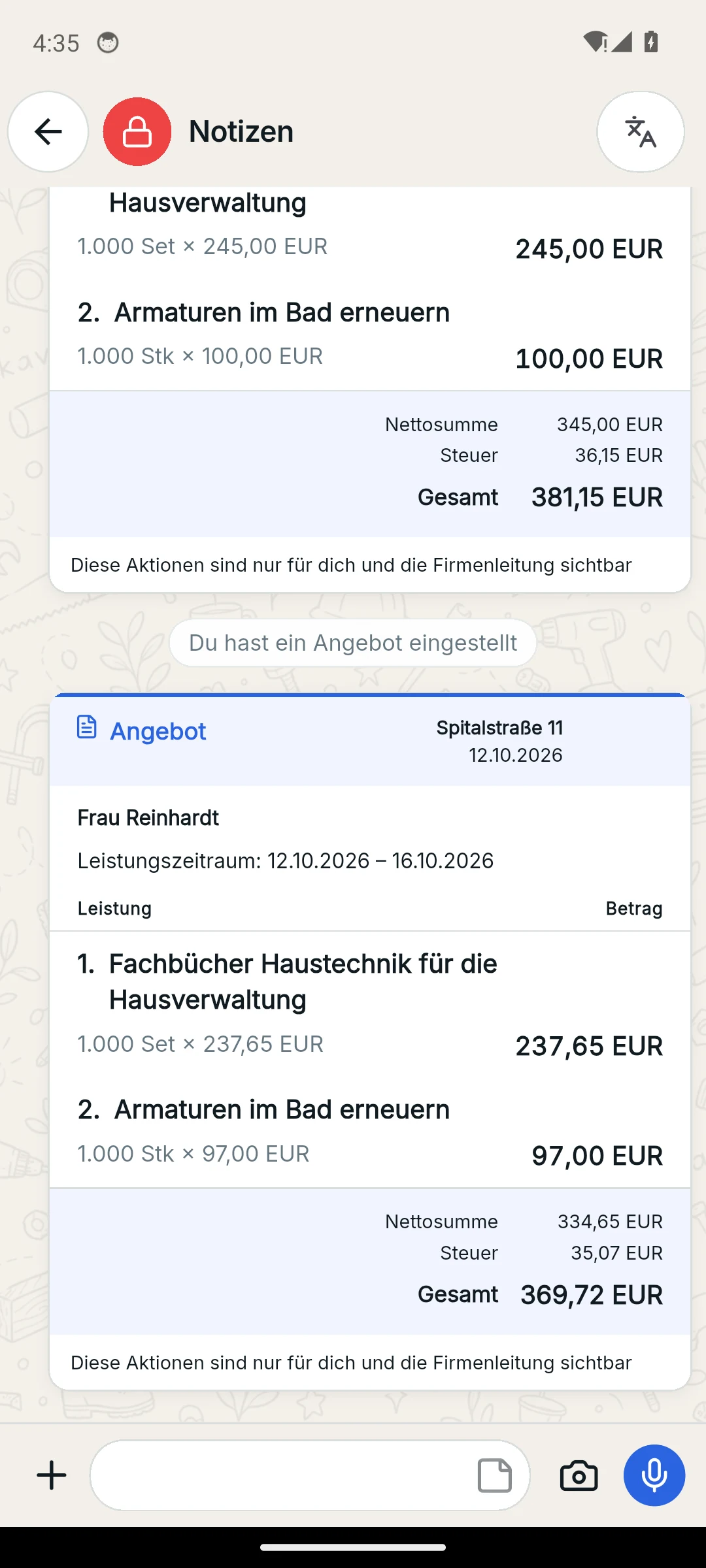
- Forward creates a copy of the quote as its own document card in another chat of the same company, for example from your private notes into the customer chat. The source stays unchanged.
- New quote version: The sent quote stays put; your changes go into the same chat as a new quote. Recipient, payment terms and service period are carried over.
- Withdraw: up to five minutes after creation, as long as the document is neither paid nor converted. The card stays visible as "Withdrawn"; only the PDF remains in the menu.
Letterhead, catalog and document directory
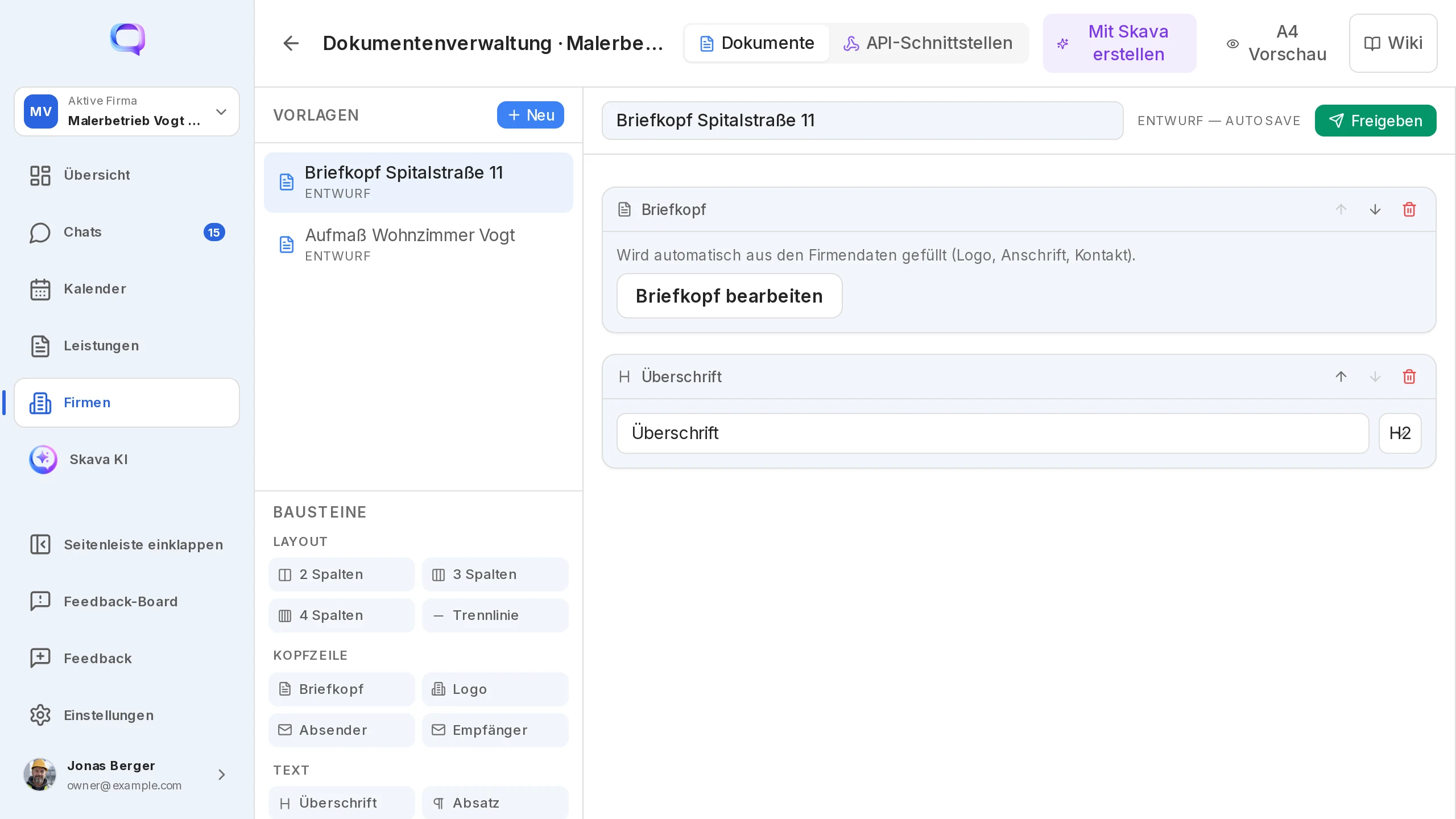
A company admin edits the letterhead with logo and address in the web app, in the company's document management. The change applies to the whole company and therefore to all PDFs. On the phone you maintain the same details in the company details.
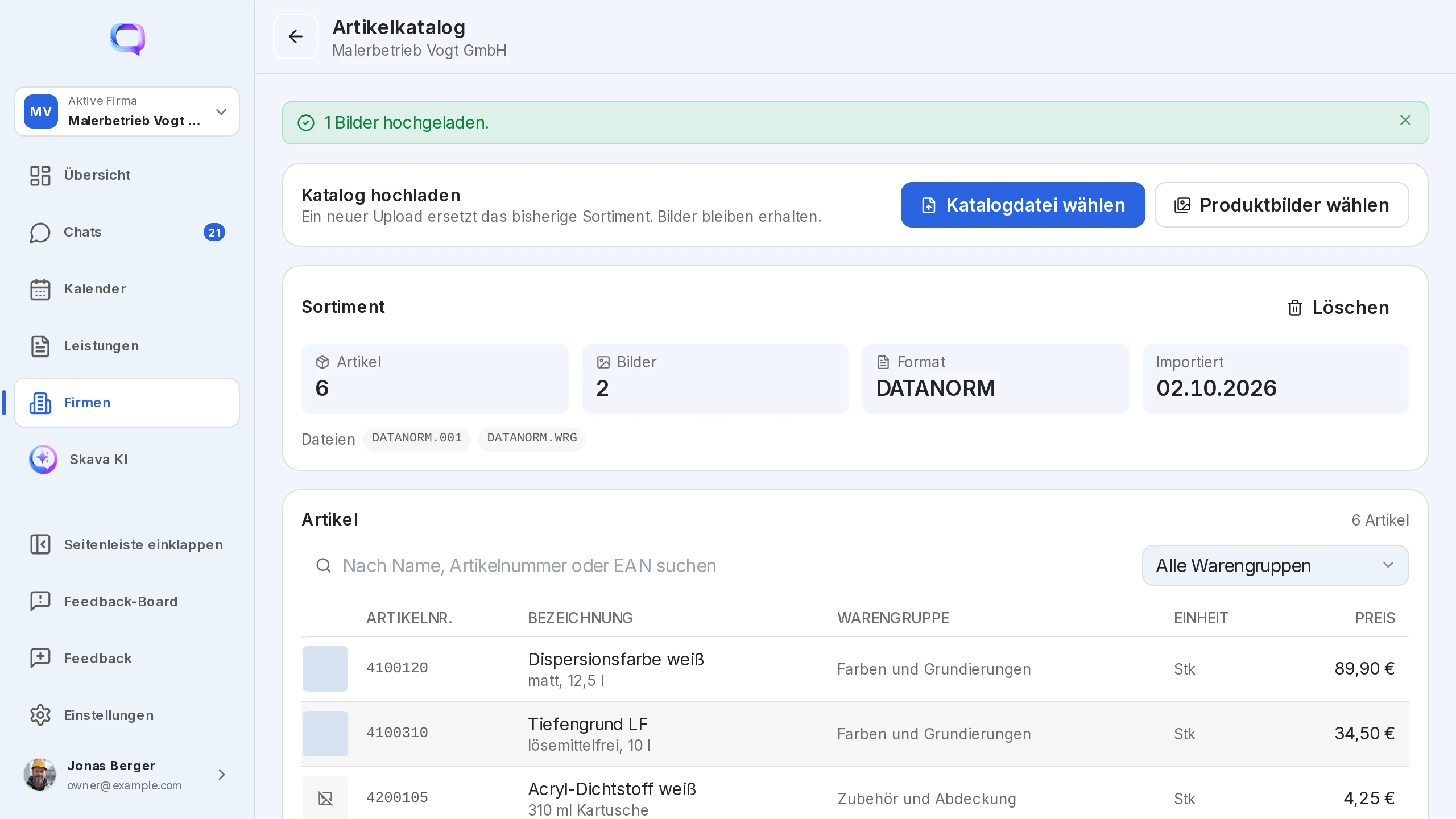
The article catalog (web app, company admins) accepts CSV, ZIP and DATANORM files. Articles can be searched by name, article number or EAN and given product images. The assistant uses the catalog when it creates a quote from the chat.
All documents of a company are collected in one place: in the Overview, the tiles Quotes, Order confirmations and Invoices show the latest documents, and Show all opens the directory with a project filter. On the company detail page the same lists sit under "My quotes", "My order confirmations" and "My invoices".
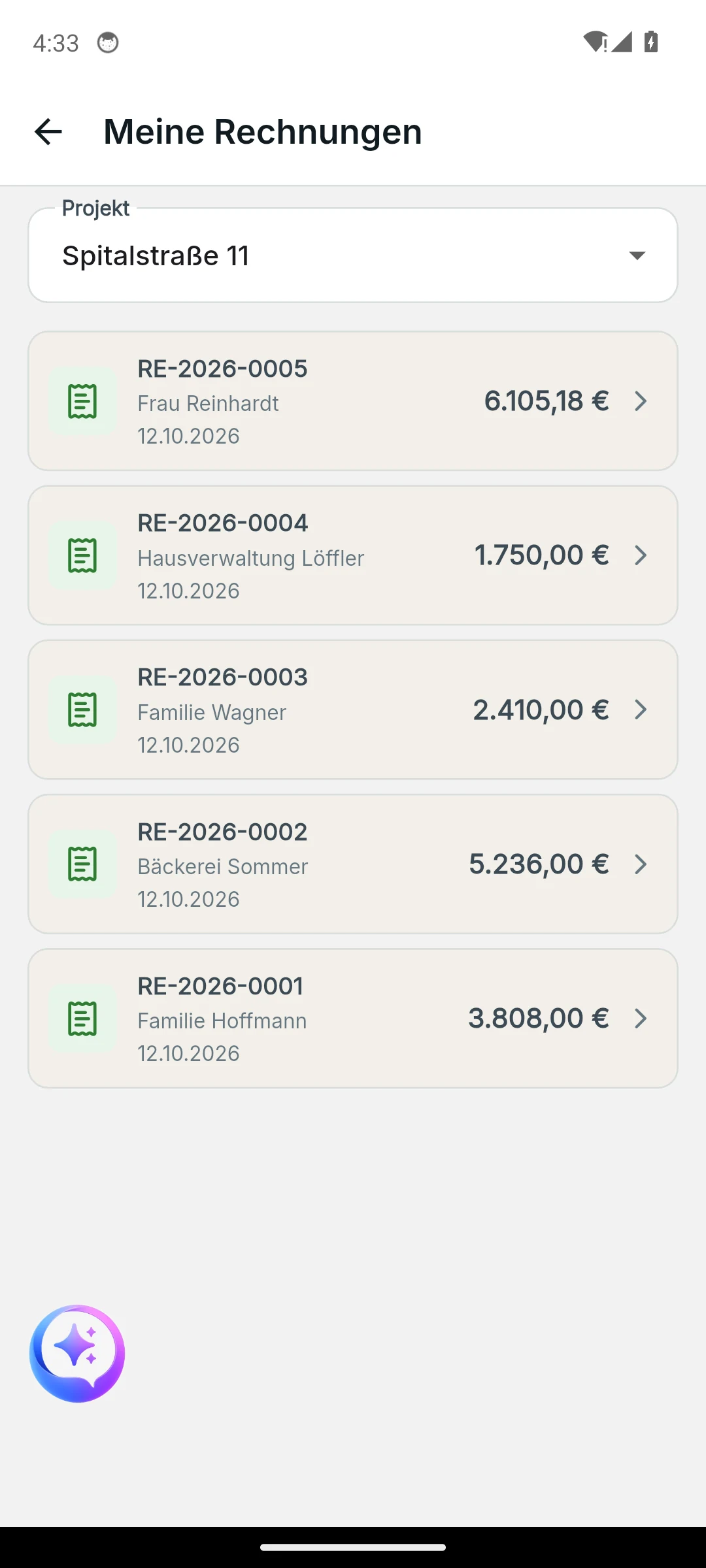
Web app and mobile app
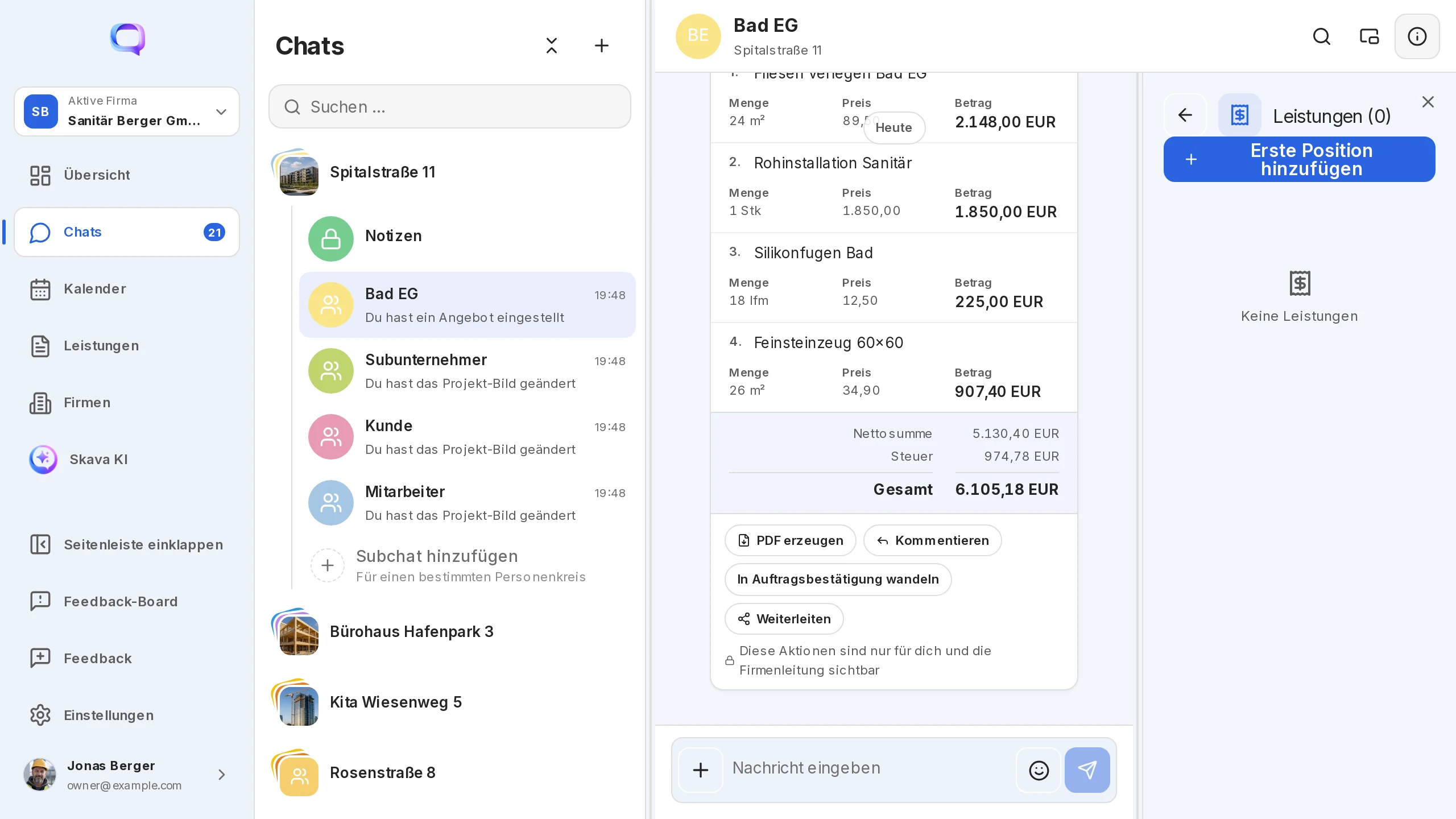
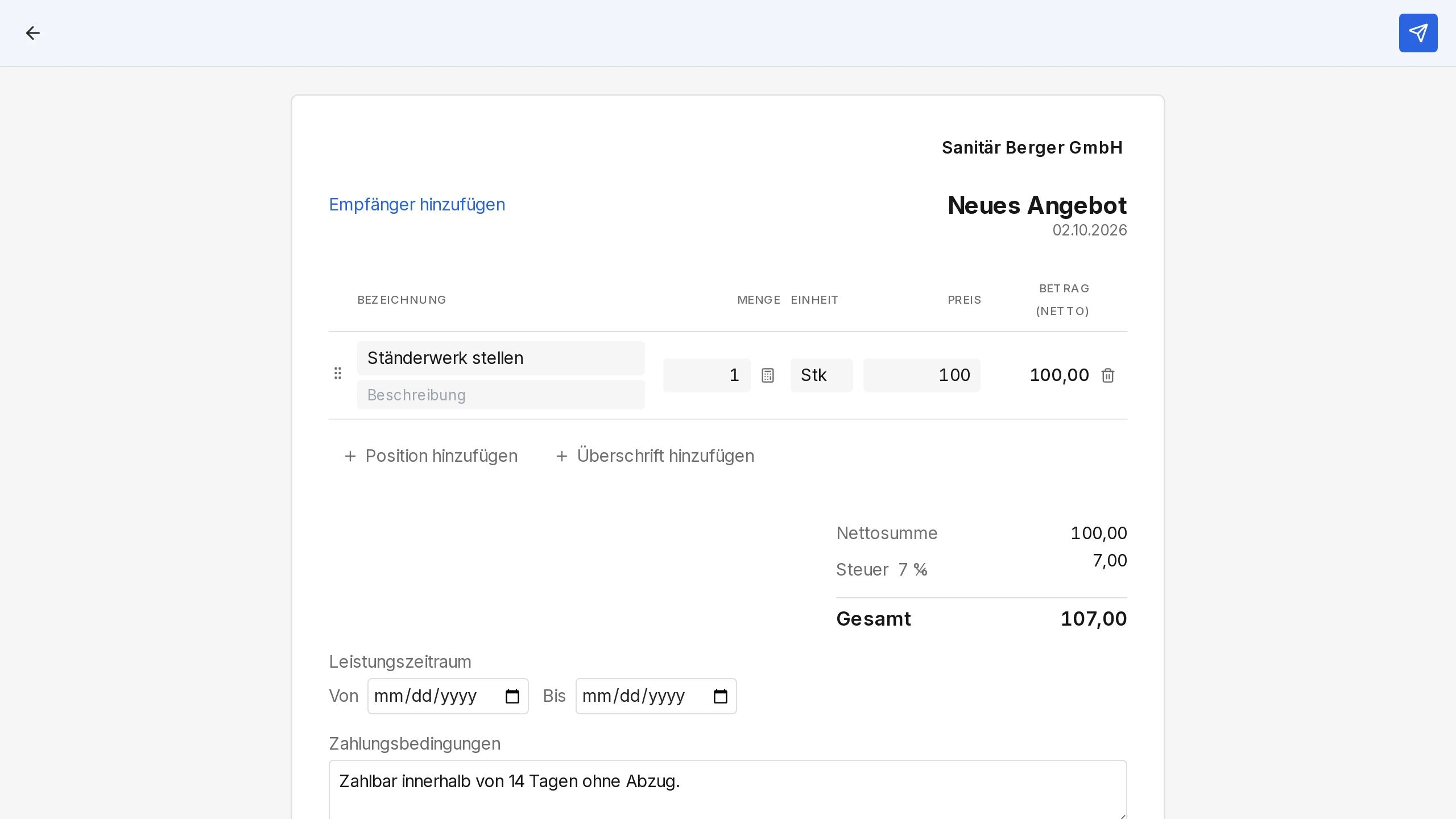
The web app is the place for the letterhead, the article catalog and attaching PDFs to documents. You drag line items with the mouse, and the document menu opens with a right-click.
On the phone the document starts right from the plus menu. Only here you find the payment request, the order confirmation without a previous quote and the swipe to the right for commenting.
Frequently Asked Questions
Why can't I write a quote in this chat?
Documents need a company. Link the project to a company in the project settings; this is done once and then stays. You create the company itself under You or under Companies.
Can I change a quote after sending it?
No, a sent document stays as it is. Choose New quote version in the menu: your changes go into the same chat as a new quote, the old one stays visible. Within five minutes of creating a document you can also withdraw it.
Where did my draft go?
It sits in the chat as a tile marked "Draft"; a tap opens the form again. Each chat has exactly one quote draft. A draft without a line item is discarded when closed.
How do I get an invoice as a PDF?
Choose Generate PDF in the invoice menu. In the web app you can download the PDF or store it on the card with Attach to document; on the phone you share or print it from the preview.
Who sees the document actions?
Only the creator of the document and the company admins. Everyone else in the chat sees the document card but no actions such as Convert, Create invoice or Mark as paid.
What is the difference between an invoice and a payment request?
The invoice is a document with a number, line items and a PDF. The payment request is a message with amount, purpose and the company's bank details, for example for a down payment or material costs. You create it in the mobile app via the Payment tile.