
Working with Other Companies
You don't do every line item yourself. In Skava you assign line items of an order confirmation to your own crew, to a contact or to another company. For external companies this creates a shared chat that holds the request, acceptance, progress and completion report.
Requirements
- The project is linked to a company. This link is permanent.
- There is an order confirmation in the chat. Assigning only works from there, not from the quote.
- The partner company or contact is on Skava. You reach external companies through the search when assigning; your own employees are listed there without searching.
Assigning line items
Open the menu of the order confirmation (mobile: long press, web app: right-click on the document header) and choose Assign. The assignment page lists all line items. For each one there are two ways:
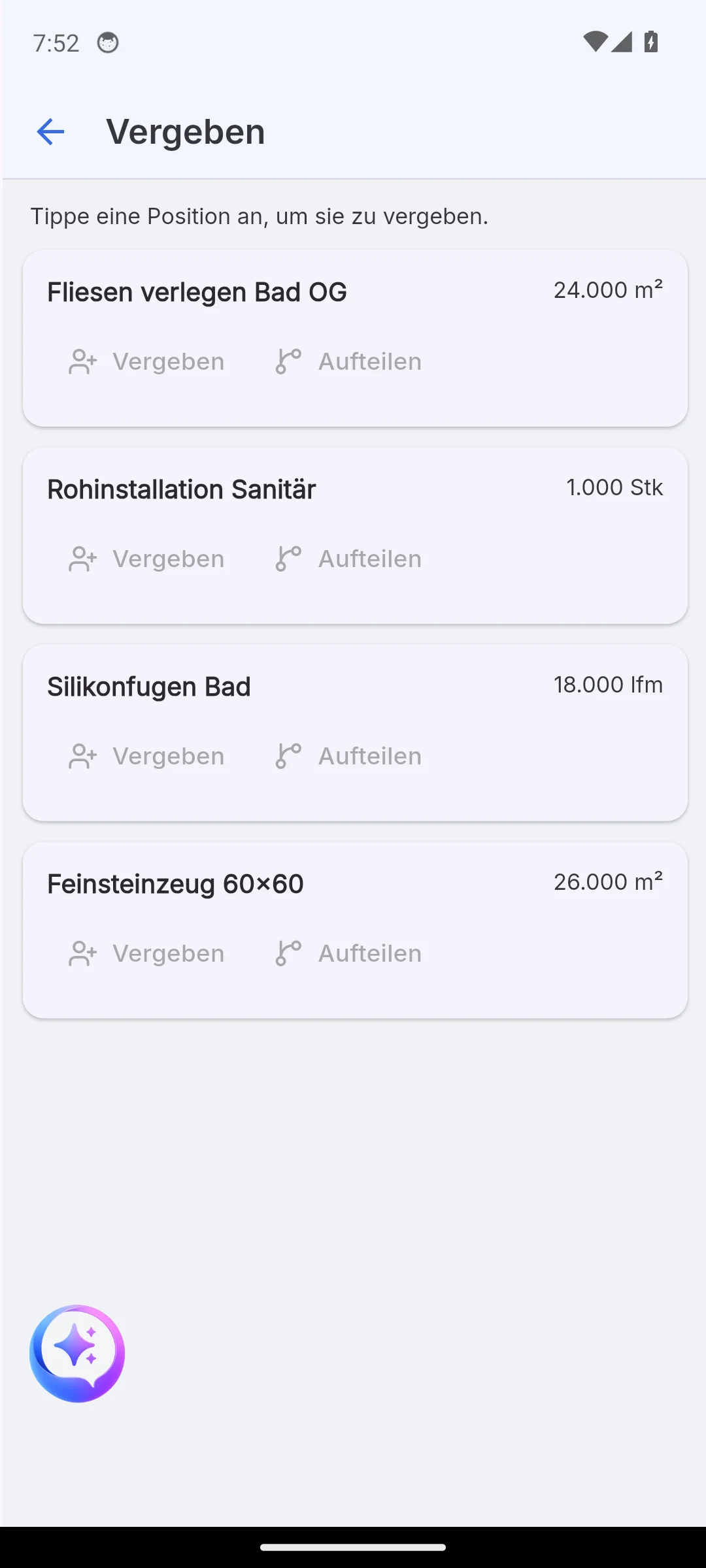
- Assign hands the whole line item to one recipient.
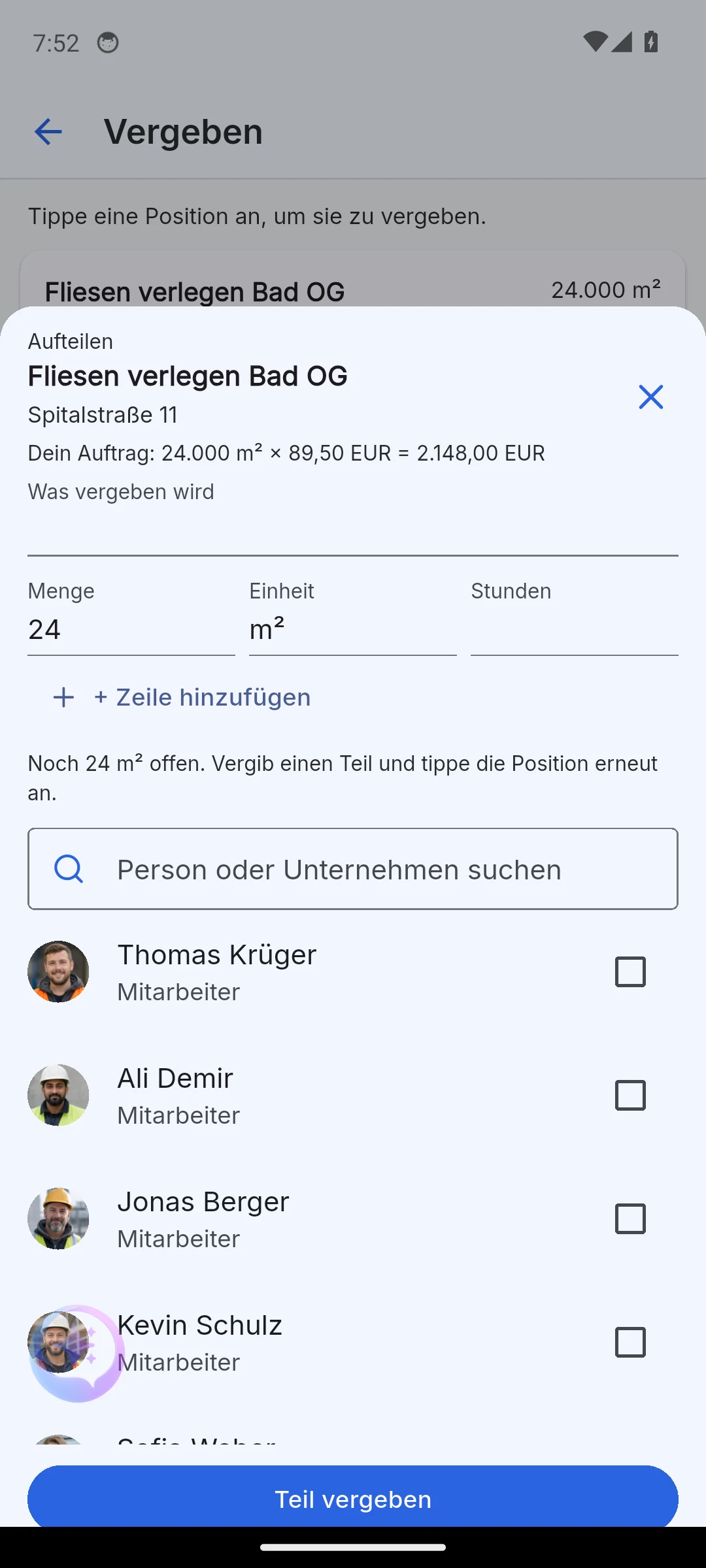
- Split hands over only a part: enter quantity and hours, tick a person, Assign part. The sheet stays open and counts down the remaining quantity until the line item is fully assigned. All parts keep their link to the original line item.
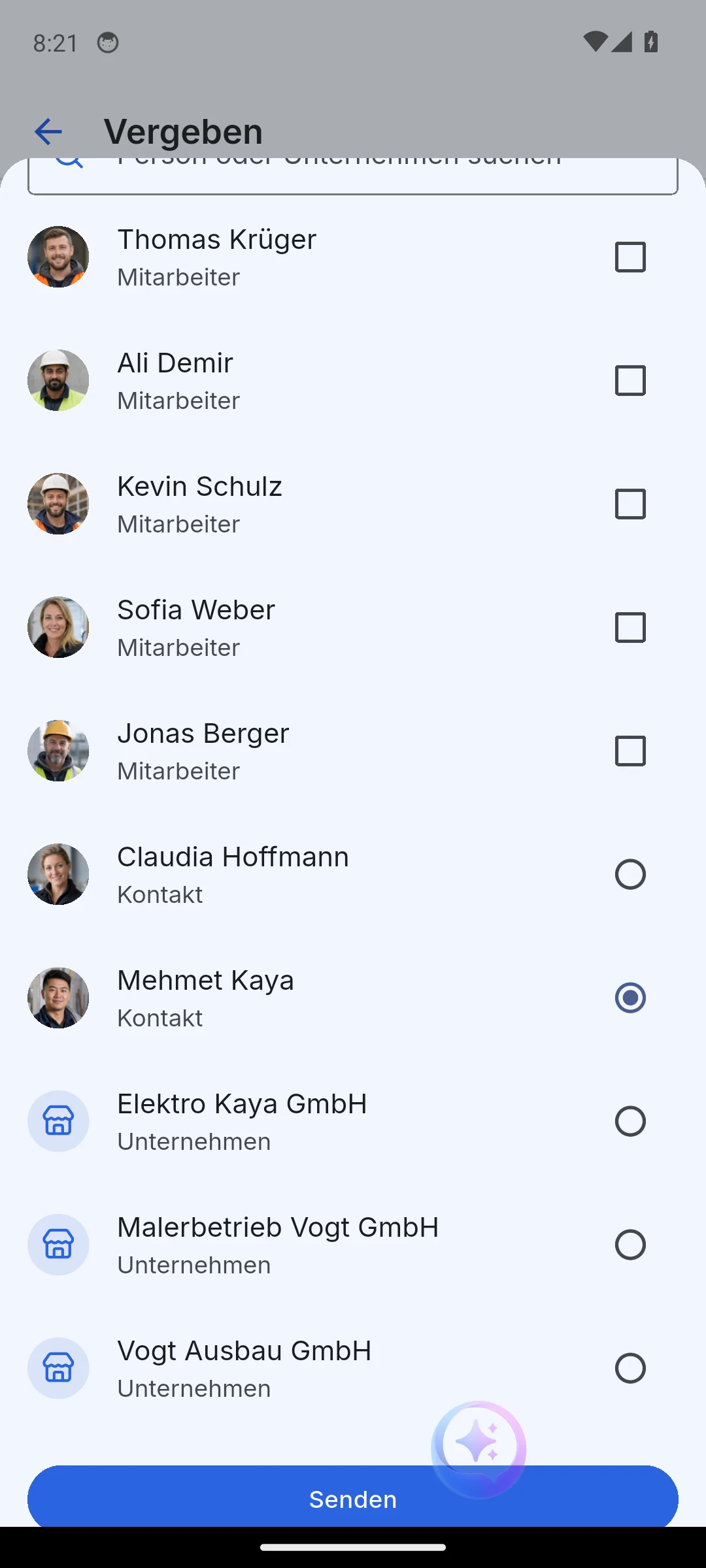
The recipient list is one combined search over people and companies, marked as Employee, Contact or Company. Depending on the recipient Skava asks for something different: hours for your own employees, a price for contacts and companies.
Internally to your own crew
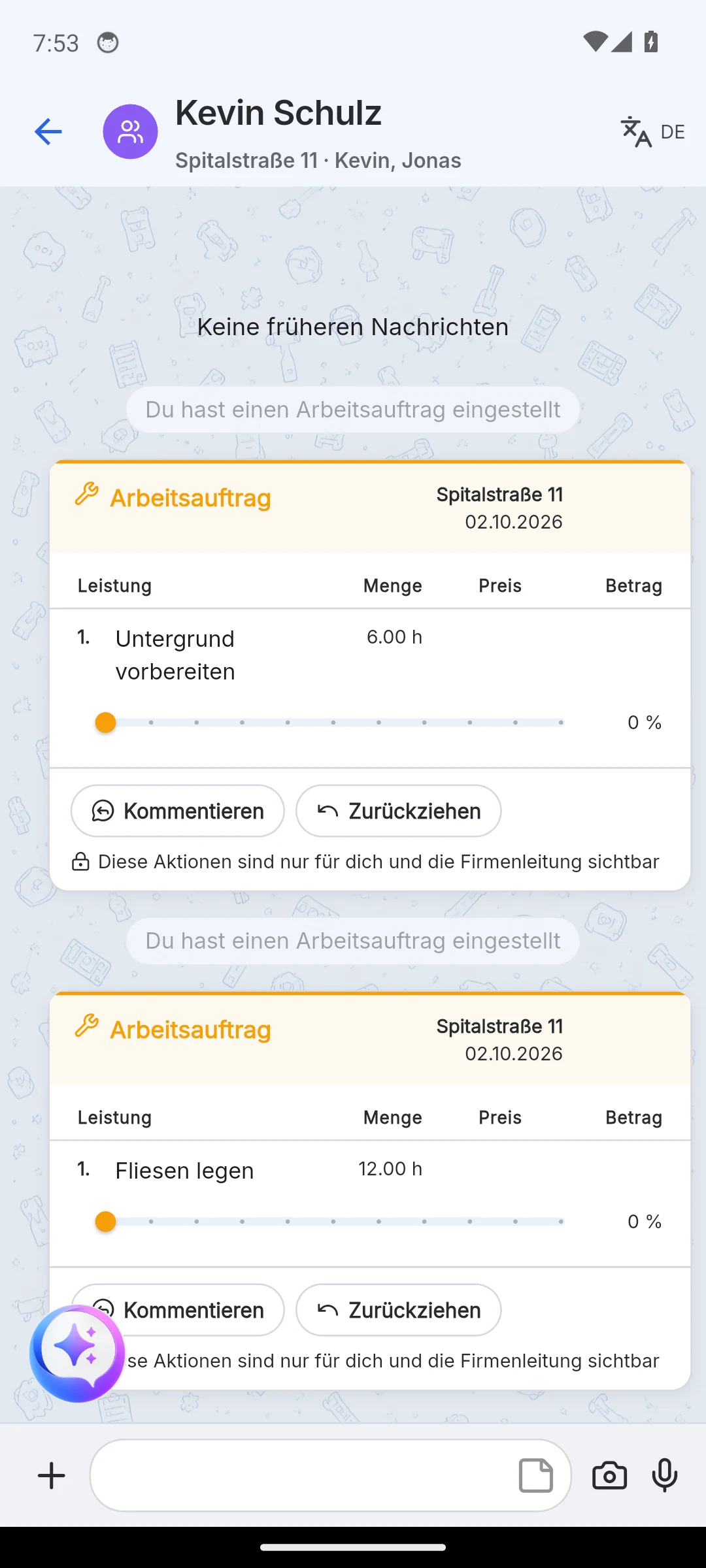
If you assign to your own employees, a work order is created. It does not go into the chat with the customer but into a separate chat of the crew, named after its members. The customer sees none of it.
The work order lists the assigned line items with quantity and hours. With Withdraw you take it back, with Comment you add notes. If you prefer planning by week, use the work plan.
Request to another company
If you pick a company or an external contact as recipient, the assignment becomes a request. You enter the price you are willing to pay per line; without a price the request cannot be sent. With Add line you attach further services that are not on the order confirmation. If the unit differs from your line item, Skava compares the total value. If the result is a loss compared to your order, the app warns you before sending.
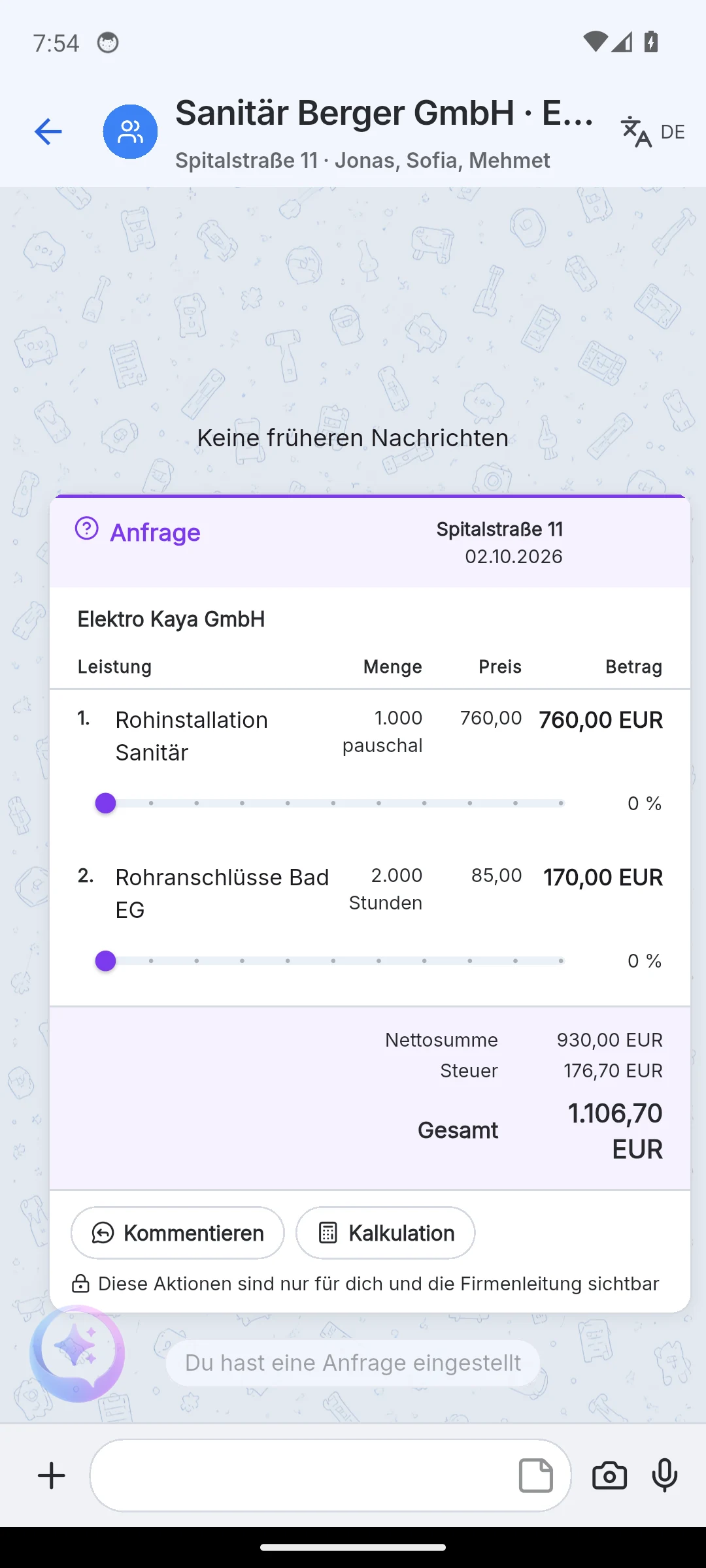
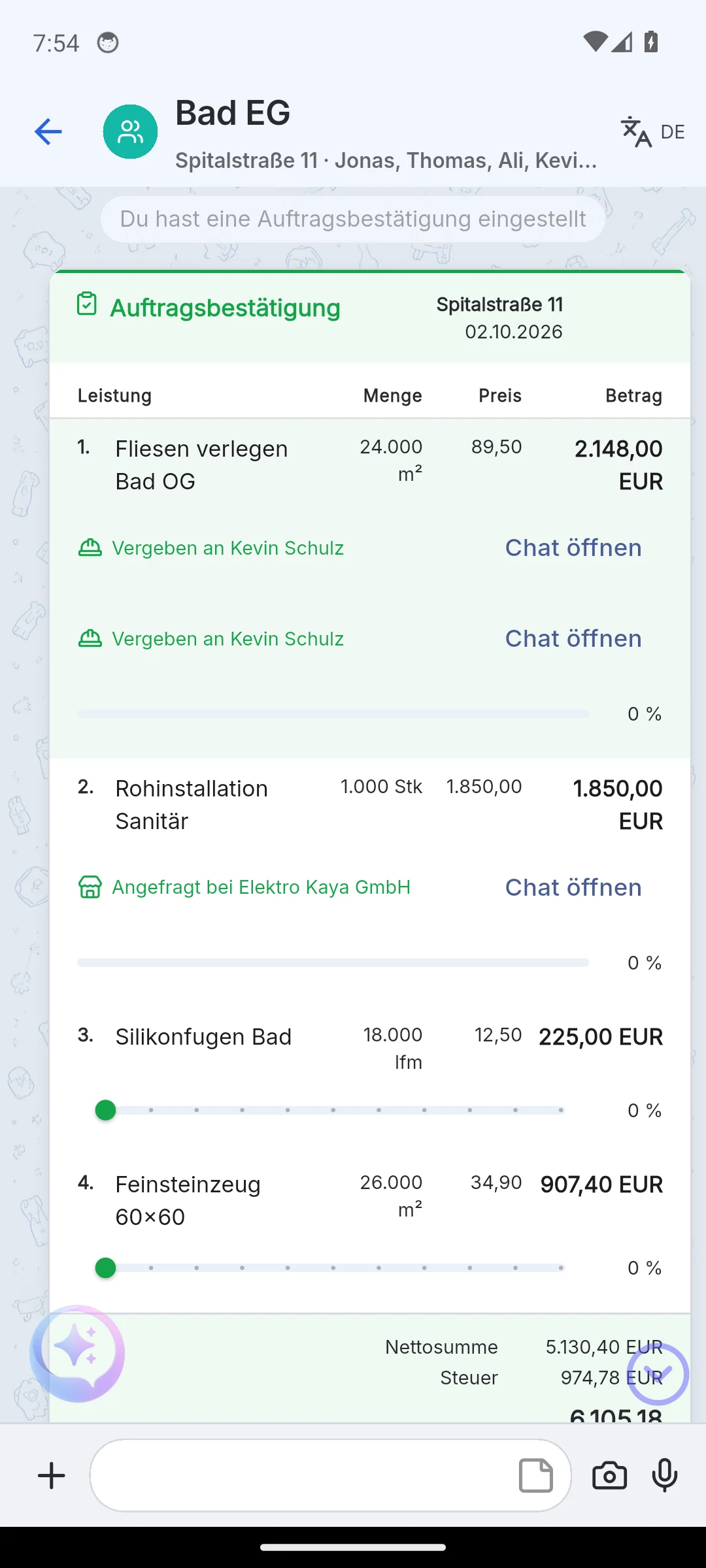
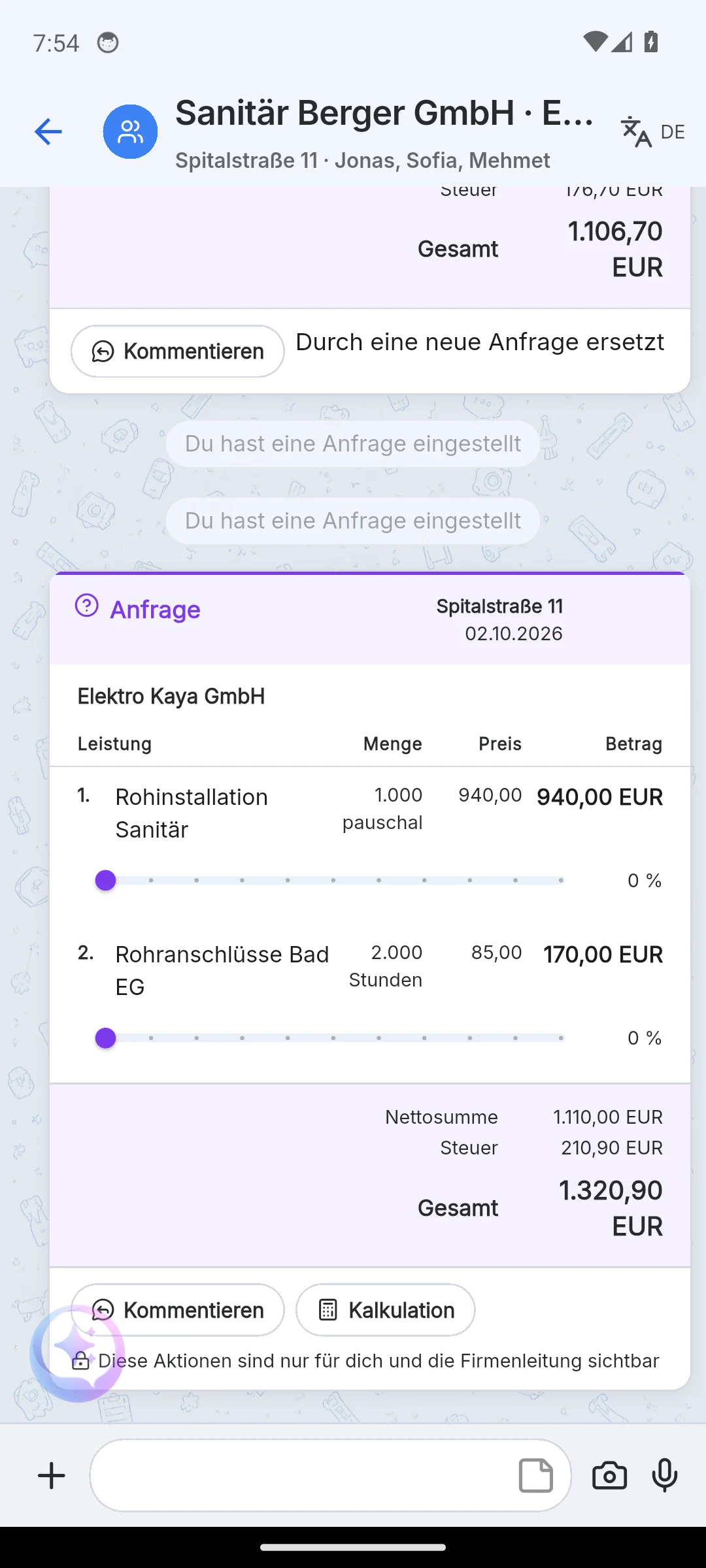
Three things happen when you send:
- A mirror project is created at the partner company, named after your project with the suffix "(from Your Company)".
- Below it sits a shared chat named after both companies, for example "Sanitär Berger GmbH · Elektro Kaya GmbH". Both sides see the same chat; on your side it hangs under your project. The request sits in it as a card.
- On your order confirmation the line item shows Requested from with the link Open chat. Only you see this note, neither the customer nor the partner company.
Renegotiating the price: In the request menu, Calculation opens a sheet with your order price, the new request price and the resulting margin. Send new request replaces the previous request; the old card stays in the chat as "Replaced by a new request".
Accepting an order
The partner company finds the request in two places: in the mobile app in the Overview tab under Incoming orders, in the web app on the company page under My orders. There it finds Accept and Decline. Alternatively it opens the shared chat and chooses Confirm in the menu of the request card.
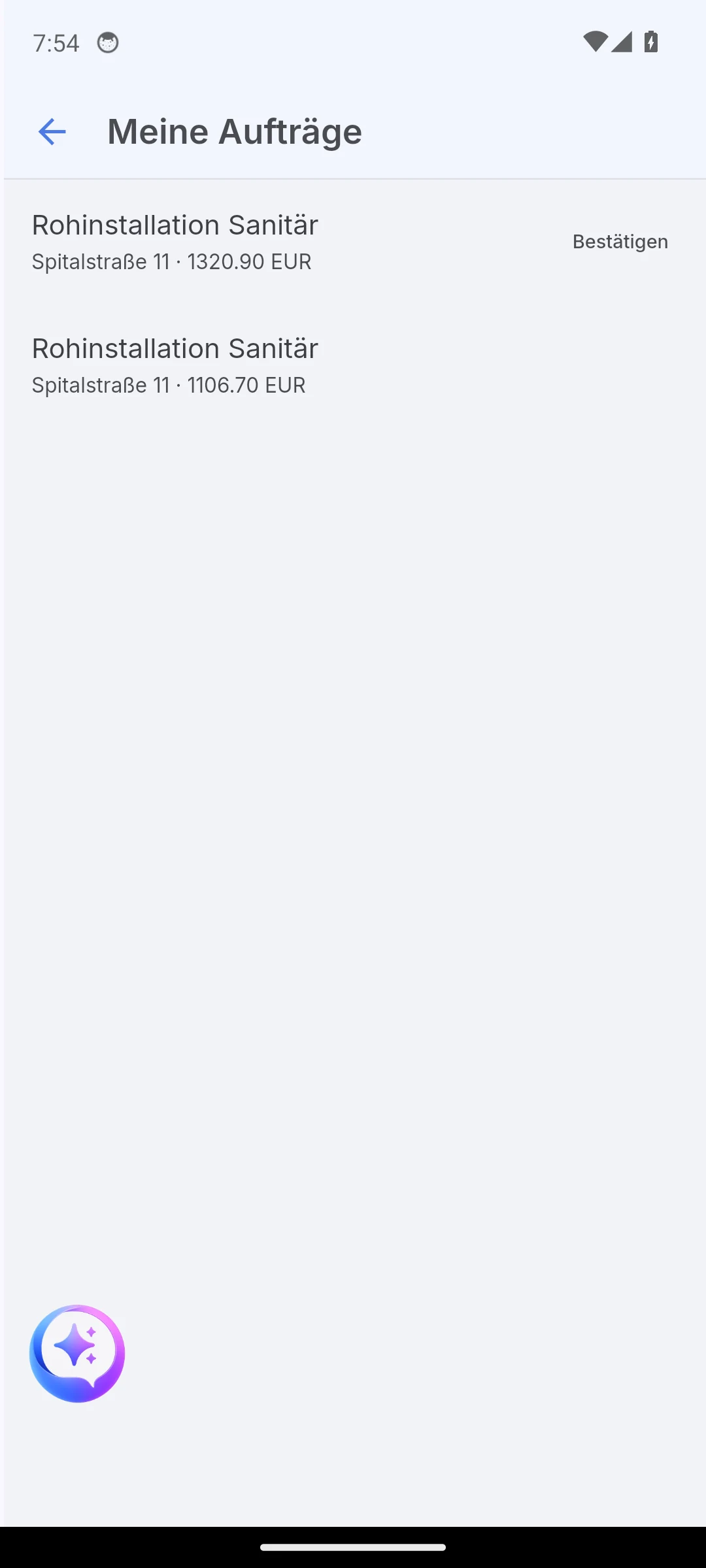
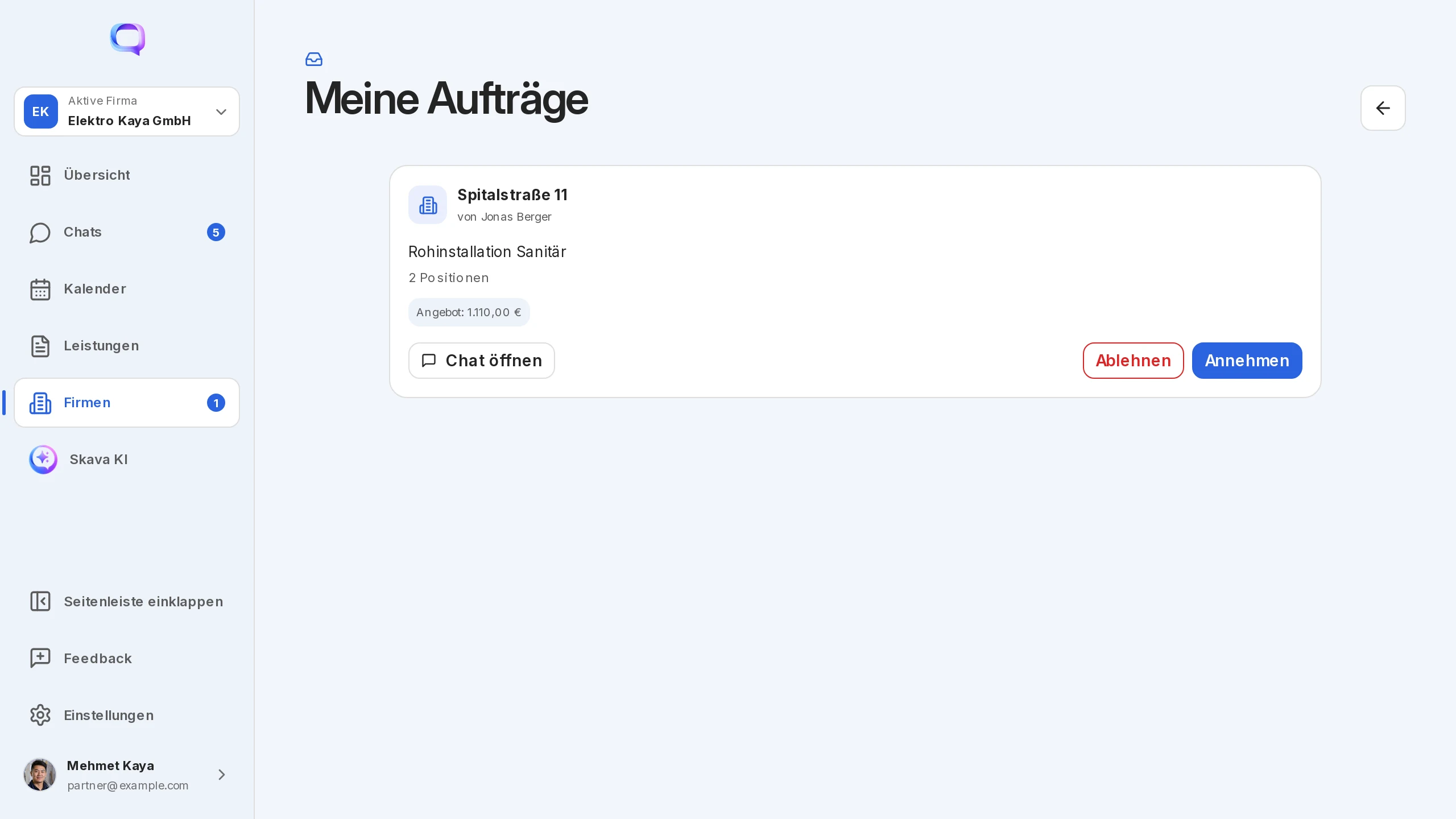
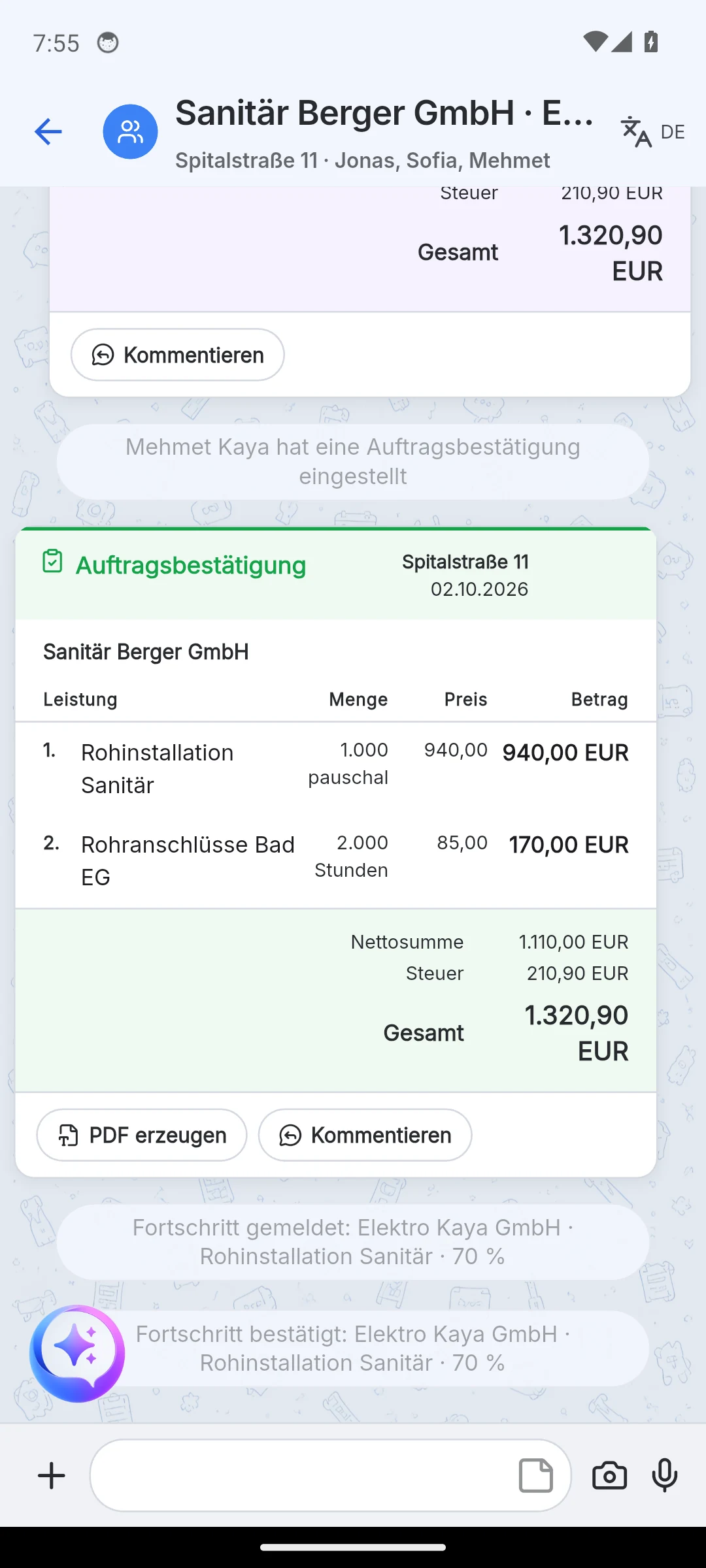
With the acceptance the partner company gets its own order confirmation in its company, with the prices from the request. If the person belongs to several companies, Skava asks for which company they accept; the choice covers the companies in which they are at least admin. On your side the line item then shows Assigned to.
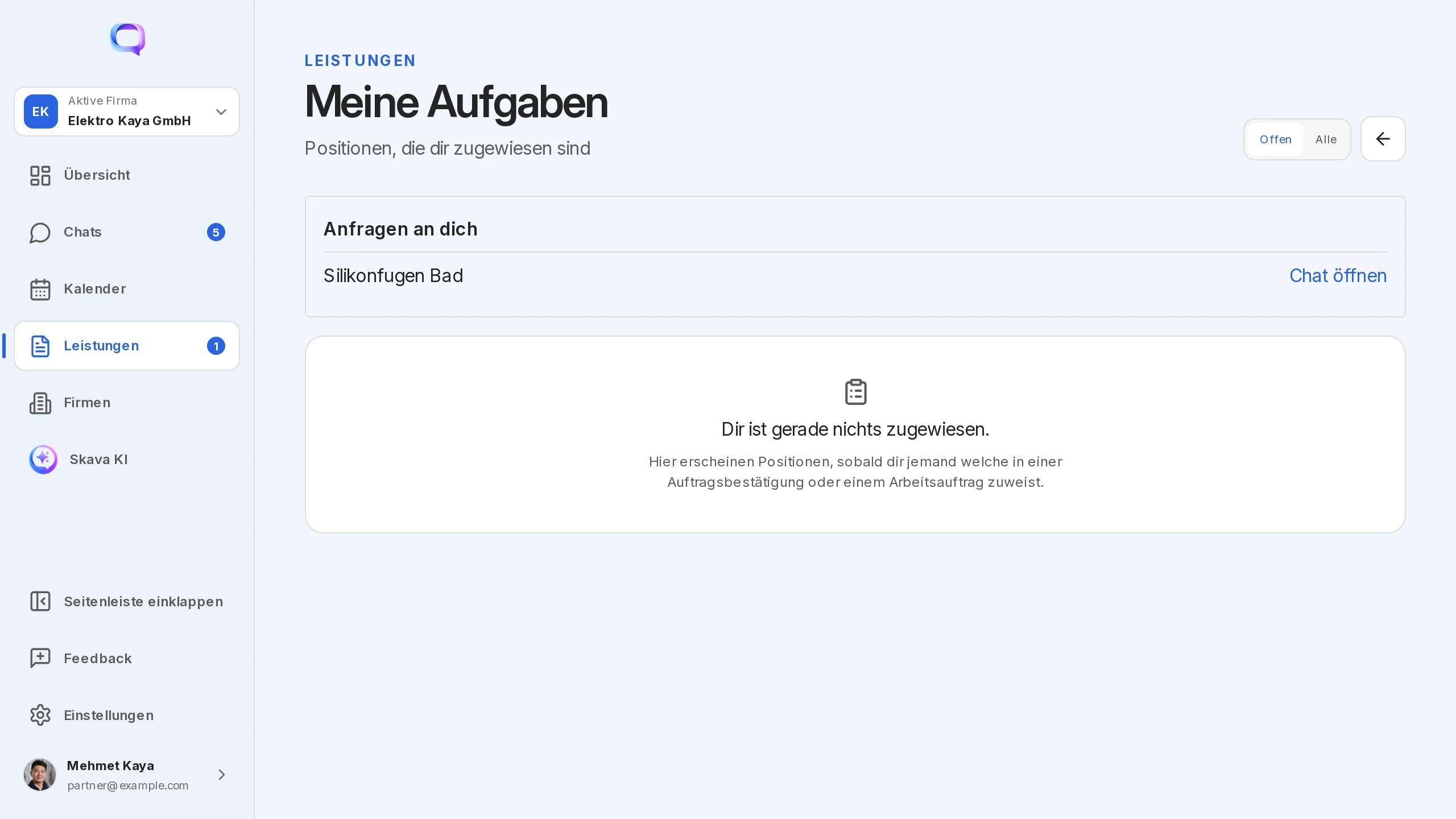
Personal request: If you assign to a contact instead of a company, the request reaches that person under My tasks. When they accept, they choose the company in whose name the order confirmation is issued. The shared chat is then named after your company and the person.
Progress and completion report
The partner company reports its status on its own order confirmation via the progress slider. Each report appears in the shared chat as a progress report. Your order does not change yet: you check the report, tap Confirm and then Pass on progress. Only then does the value appear in your order confirmation ("Taken over into the parent order").
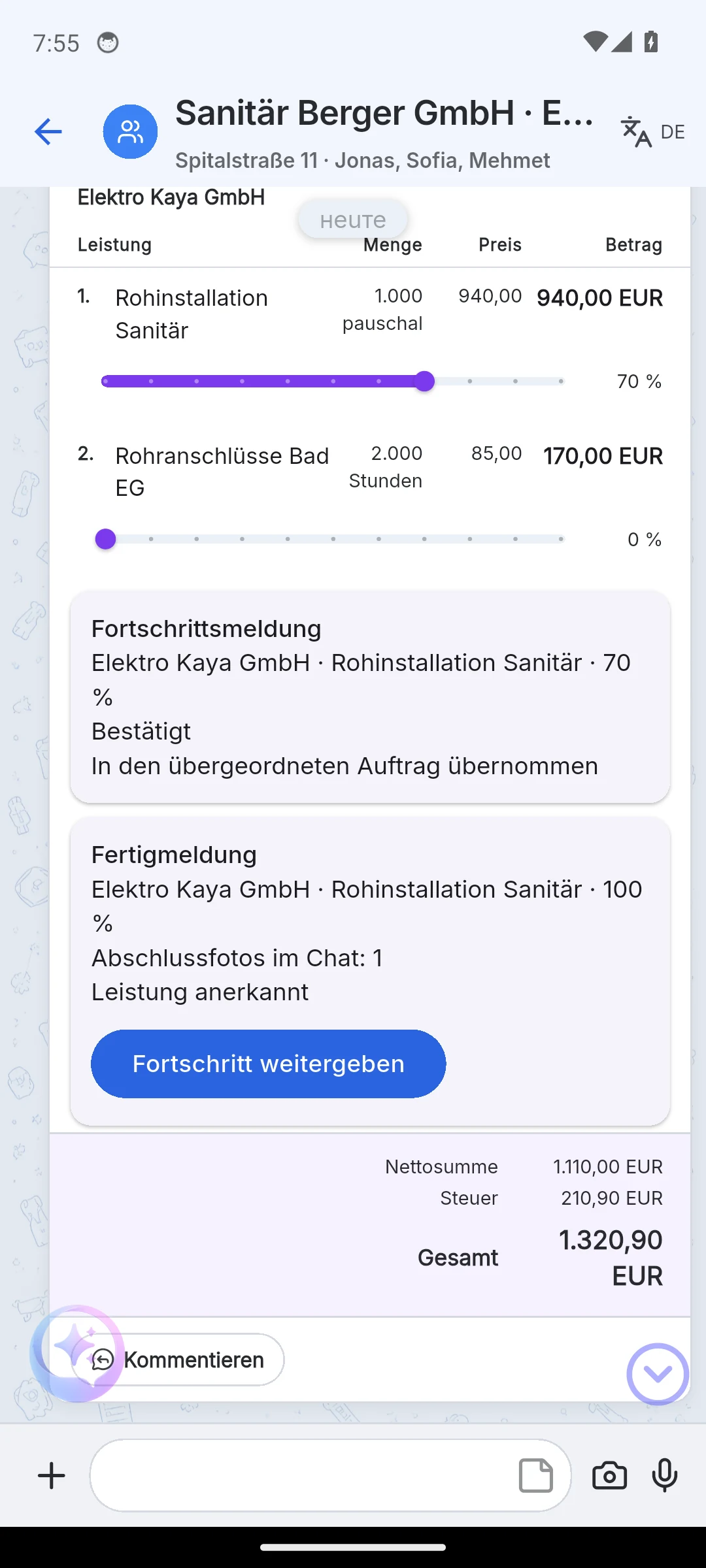
At 100 % the report becomes a completion report. The partner company posts final photos in the chat, you tick them, confirm, and the line item counts as Service acknowledged. The photos stay in the chat as proof of acceptance.
What the other side sees
- Only the shared chat. The partner company sees neither your project chats nor your customer chat, only the chat named after both companies.
- Only its line items. The request contains the assigned lines with the price you offer. Your sales price to the customer and the notes "Requested from" and "Assigned to" stay with you.
- Its own document. The partner company's order confirmation is a separate document in its company, not a window into yours.
- The customer sees none of it. Neither work orders nor requests appear in the chat with the customer.
On the phone, lists of services can be copied into another chat via Forward. That stays within your own company; for other companies the request is the right way.
Bringing people into the team
For someone to take part, they have to be in the company or in the chat:
- Employees are added on the company page under Members. In chats, colleagues of the same company are then available without an email search.
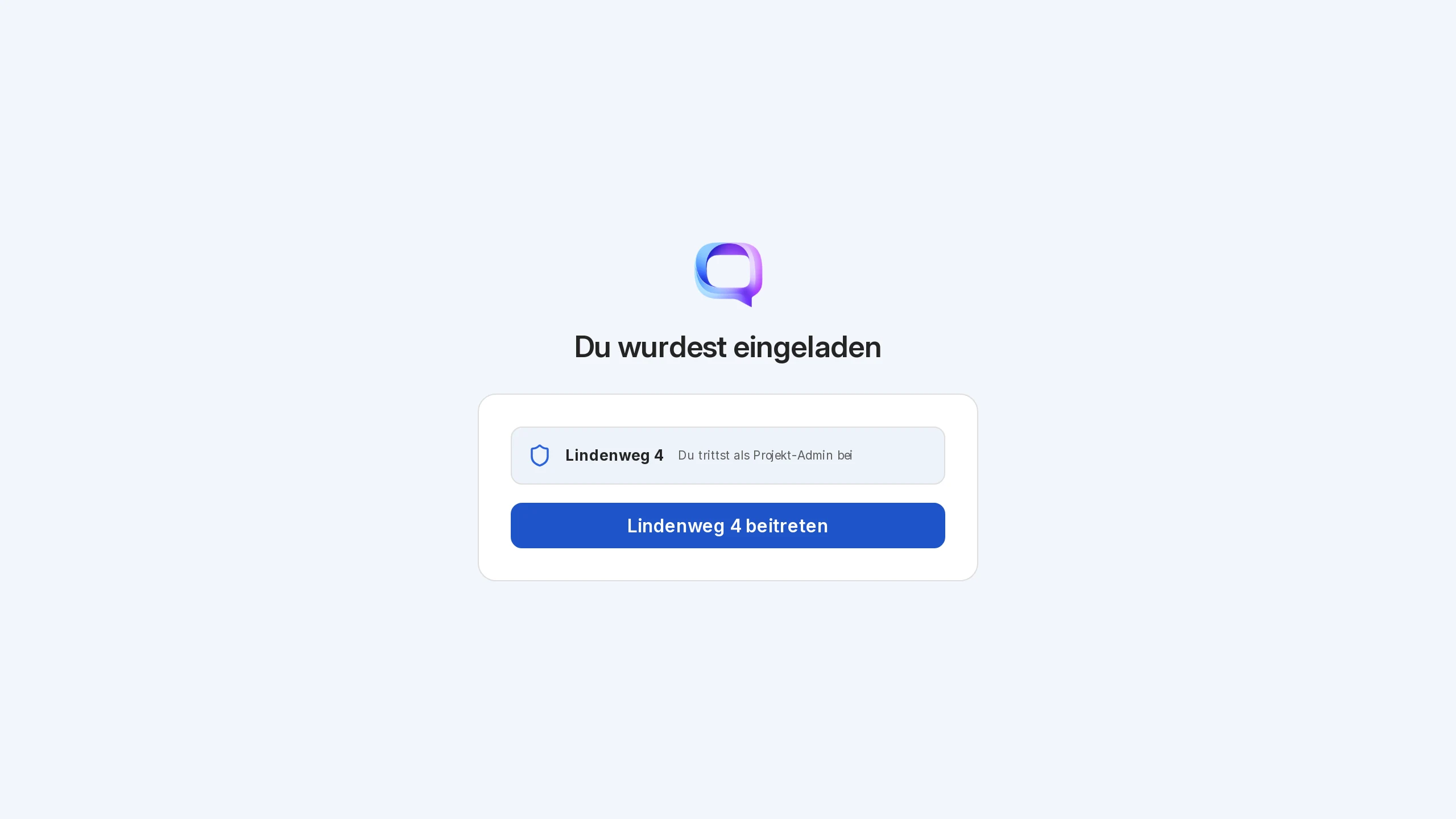
- Invitation links exist for three targets: into the company, into a chat and as project admin. Whoever opens the link sees "You have been invited" and joins with one button. On the phone a tapped link opens the invitation directly in the app.
- Employee onboarding: New users are asked whether they run a business or join a crew. Employees thereby skip creating a company and project and land directly in their working day.
Web app and mobile app
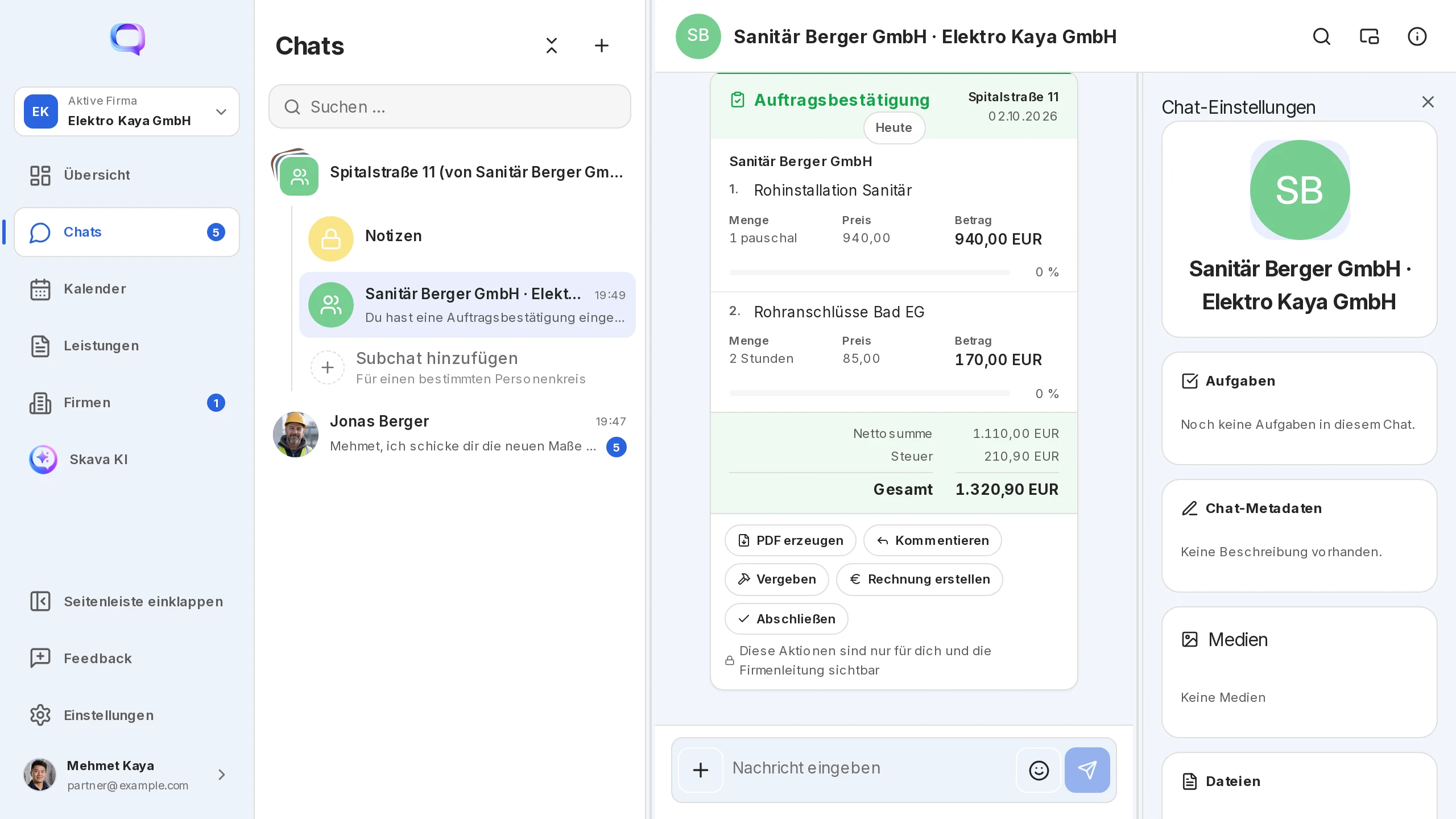
In the web app you assign with checkboxes and an overlay. Incoming orders sit on the company page under My orders, personal requests under Services.
On the phone, assigning runs in sheets. You find incoming orders in the Overview and personal requests in the tasks tile. Only the mobile app can forward lists of services into other chats and asks "Business or crew?" when you first sign in.
Frequently Asked Questions
Why is "Assign" missing on my quote?
Assigning only works from an order confirmation. Convert the quote first; Assign then appears in the menu of the new document.
Does the partner company see my customer price?
No. It only sees the request with the price you offer and the shared chat. Your sales price, your project and the customer chat stay with you.
Can the partner company propose a different price?
The client sets the price. Negotiation happens in the shared chat; you then send the new price via Calculation and Send new request. The old request stays visible as replaced.
Why doesn't my progress change although the partner reported 70 %?
Progress has two stages. The partner's report sits in the shared chat; you confirm it and choose Pass on progress. Only then does the value appear in your order confirmation.
What is the project "… (from Company X)" in my chat list?
The mirror project of a request another company sent you. Below it sits the shared chat with that company. You accept or decline under Incoming orders or My orders.
I belong to two companies. For which one do I accept?
When accepting, Skava asks for which company the order confirmation is issued. The choice covers the companies in which you are at least admin.