
Work plan and calendar
Who should work where and when, and who actually did: in Skava that is one view, not two. The calendar shows the weekly plan and the hours tracked in the same cell.
The calendar exists per company. If your filter is on "All companies", pick the company you are planning for at the top of the calendar. That choice applies here only, your chats keep their filter.
Two views
At the top you switch between the two views of the same calendar:
- Team members : one row per person, one column per day. The planner's view of the team.
- Projects : one row per target, that is per site or project chat. The view of the site: who is there tomorrow, with which work order and which equipment.
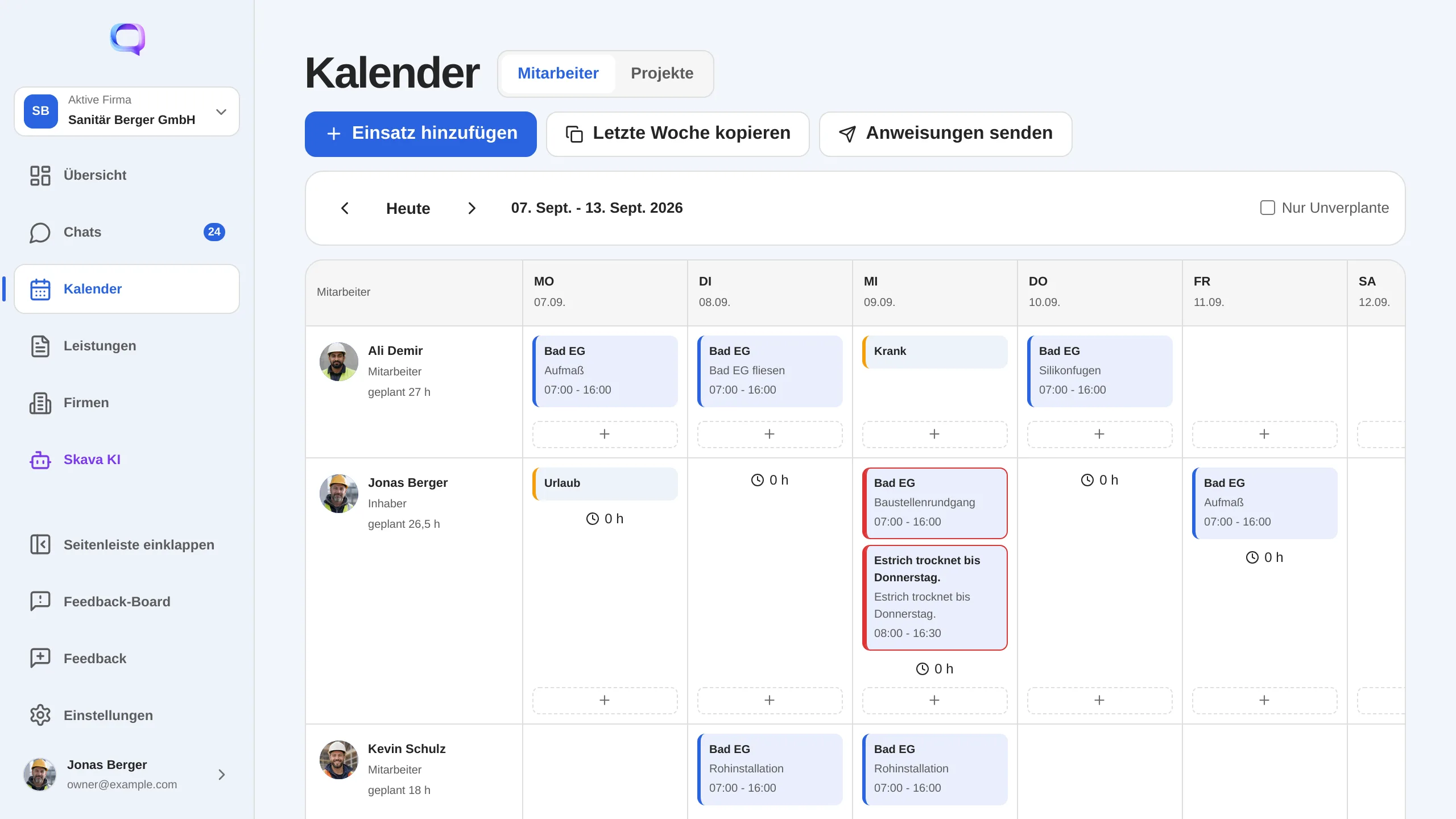
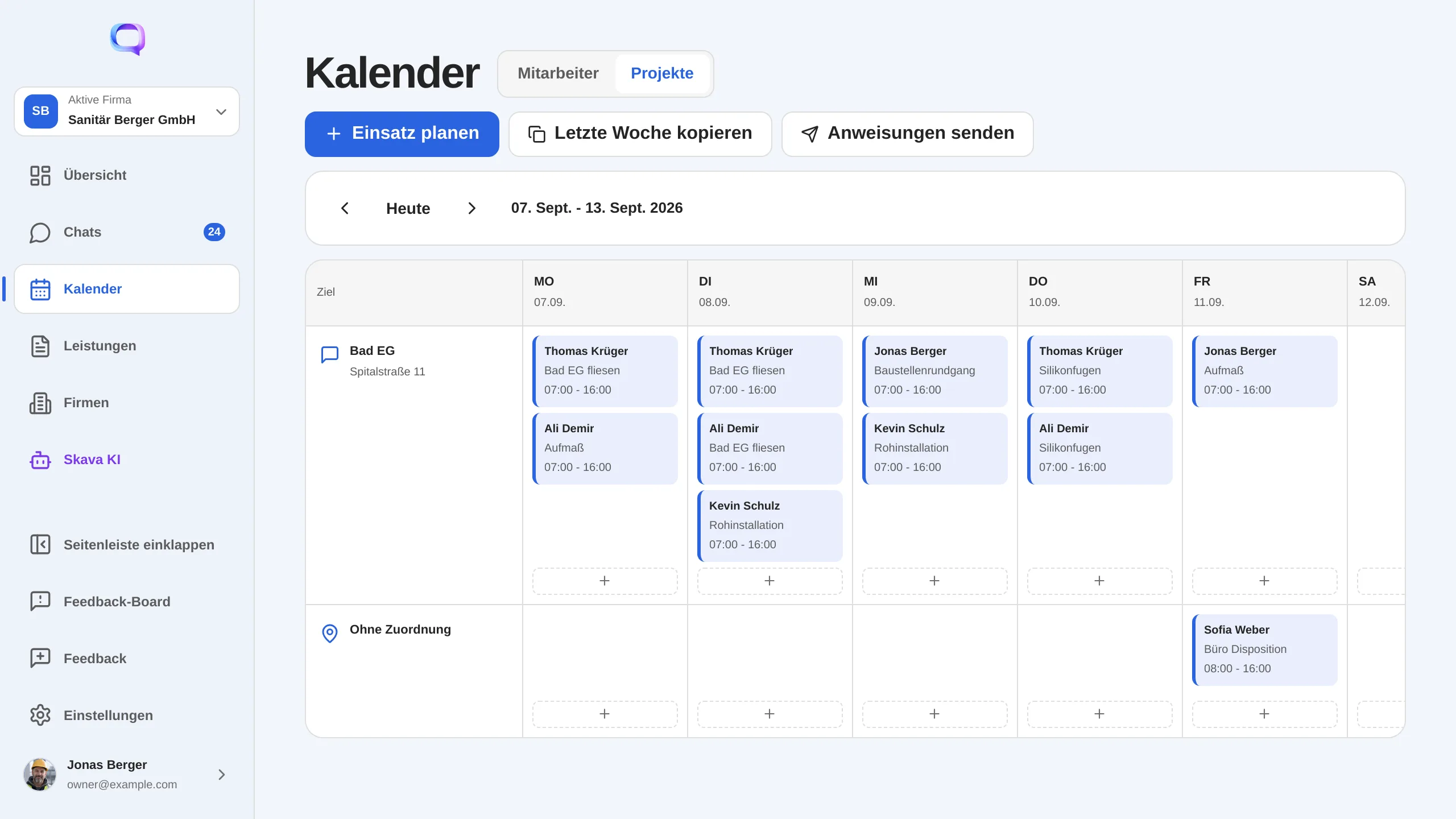
Planning a deployment
- Tap the plus in the cell you want, or Add deployment respectively Plan deployment at the top.
- Pick the date and the target: a site, a project chat, or both.
- Set the times; 07:00 to 16:00 is preset.
- Put the crew together and attach vehicles or equipment. Next to each item you can see whether it is already booked elsewhere that day.
- Write a shared work description and the material needed. Both apply to the whole deployment and appear in the instruction later.
A week that repeats can be carried over with Copy last week. Anyone on holiday or reported sick shows as absent in their cell, so nobody gets scheduled by accident.
Sending work instructions
A plan is worth nothing while it only exists in the office. With Send instructions Skava sends the deployments of one day to the people involved: into the project chat if a chat is set as the target, otherwise as a direct message to every member of the crew. You see a preview with exactly the text that goes out.
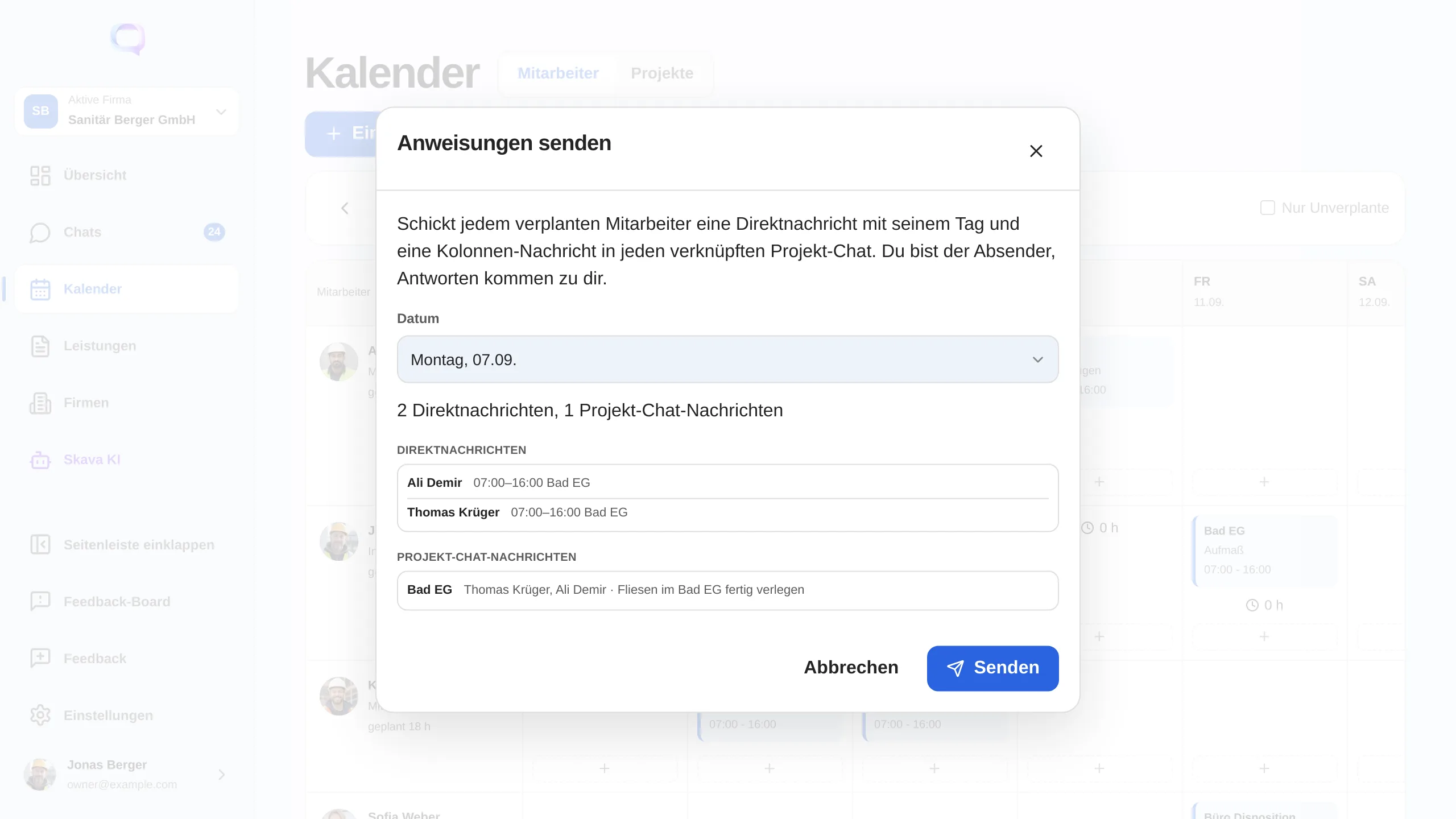
The instruction carries date, time, target, the crew, the vehicles and equipment assigned as well as the work description and the material. On the day itself the calendar shows when it was last sent, so nobody sends twice or forgets entirely.
Planned against tracked
Below the plan, every cell shows what was actually tracked that day, and next to the name the weekly total reads "planned 42.5 h, tracked 39.0 h". That way you see where plan and reality drift apart without a second list.
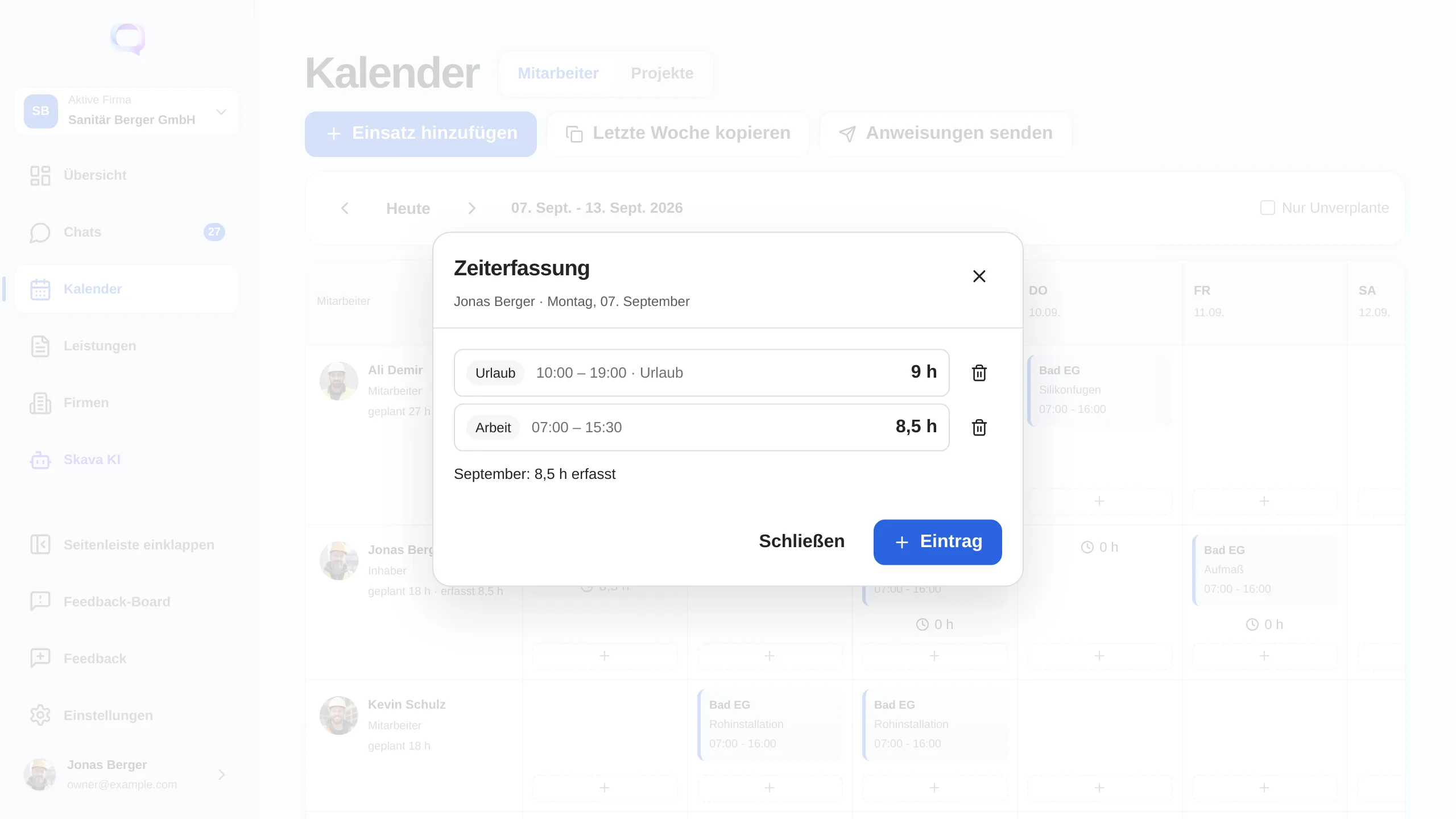
Clicking the hours opens the day. It lists the individual entries with type, times and comment, you add, change or delete them, and below that stands the total of the month. As the type you choose Work, Holiday or Sick. Because start and end are full points in time, two weeks of holiday stay a single entry.
Who sees which hours: your own are always visible to you. The hours of your colleagues are visible to owners and admins of the company only. The plan itself is visible to the whole team, but absences without a reason: it only says "absent", not whether it is holiday or sick leave.
Clocking in and out
For the quick case there is the time clock in the Overview: one button to start, one to stop. Skava can also do it automatically as soon as you enter a site; you switch that geofence feature on in the settings. Everything after the fact, correcting, adding, entering holiday, happens in the calendar.
Web app and mobile app
The web app is the planning desk: one calendar with the two views, copying weeks, sending instructions for a whole day and the tracked hours right next to it.
On mobile you plan and send the same way, only by day instead of by week. Time tracking there still has its own page with a monthly calendar; it moves into the calendar next, as in the web app.
Frequently Asked Questions
How do I plan a deployment for the week in Skava?
In the calendar, in the team member view, tap the plus in the cell of the day. Then pick the target (site or project chat), the times, the crew and, if needed, vehicles and equipment. A shared work description and the material apply to the whole deployment.
What is the difference between the team member and the project view?
Both are the same calendar. The team member view shows one row per person, that is who is where and when. The projects view shows one row per site or project chat, that is who stands on which site tomorrow and with which equipment.
How do my people get the plan?
Through Send instructions. Skava sends the deployments of one day into the project chat if a chat is set as the target, otherwise as a direct message to every member of the crew. You see a preview with the exact text beforehand.
Where do I see the tracked hours?
In the calendar below the plan: the hours tracked per day, and next to the name the weekly total as "planned 42.5 h, tracked 39.0 h". Clicking the hours opens the day with the individual entries and the monthly total.
Who can see other people's hours?
Everyone always sees their own hours. Other people's hours are visible to owners and admins of the company only. The plan is visible to the whole team, but absences stay anonymous there: it says "absent", not whether it is holiday or sick leave.
How do I enter holiday or sick leave?
In the calendar, click the hours of the day, create an entry and choose Holiday or Sick as the type. Start and end are full points in time, so two weeks of holiday are a single entry. In the weekly plan the absence then shows in the cell, so nobody gets scheduled.
Can I copy a week?
Yes. Copy last week carries the deployments of the previous week over to the week shown. That pays off for crews permanently working on the same site.