
AI Assistant
Skava has a built-in assistant that knows your projects. It summarizes chats, reads photos and measurements, writes invoices and quotes as PDF, handles recurring tasks and answers questions that only you can see.
Opening the assistant
In the mobile app the Skava button sits at the far left of the bottom bar. In the web app, Skava is in the left navigation bar; the panel floats next to the chat and can be docked, maximized and resized. There is a single, permanent conversation with the assistant, no chat list and no "New chat" button. What you write stays there.
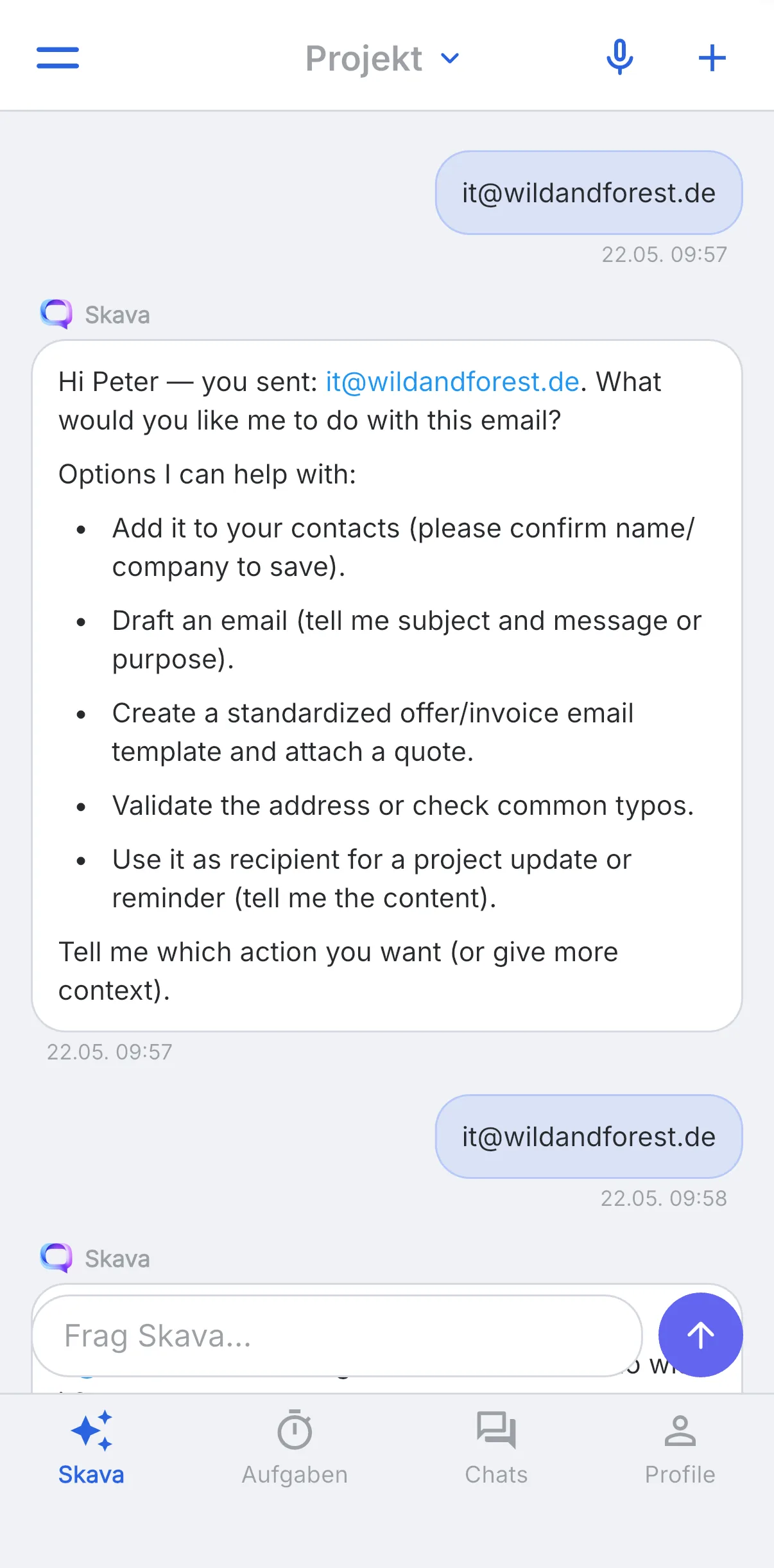
At the top of the header you find two icons:
- The folder icon opens the assistant's files.
- The clock icon leads to the scheduled tasks.
The assistant remembers which project you came from. If you open it from a subchat, that project is set and shown as a chip above the input field; from the settings no project is set. You can change the reference at any time.
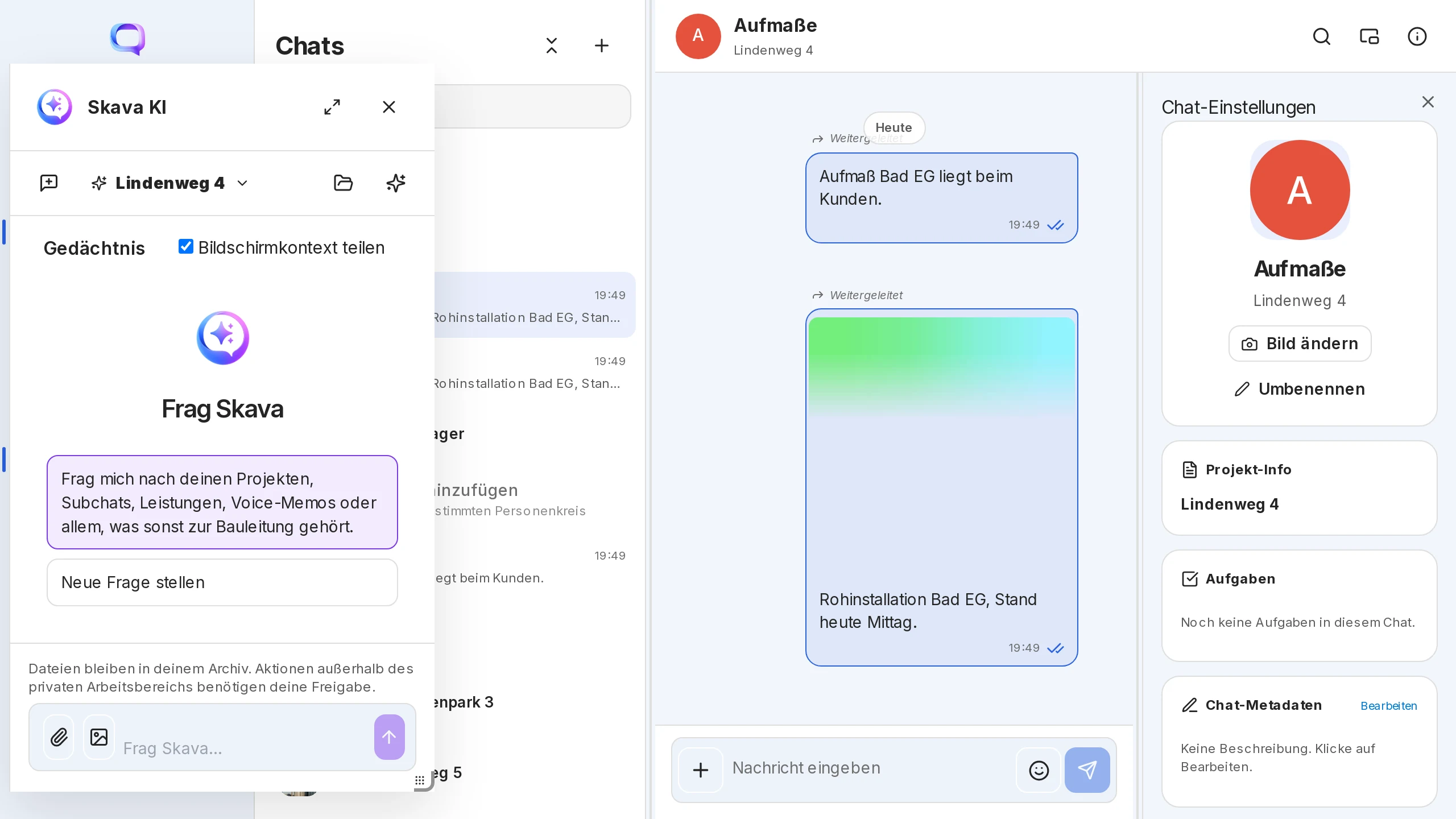
What the assistant can do
- Read chats: It reads messages, photos and measurements from your project chats. "What does the chat Bad EG say about the wall area, and what color is the bucket in the site photo?" is answered with a number and a color.
- Summarize and draft: summarize unread messages, draft a reply or an email, check an address.
- Create documents: an invoice or a quote from the messages and images of a chat as PDF. If a price catalog is in your files, it takes the net prices from there and marks estimates and open points. It also turns an Excel file into a readable PDF.
- Suggest actions: Instead of only answering, it often proposes several concrete steps and asks which one you want to run.
- Build templates (company admins): In the web app, Create with Skava in the Custom Elements starts a draft for a document template or an API integration. Publishing is up to you.
Generated documents are private. They sit in the chat with the assistant and under Documents in the AI area. Nothing reaches a project chat unless you share or adopt it yourself.
Handing over messages and memos
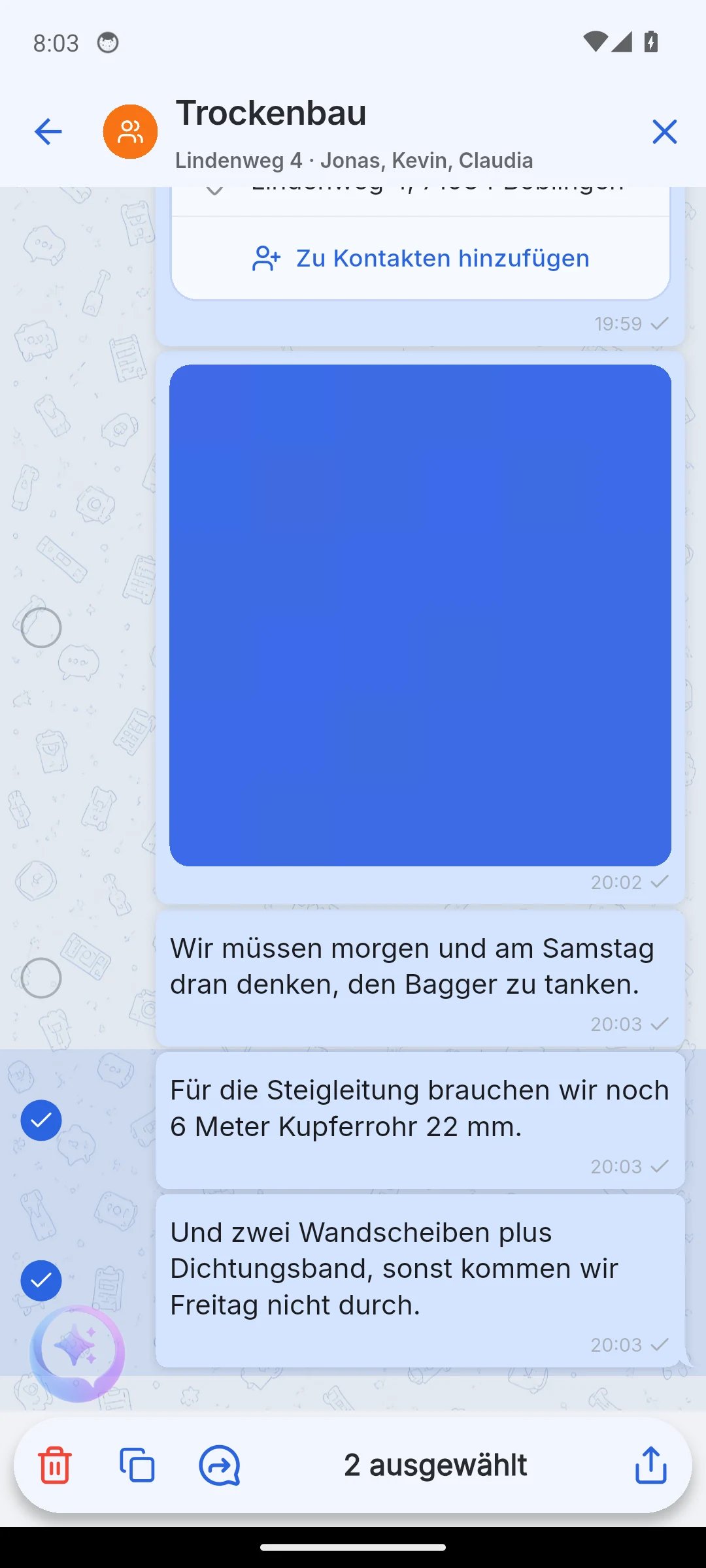
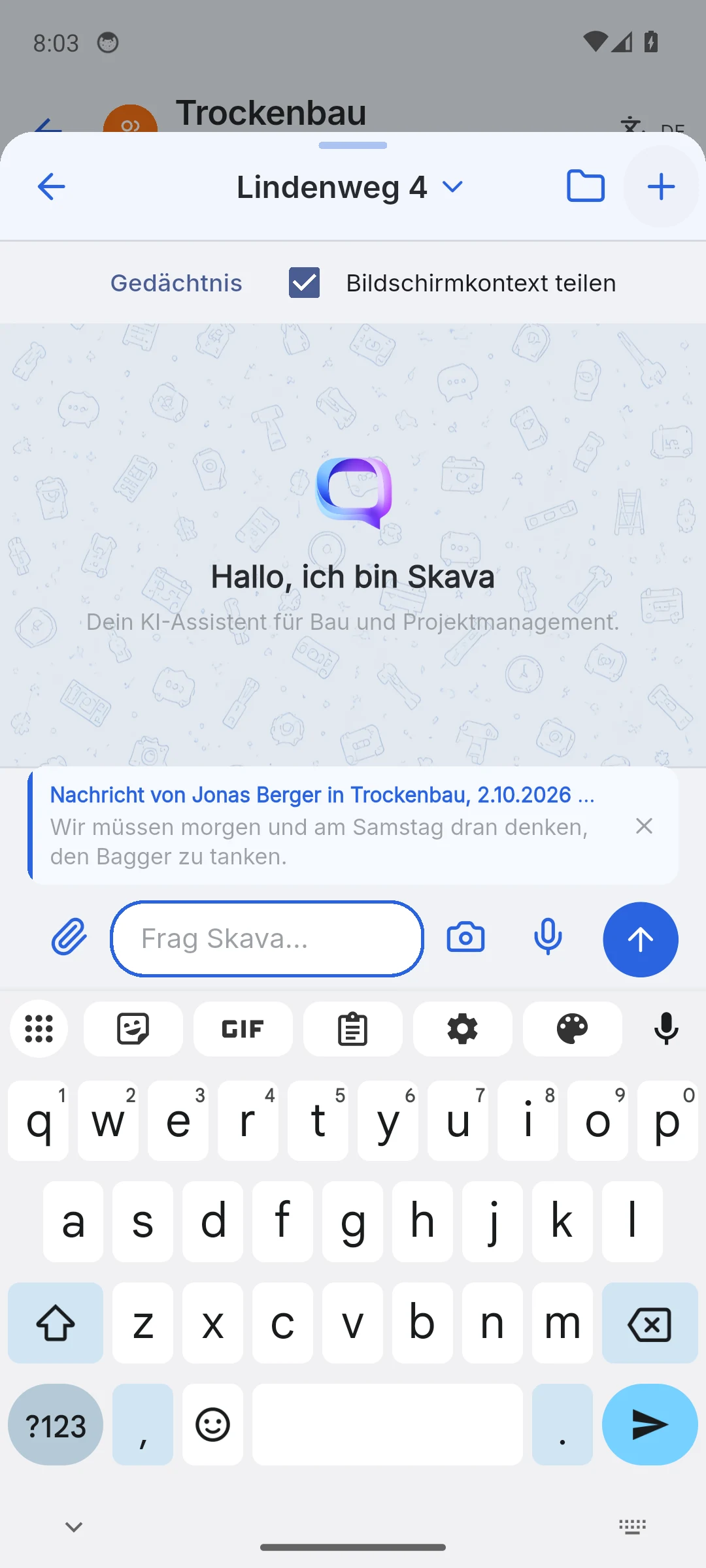
You don't have to retype anything for the assistant. Open the menu of a message (mobile: long press, web app: message actions), choose Forward and pick the Skava assistant as the target; it sits at the top of the list. Tap further messages to add them; all of them land on one quote card above the input field. Below it you write your instruction, for example "remind me of this" or "turn this into a task for Kevin".
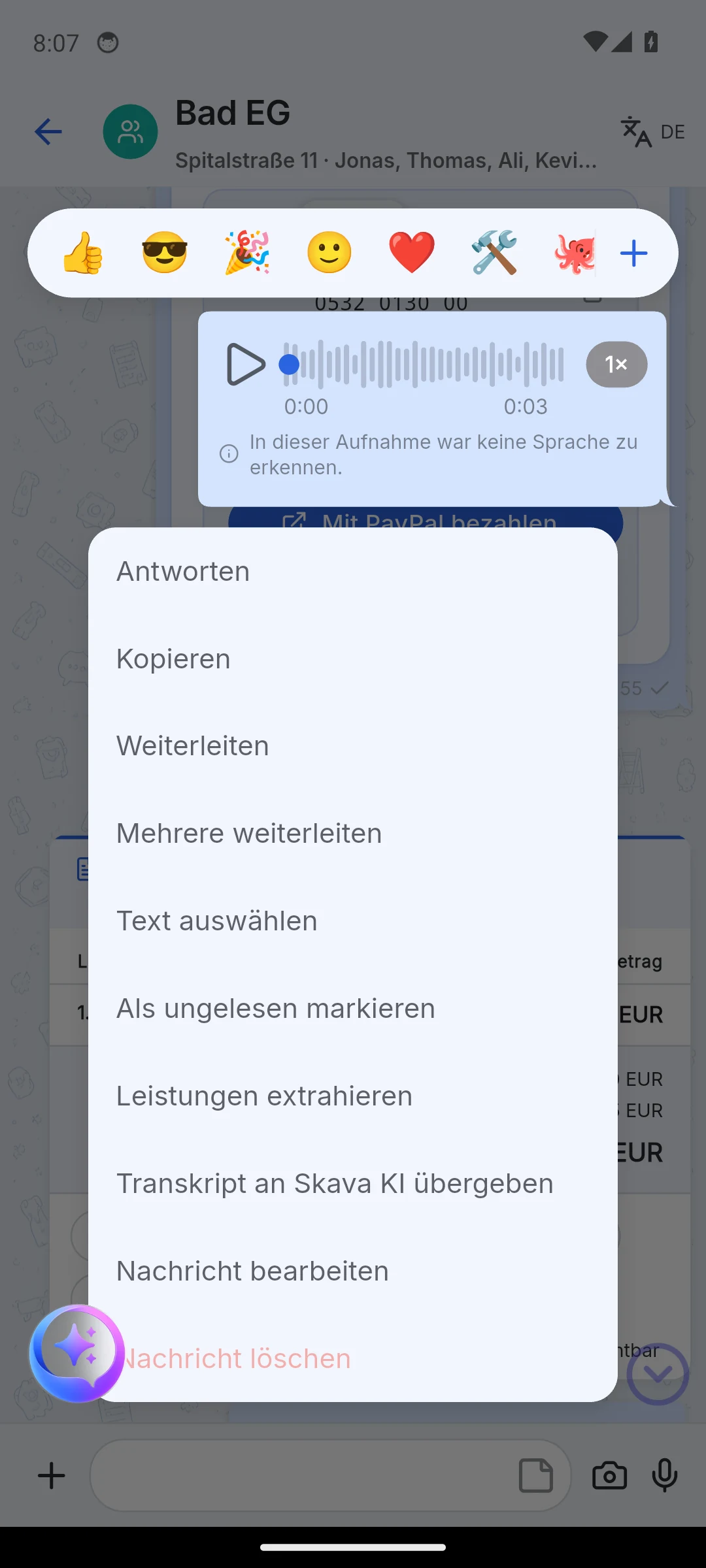
For a voice memo the entry is called Hand transcript to Skava AI. The assistant receives the text of the memo with sender, chat and time. If the memo has not been transcribed yet, Skava says so instead of handing over an empty quote.
Asking privately inside a chat
In the mobile app, type @skava in the normal input field of a chat. The band "Private to Skava · Only for you" appears. Nobody else in the chat sees your question or the answer; the answer arrives as a private card. The assistant knows the project, the chat and the visible messages. With Continue writing you switch to the normal conversation with the assistant; follow-up questions stay private too. The keyboard stays open, so you can go on writing publicly right away.
Files
Via the plus in the assistant you attach files and images, up to five files of 200 MB each. PDFs are shown as a card with preview, several images as a gallery, ZIP files for download. On the first attachment the mobile app points out that content may be sent to the AI provider for analysis and that the private PDF tool only passes file names to the model.
In the settings, the switch AI access to app files controls whether the assistant may search your personal folders, the company folders and its own files. It is on by default.
Scheduled tasks
Tap the clock icon in the assistant's header. Scheduled tasks are recurring jobs for the AI in plain language. Even with an empty list there are ready-made suggestions under Getting started, which a tap creates immediately:
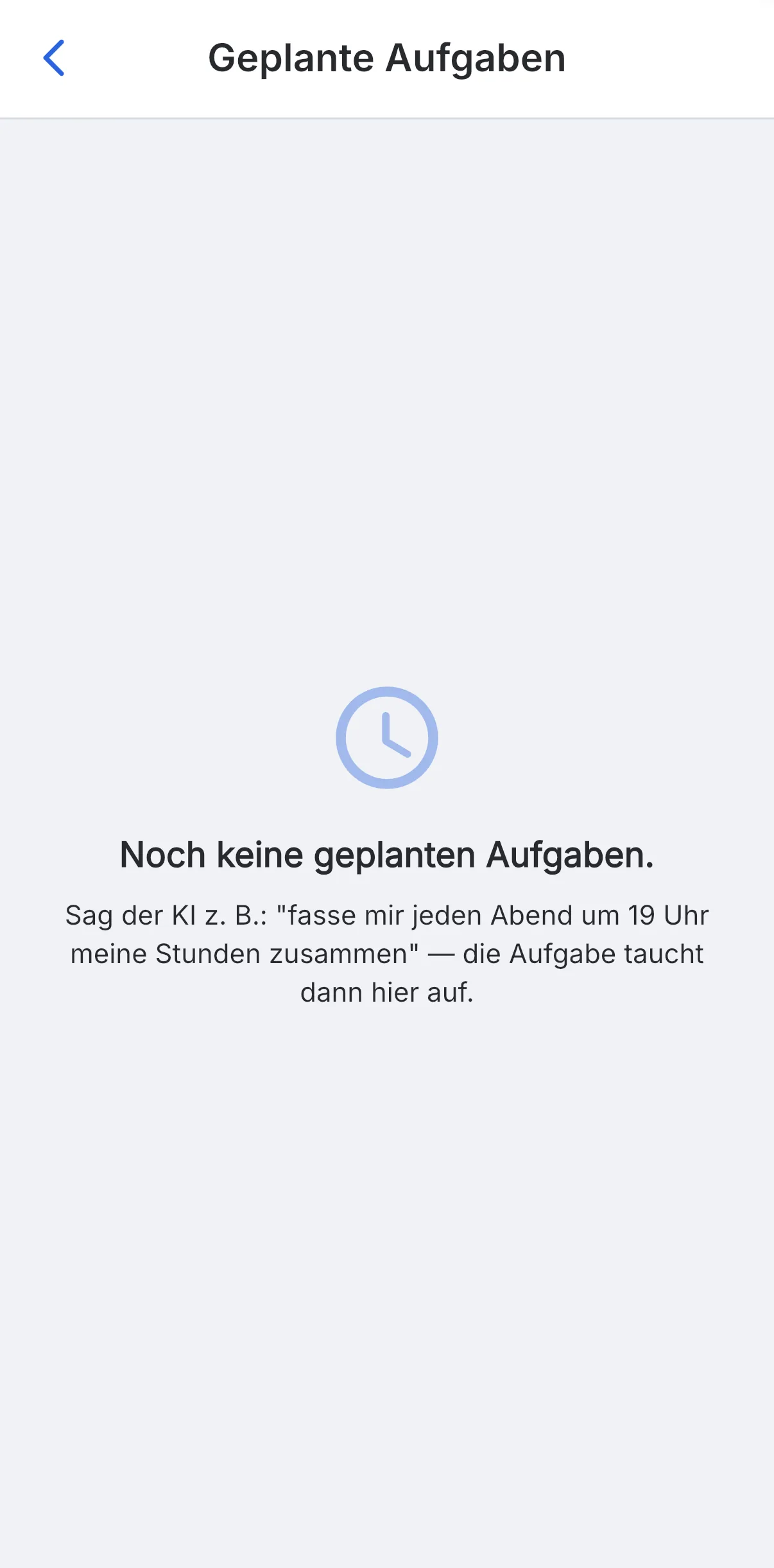
- Morning overview, daily 6:30: briefly summarize unread messages, grouped by chat.
- My open tasks, daily 7:00.
- Voice memos to follow up, daily 17:00.
- Weekly time review, Fridays 16:00: the recorded hours of the week per project.
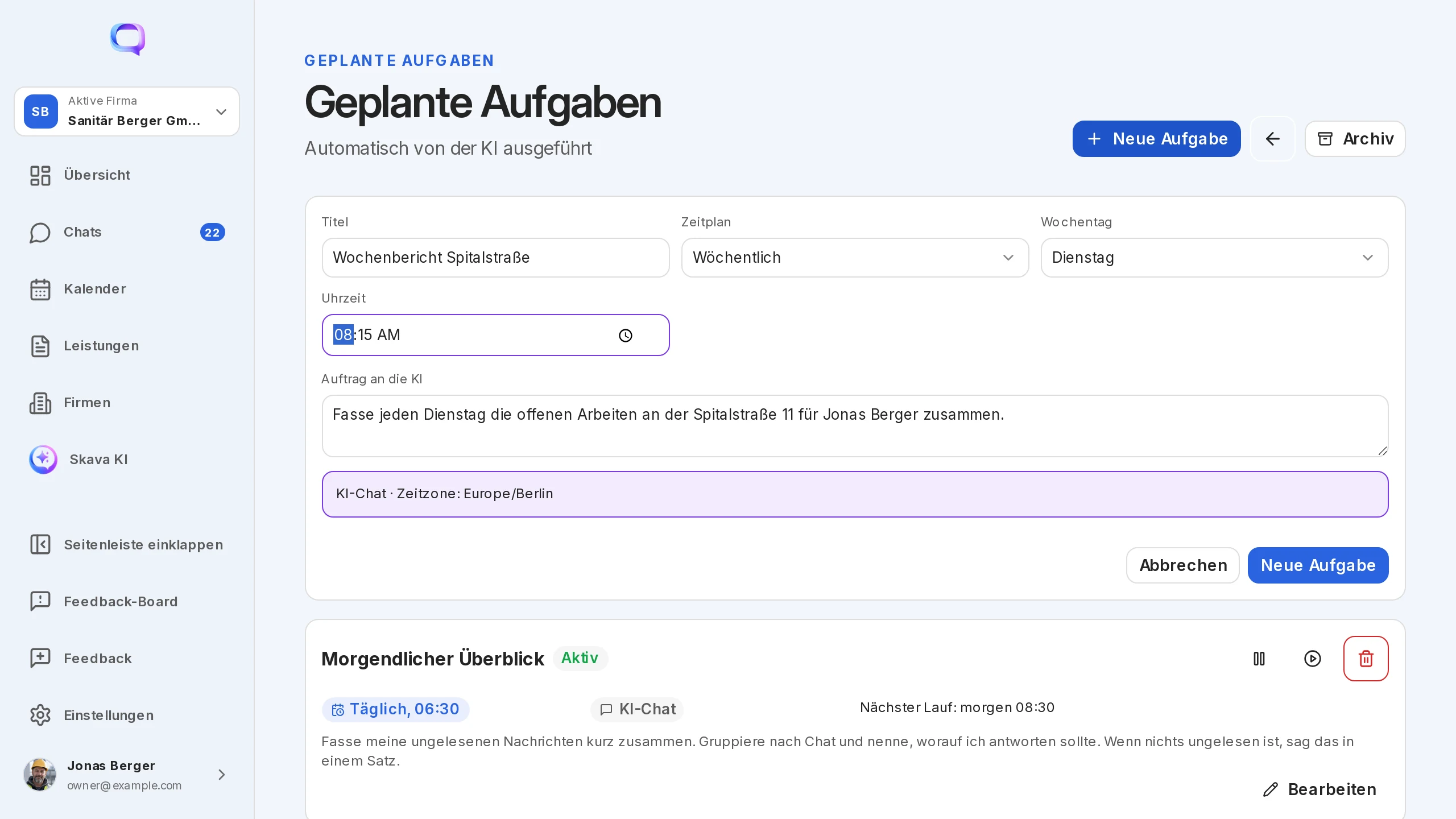
In the web app you create your own jobs with New task: title, job for the AI, rhythm, weekday and time.
Memory, limits and help
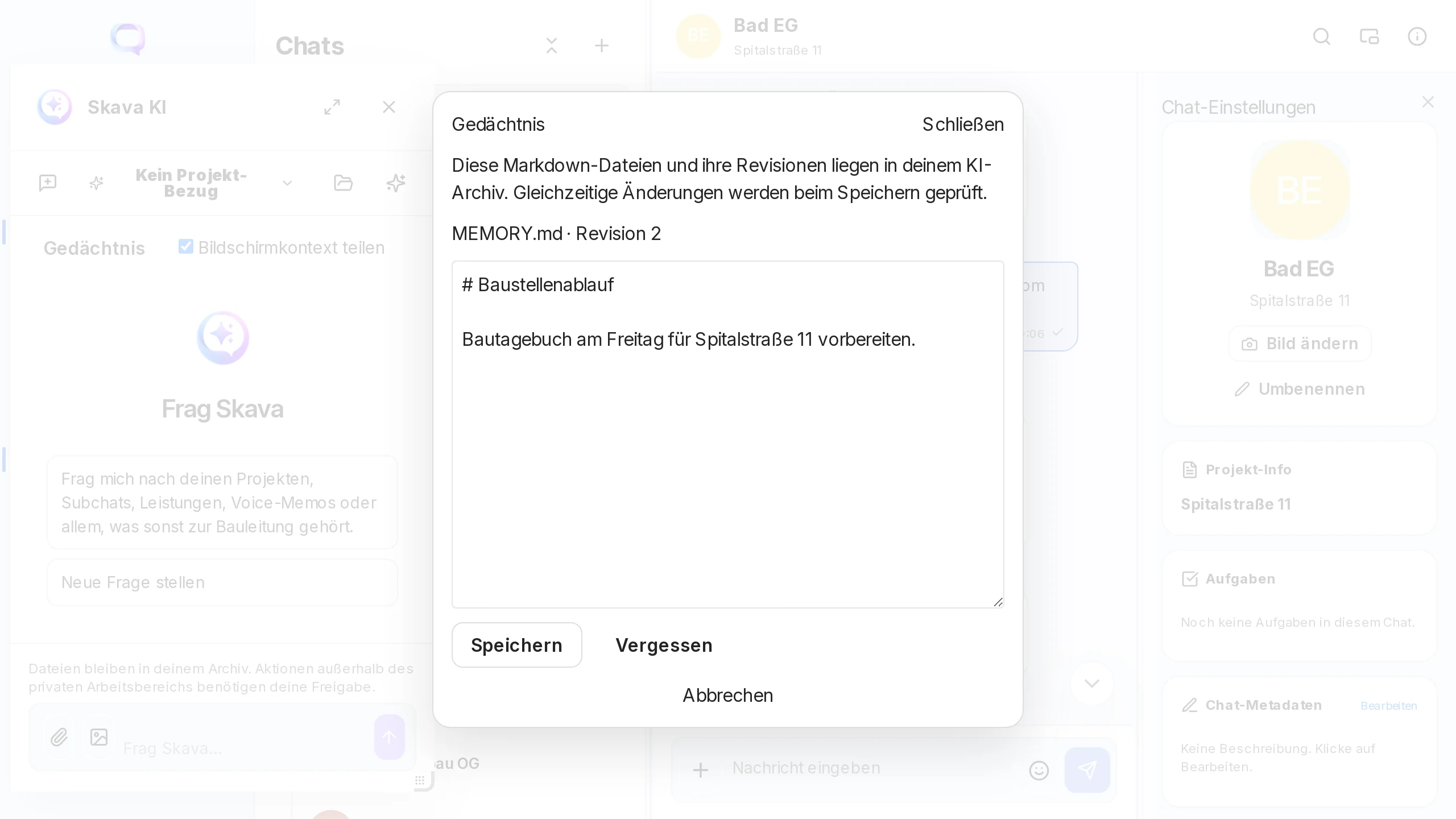
- Memory: The assistant keeps notes that survive sessions, for example "Prepare the site diary for Spitalstraße 11 on Friday". In the web app you open them via Memory.
- Stop and queue: While it answers, the stop button halts it. You can already send the next message; it waits in the queue.
- Nothing on its own: It creates templates only as drafts and documents only privately. Everything that goes outside is confirmed by you.
- Help in the chat: "Thomas from Skava" is a help bot, not an employee. It answers questions about the app with links to the wiki and passes feedback or emails to support only if you explicitly approve the action. For work requests it refers you to the assistant.
Small helpers without AI
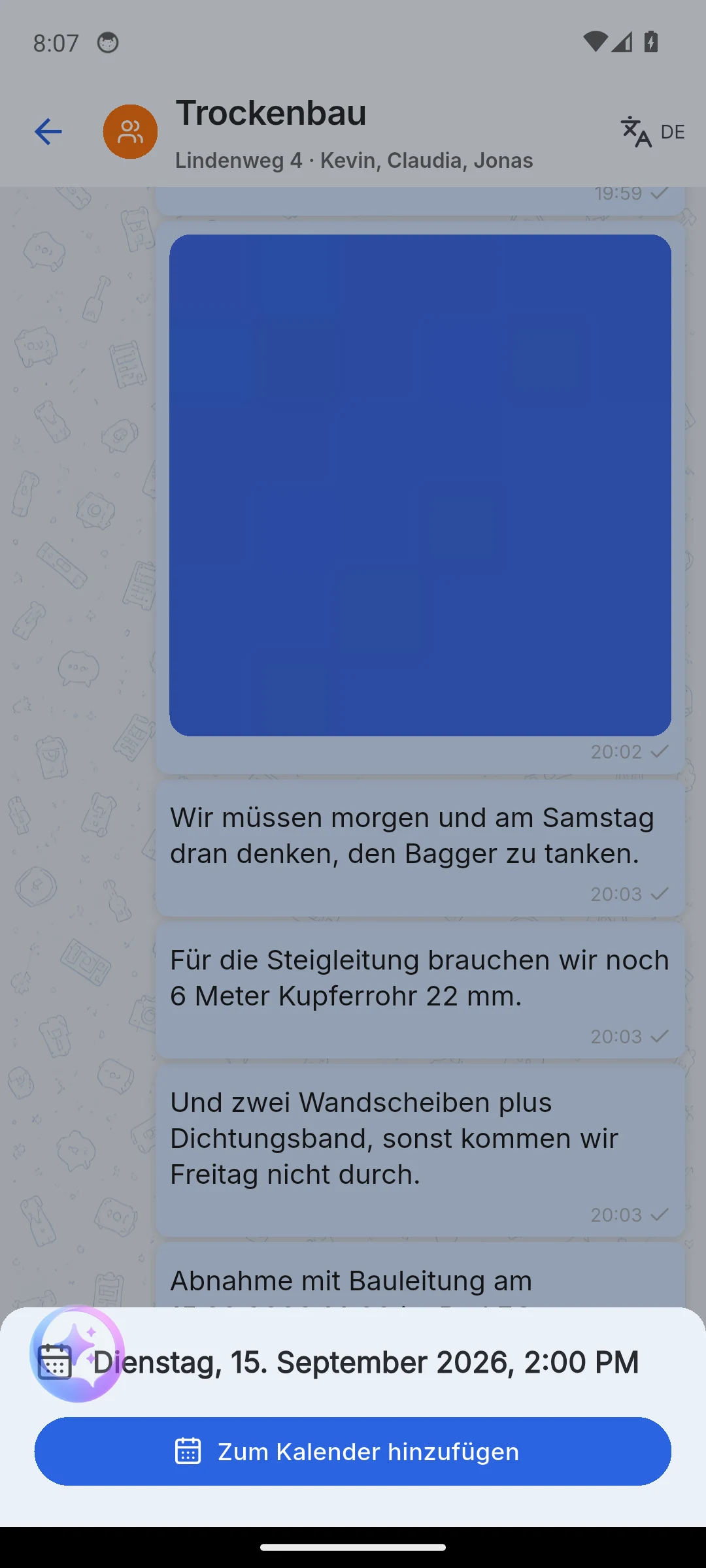
Two convenience features run without a model, directly on the device:
- Date detection (mobile app): A date with time in a message is underlined. A tap opens a calendar sheet with Add to calendar.
- Name suggestions when creating a subchat, for example Employees, Customer or General.
Web app and mobile app
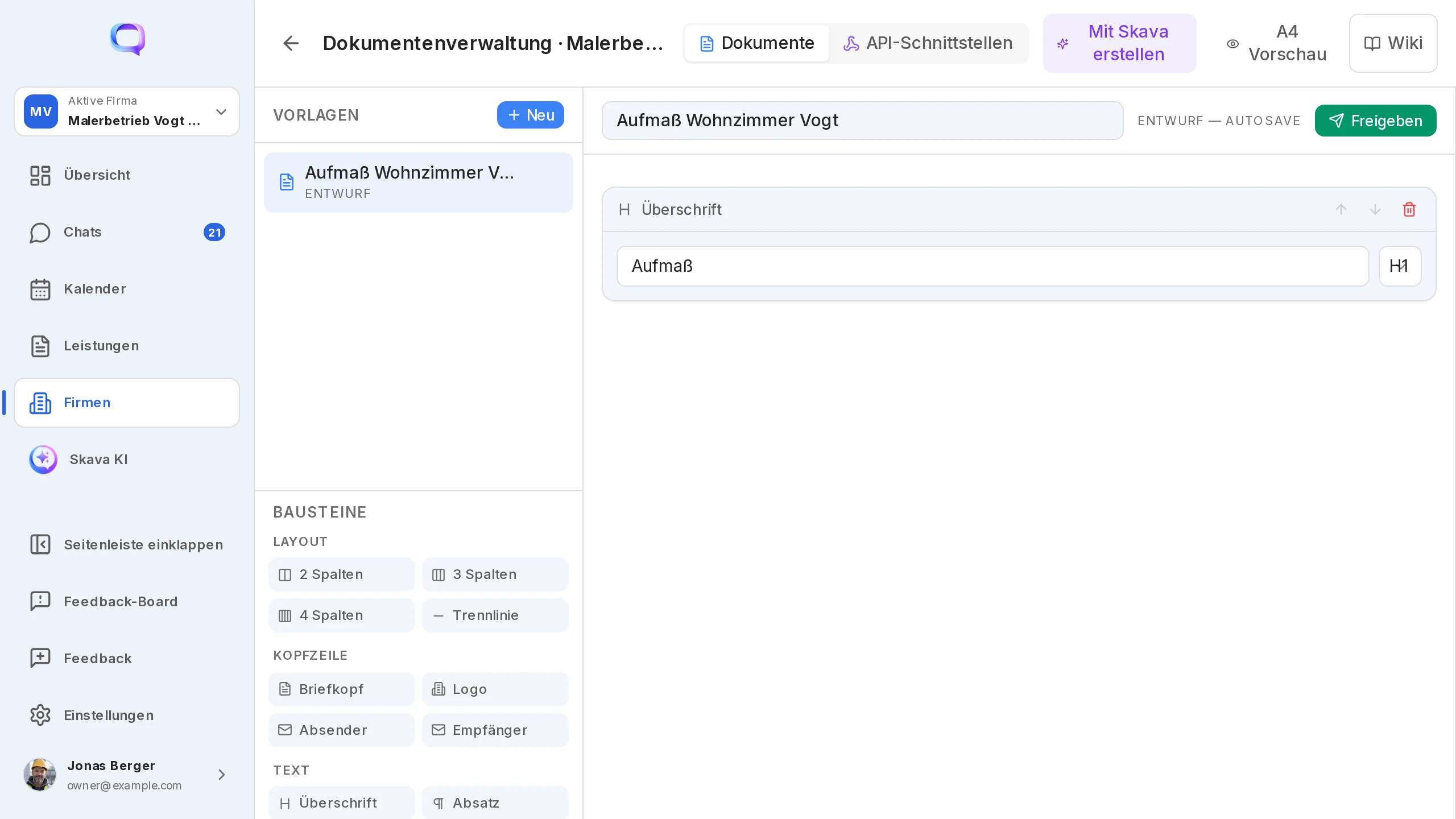
Web app only: own scheduled tasks with a schedule, "Create with Skava" for Custom Elements, the dockable panel and the memory view.
Mobile app only: @skava privately in the chat, camera and microphone directly in the assistant's composer, date detection and the notice before the first file attachment.
Frequently Asked Questions
Does my team see what I ask the assistant?
No. The conversation with the assistant is your own. Questions via @skava in a chat and their answers are also only visible to the person who asked.
Does an invoice created by the assistant end up in the project chat?
No. Generated PDFs sit privately in the chat with the assistant and under Documents in the AI area. They only reach the project chat if you share them yourself.
How do I give the assistant a message from the chat?
Long-press the message or open the message actions, choose Forward and pick the Skava assistant as the target. For voice memos the entry is called Hand transcript to Skava AI.
Which files can I attach?
PDF, images, Excel and ZIP, up to five files of 200 MB each. You find the assistant's results under Documents in the AI area.
Can I stop the assistant from accessing my files?
Yes. In the settings, switch off AI access to app files. It then searches neither personal nor company folders.
Who is Thomas from Skava?
A help bot that gives you tips when getting started and answers questions about the app with wiki links. It only sends feedback to Skava after your approval. Work requests such as "create a quote" are the assistant's job.