
Import chats from Telegram
If your team used to chat in Telegram, you can bring the history along. The import copies messages, photos and files of a Telegram chat into a subchat. You match the senders to your chat members. Dates and times stay as they were.
Requirements
- The import runs in the web app on a computer. The mobile app does not offer it.
- You are an admin of the subchat. Other members do not see the button.
- The target is a subchat in a project. Private notes, groups without a project and direct messages cannot receive an import.
- You create the export in Telegram Desktop for Windows, macOS or Linux. The Telegram phone apps cannot export chats.
Members first, then import: You can only match people who are already in the subchat. Invite your colleagues to the subchat before you import.
Step 1: Export the chat in Telegram Desktop
- In Telegram Desktop, open the chat you want to move.
- Click the three-dot menu at the top right and choose Export chat history.
- Choose which media to include, for example photos, videos and files. Check the size limit: Telegram leaves out larger files.
- Both HTML and JSON work as format. Narrow the time range if needed.
- Click Export. Telegram creates a folder such as
ChatExport_2024-06-19. - Pack this folder as a ZIP. On a Mac: right-click the folder and choose Compress. On Windows: right-click and choose Compress to ZIP file or Send to and Compressed (zipped) folder.
One ZIP holds exactly one chat. Do not encrypt it and keep all pages messages.html, messages2.html and so on inside.
Step 2: Open the import in Skava
In the web app, open the subchat that should receive the history. Click the chat name at the top. Chat settings open on the right. In the Import and export section, click Import chat from Telegram. The dialog guides you through the import in three steps.
Step 3: Choose the ZIP
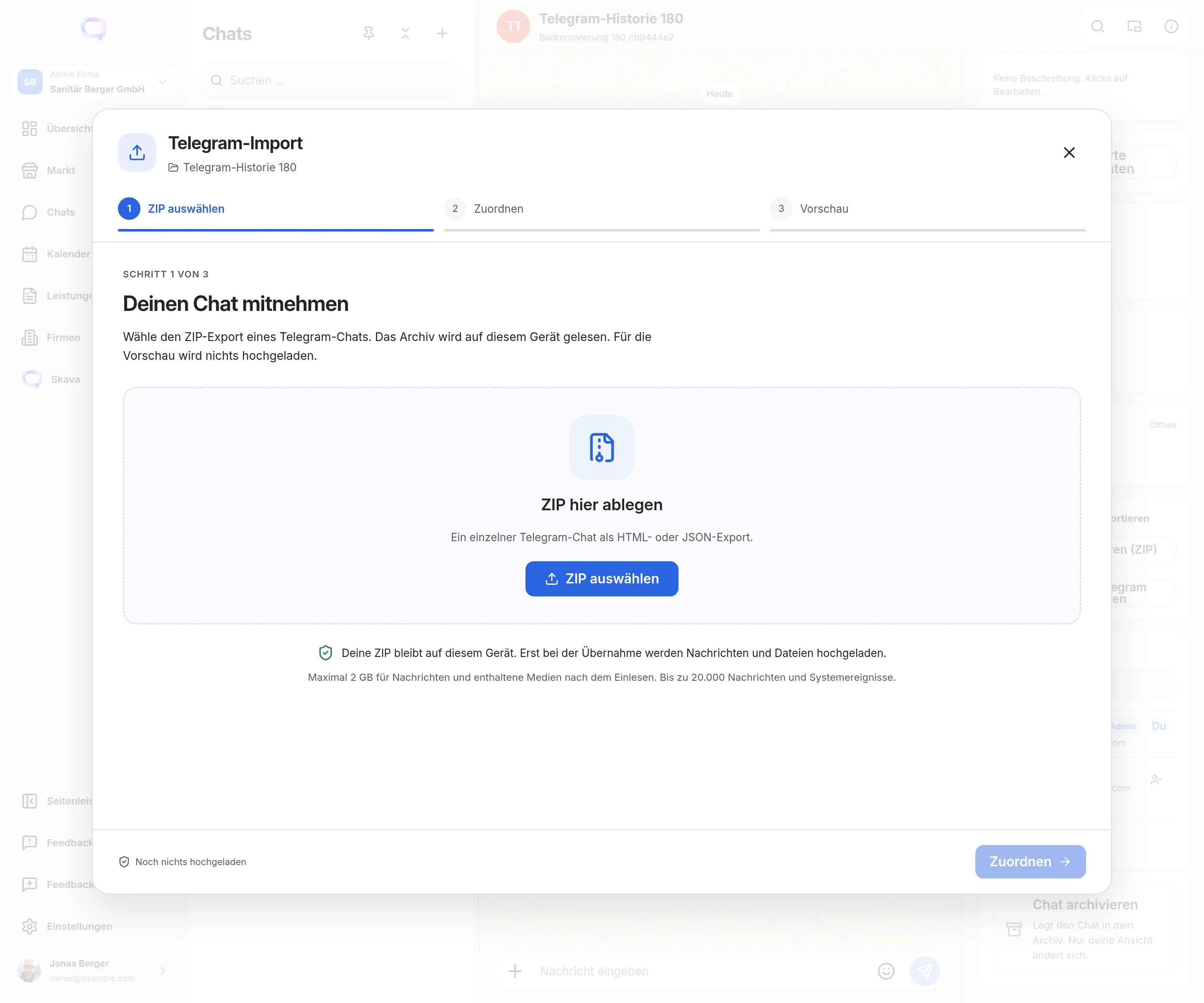
Drag the ZIP onto the area or click Choose ZIP. Skava reads the archive in your browser. Nothing is uploaded for the preview. A summary then appears on the left with chat name, number of messages, files and system events, time range and import size. Please review lists notes, for example attachments missing from the export.
Step 4: Match the senders
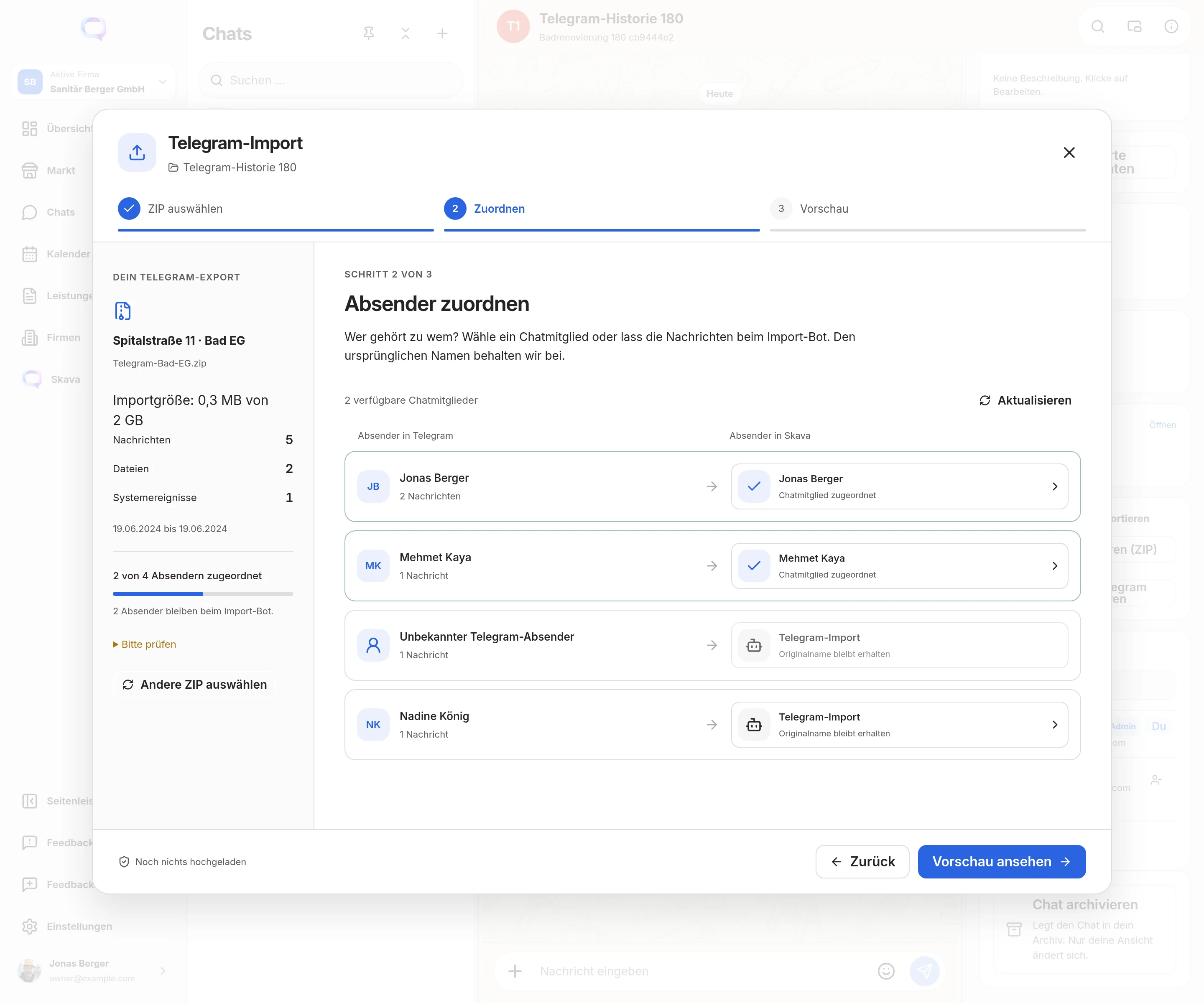
Each sender from Telegram is listed on the left, the sender in Skava on the right. Click the entry on the right and pick a chat member. The search field helps with many members. If a member has exactly the same name as the Telegram sender, Skava suggests them, for example with Assign to Jonas Berger. The suggestion only applies once you click it.
Senders without a match stay with the Telegram import account. Their original name then appears in the message. Messages from deleted Telegram accounts always stay with this account. If someone is missing from the list, add the person to the subchat and click Refresh.
Step 5: Check the preview and import
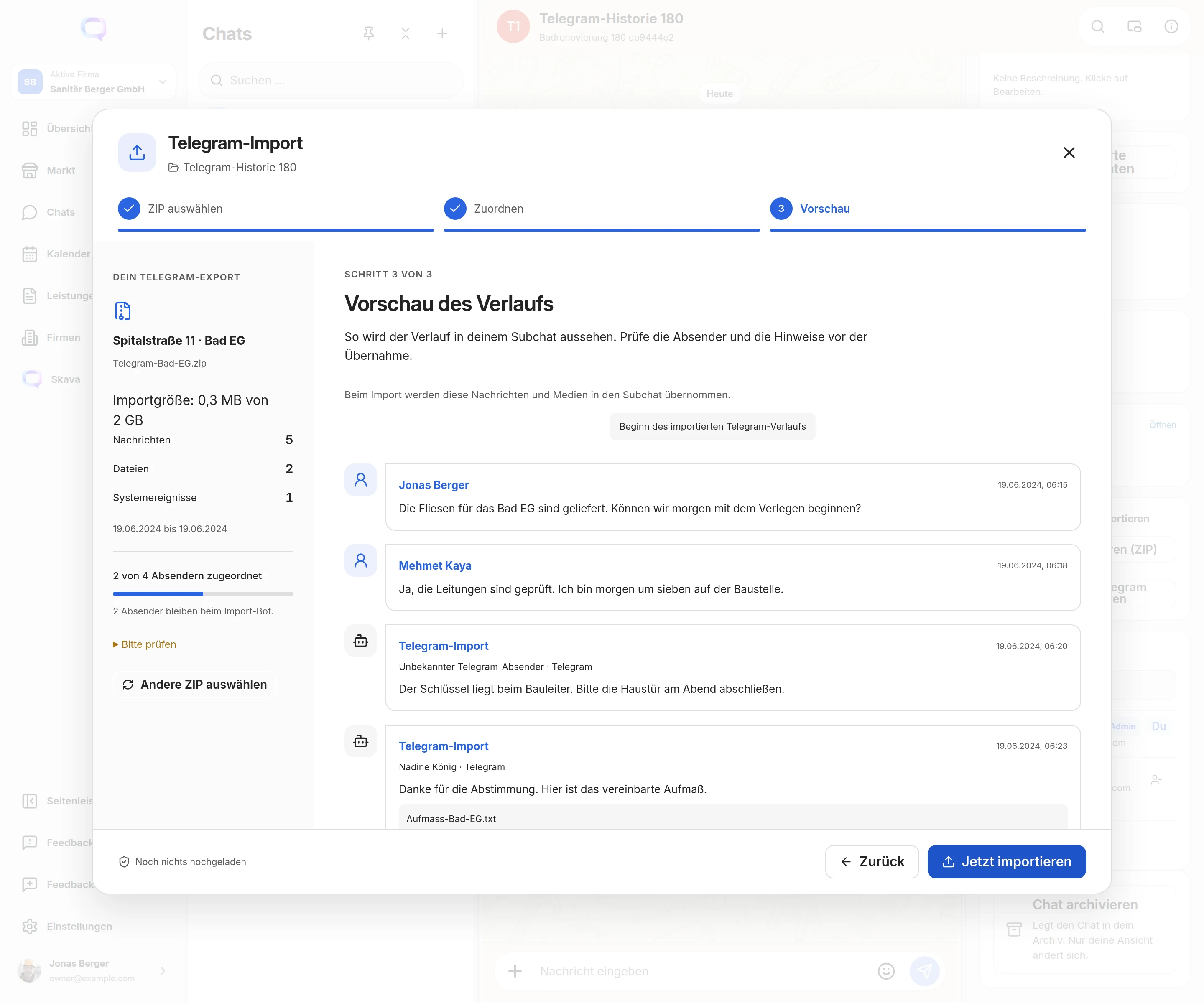
The preview shows the first messages as they will appear in the subchat. If everything fits, click Import now. Only now does Skava upload the messages and the files they use. The ZIP itself stays on your device. After the transfer, the server inserts the history. From then on you can close the window. At the end you see The Telegram history has been imported.
If the transfer stops, open the import again and choose the same ZIP with the same matching. Check status and resume continues. Skava does not send parts that already arrived. An incomplete transfer expires after 24 hours.
What the imported history looks like
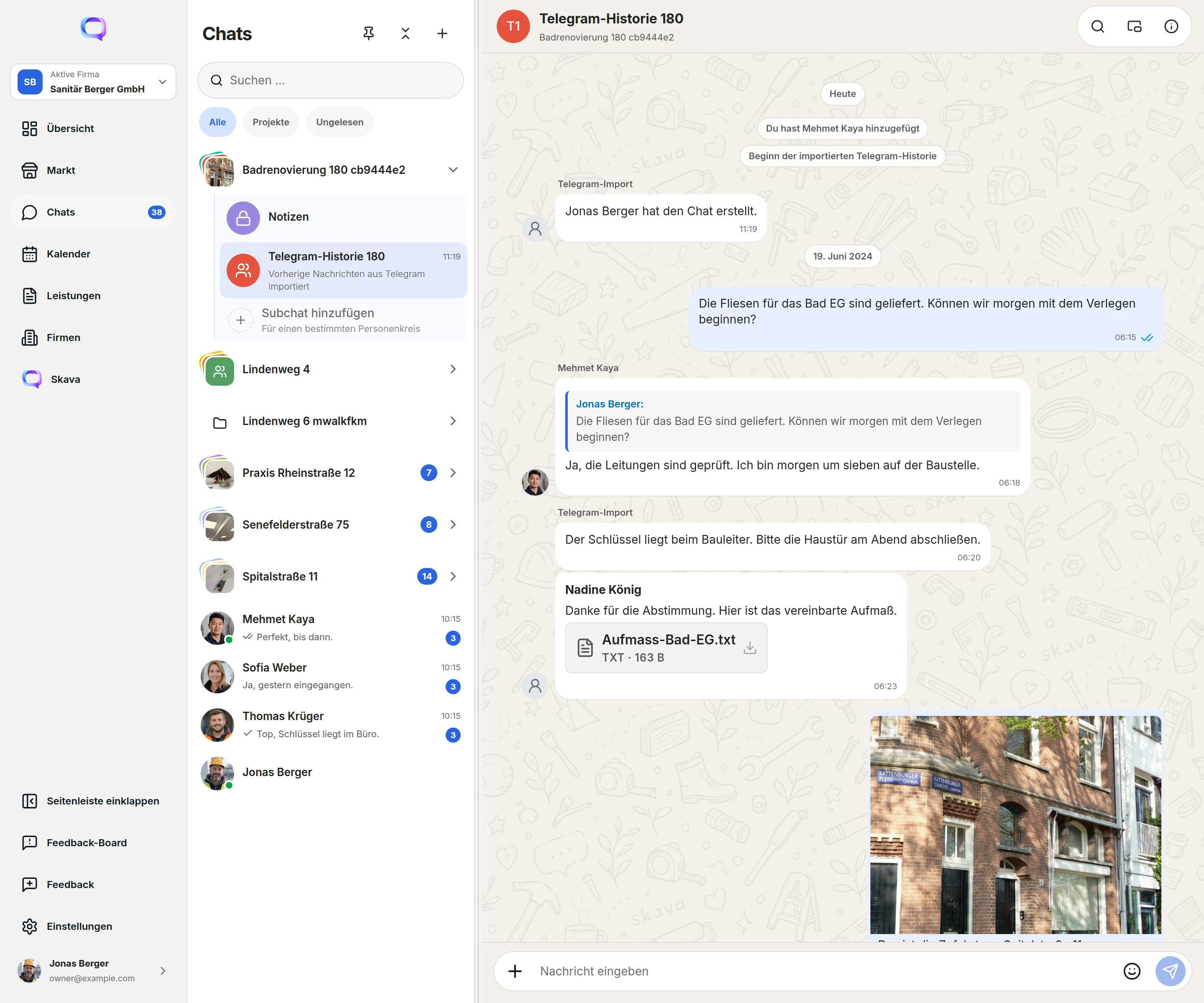
- Two notices frame the import: Beginning of the imported Telegram history and Previous messages imported from Telegram.
- The block follows the existing messages of the subchat. Each message keeps its date and time from Telegram.
- Replies link to the quoted message.
- Photos and files are handled like normal chat files, including by the AI.
- Imported messages count as read and do not send notifications.
What is not imported
- Reactions to messages.
- Formatting such as bold or italics. The text arrives as plain text. For links behind a word, only the word remains.
- Attachments that are not in the export, for example because of the size limit in Telegram.
- Bot commands from the old chat. Skava does not run them again.
Limits
| What | Limit |
|---|---|
| Import size | 2 GB for messages and included files. Counted after reading, not the size of the ZIP. |
| Messages | 20,000 messages and system events per import |
| Files | 25,000 media files, 50,000 entries in the ZIP |
| Text | 10,000 characters per message |
| New imports | 10 per person per hour. Resuming does not count as a new import. |
| Single file | The server's file limit. Your organization needs enough storage. |
The browser keeps the whole ZIP in memory while reading it. Export a very large chat in several time ranges and import them one after another.
Duplicate imports: The same ZIP lands in a subchat only once. A newly created or repacked export counts as a new file, though. Its messages would then appear twice in the chat.
Frequently Asked Questions
Why don’t I see the button for the Telegram import?
The button only appears in the web app, only for admins of the subchat and only in a subchat that belongs to a project. It is missing in private notes, groups without a project and direct messages.
Can I export a Telegram chat on my phone?
No. Only Telegram Desktop for Windows, macOS and Linux offers the export. You find it in the chat menu under Export chat history.
Is my ZIP file uploaded?
No. Skava reads the ZIP in your browser. During the import it transfers the messages and the files those messages use. Thumbnails and unused files from the export stay on your device.
What happens to senders who are not on Skava?
Their messages appear under the Telegram import account. The original name from Telegram is shown in the message, so it stays clear who wrote it.
What does “No Telegram chat was found in the ZIP” mean?
The ZIP contains neither messages.html nor result.json. Check that you packed the folder from Telegram Desktop and not a different file.
What does “The ZIP contains multiple chats” mean?
The ZIP holds exports of more than one chat. Export the chat you want on its own in Telegram Desktop and pack only that folder.