
Chat Overview
Skava organizes communication not through an endless chat list, but through three clear levels: project, subchat, and direct message. This way, even after months, you can still find where a decision was made.
The Three Levels
- Project : the overarching framework, usually a construction site or a customer.
- Subchat : a topic within the project, for example a construction phase, a trade, or billing.
- Direct Message : brief, personal questions between two people.
The Chats Tab
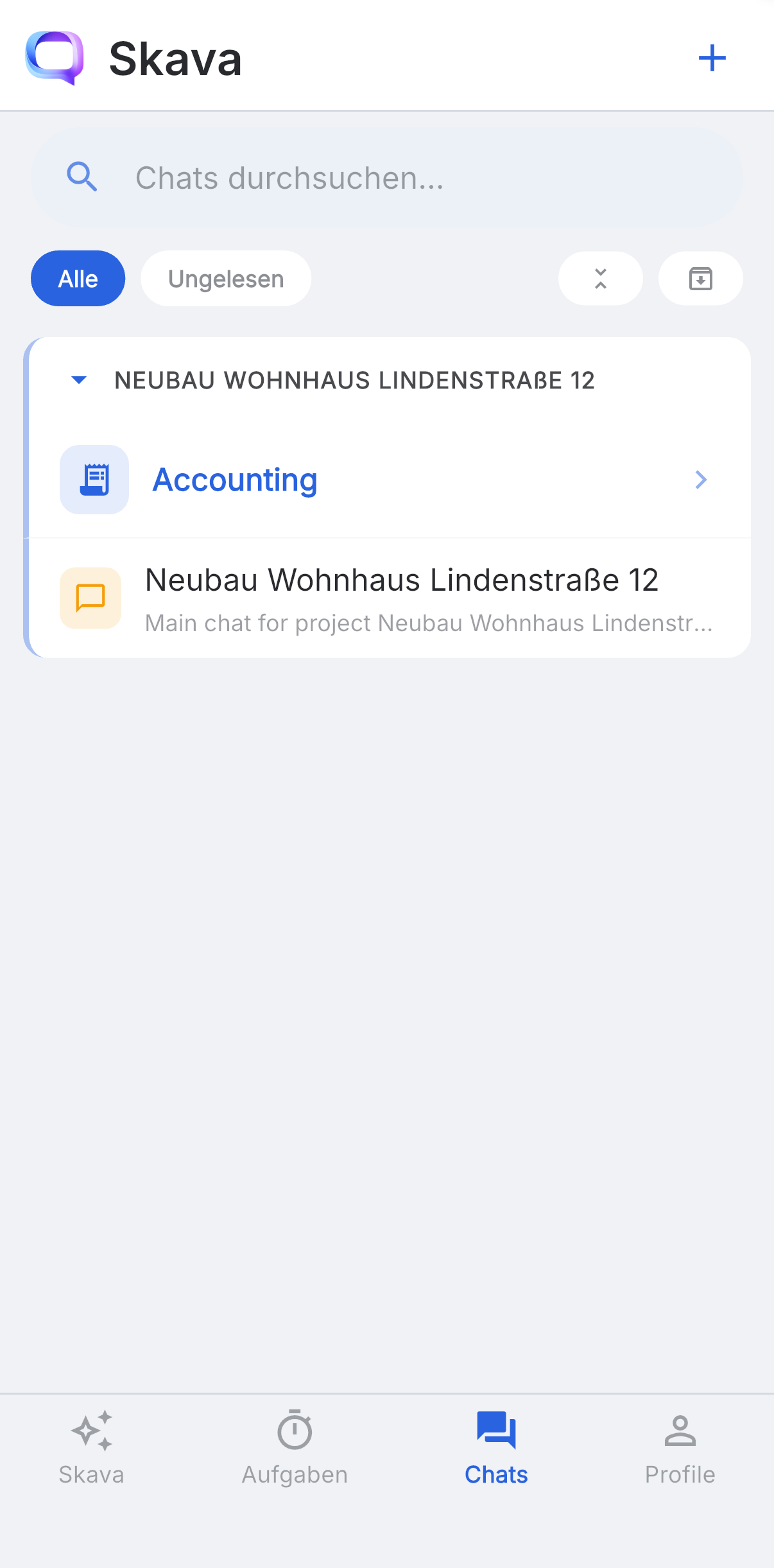
In the Chats tab, you'll find a search field at the top ("Search chats...") and below it the filters All and Unread. Use the plus icon in the top right to create a new project or chat. As long as no project exists, Skava shows the empty state with a "Create Project" button.

Creating a Project
A project is quickly created and the first step for every new construction site:
- In the Chats tab, tap Create Project (or the plus icon in the top right).
- In the New Project dialog, enter a meaningful project name : ideally with the address so that searching later is easier.
- Optionally add a brief description.
- Tap Create. Skava automatically creates a private chat "Private notes" inside the project that only you can see. You create the subchats for the actual work yourself, the way the project needs them.

After creation, the project appears in the chat list. Tap the project line to expand it and see the subchats it contains, including your private notes. Use the arrow on the left of the project line to collapse the project again.
This keeps the chat list organized even with many parallel construction sites: you first see the projects and open only the one you're working on right now.
Finding Unread Messages
Badges and highlights show where something has happened since your last visit. The Unread filter at the top of the list hides everything you've already seen : handy for catching up quickly in the morning. The search field finds project names as well as people.
Web App and Mobile App
- Projects, subchats, and direct messages are visible simultaneously in the left sidebar.
- Quick switching between multiple construction sites without losing context.
- The search finds project names, people, and message content.
- Projects expand and collapse to keep the list compact.
- All and Unread filters at the top of the list.
- Create new projects or chats via the plus icon in the top right.
Frequently Asked Questions
How do I create a new project in Skava?
Open the Chats tab and tap "Create Project" (or the plus icon in the top right). Enter a project name and optionally a description in the dialog, then tap "Create". Skava automatically creates your private "Private notes" chat inside the project; you create the subchats for the work yourself.
What is the difference between a project and a subchat?
A project is the overarching framework, for example a construction site. Subchats within it separate individual topics like trades, construction phases, or billing. This keeps communication organized by topic.
When should I use a direct message instead of a subchat?
Direct messages are suitable for brief, personal questions between two people. Anything that might later be important for others on the team should go in the appropriate subchat of the project.
How do I find unread messages?
Use the Unread filter at the top of the Chats tab. It hides all messages you've already read, so you only see where there is new content.